User Manual — Version 2.400
ProbeIt is a touch-probe plugin for the UCCNC machine-control software. It offers some of the same functions as other probing macros:
It also has features that are useful for measuring and reverse engineering:
The goal of ProbeIt is to provide a useful tool with functionality I could not find anywhere else.
UCCNC provides probing in one axis at a time. ProbeIt therefore works through UCCNC’s jog-safe-probing mode. Jogging is disabled whenever UCCNC loses keyboard focus in Windows, so a probing routine stops if you switch to another program while it runs. There is no way around this other than not multi-tasking while a probing routine is running. You can move freely between UCCNC, the ProbeIt main window, and the ProbeIt viewer and status windows. ProbeIt notices when focus is lost and aborts the running routine properly.
I have tried to make the probing routines as safe as I can, but ProbeIt operates your CNC machine through UCCNC and its settings. Setting up UCCNC and the probe input signal is your responsibility. You are responsible for checking and testing all signals and the setup of your machine, and for becoming familiar with the probing routines. When learning, probe items that are not clamped to the table, so that if something goes wrong you are less likely to destroy your probe.
ProbeIt is a tool. It takes your instructions (DRO entries and button clicks), sends commands to UCCNC to move and probe, and saves the data. If you position the probe incorrectly, or issue a G0 that plows the probe through the part, that is on you, and ProbeIt will not prevent it. If you issue a mistaken command, use the Abort button, feed hold, or the E-stop to cancel a running probing event.
Machining is dangerous. Even though ProbeIt is only a probing utility and is not used while cutting, operate the machine as carefully as if you were machining. Never place your hands in the working envelope while probing. Always turn off or disconnect the spindle motor power when a touch probe is mounted. Do not probe at excessive feed rates, and use common sense. By using ProbeIt you accept all liability for damage or harm that could be caused by its use, to you and to your equipment. If you do not agree, do not use this software.
ProbeIt for UCCNC is a re-write of the original ProbeIt for Mach3 and is still being developed. It is tested to be as free of bugs as possible but it is not guaranteed to work in every setup. CraftyCNC is not liable for any damage or lost time resulting from its use. ProbeIt and CraftyCNC are in no way affiliated with CNCDrive or UCCNC.
The plugin works on both x86 and x64 computers running UCCNC, and is written for UCCNC versions that use .NET 4.0. UCCNC 2.2116 moved to a newer OpenTK graphics library, so there are two builds:
| ProbeIt version | Works with UCCNC |
|---|---|
| 2.2xx (for example 2.203) | 2.2115 and earlier |
| 2.3xx and 2.4xx (this manual) | 2.2116 and later |
If the wrong build is installed for your UCCNC version, ProbeIt will not run and will not appear in the list of plugins to enable. Install the one that matches your UCCNC. The installer for this version checks the UCCNC you point it at and refuses a version that is too old.
You must have a probe connected and configured in UCCNC. The probe does not need to be fancy: it only has to trigger the probe input in UCCNC. ProbeIt has been tested with UC100, UC300eth, UC400eth and AXBBe motion controllers, but any controller offered by CNCDrive should work equally well. ProbeIt is best used at a screen resolution of at least 1280 × 1024.
Install with the self-installer ProbeIt-2.400-Setup.exe. It asks for the UCCNC folder (the one that contains
Plugininterface.dll), not the plugins folder; with several UCCNC installs, run it once for each. It puts
ProbeIt_UC.dll in the UCCNC Plugins folder and the rest in Plugins\ProbeIt\ (see
appendix B), and installs MagnetWindows.dll (the window-snapping helper) in the UCCNC folder.
Your own settings and recorded files are never replaced by an install or removed by the uninstaller.
Close UCCNC before installing. To run the installer without prompts: ProbeIt-2.400-Setup.exe /S /D=C:\UCCNC2118
(/D must be the last argument and must not be quoted).
The first time ProbeIt runs, and no saved settings are found, it asks whether you work in inch or metric and loads the matching starting values (feed rates, clearances, distances). You can also load an XML file of your own, or skip. All values are only a starting point: please look over every setting and adjust it for your machine, then use Save Settings. You can load either set again at any time with the Set Defaults INCH and Set Defaults MM buttons in the Probe Settings window (see section 8), and save your own as the new defaults (see section 17).
ProbeIt installs in a demonstration mode, so you can try it before buying. The window title bar and the About window show the current status. Demo mode limits only the amount of data that can be recorded; the routines themselves are not crippled:
If you only need the basic probing routines, you do not need a license. If you plan to use ProbeIt for reverse engineering or for business, a license removes every limitation.
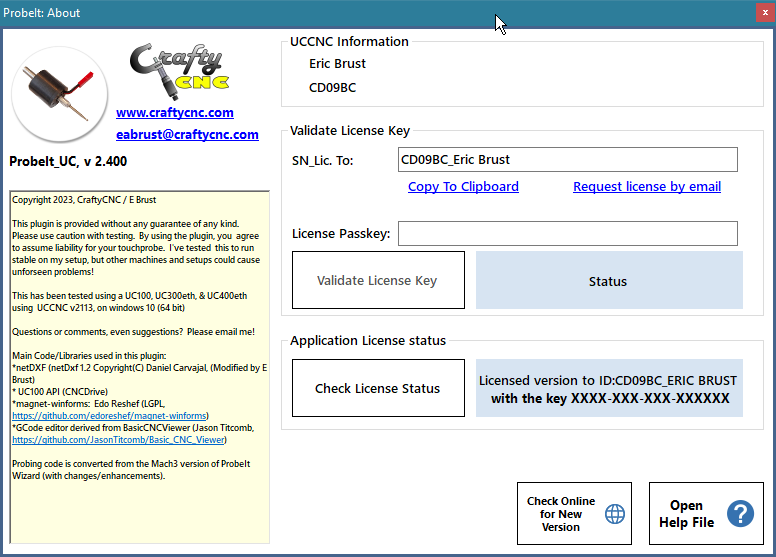
To get a license, send an email asking to purchase one, and include the License ID shown in the About window. The passkey is created from that ID, which is generated from your UCCNC motion controller’s serial number. After payment, the passkey is emailed to you. Enter it in the About window and click Validate License Key; the status then shows Licensed.
The Check Online for New Version button in the About window compares your version with the latest one on the CraftyCNC website. The check also runs when the About window is opened, if Auto Check for New Version Enabled is turned on in the General Settings.
ProbeIt is a plugin to UCCNC and must be enabled before it will run. Open UCCNC’s General Setup tab and click Configure plugins.
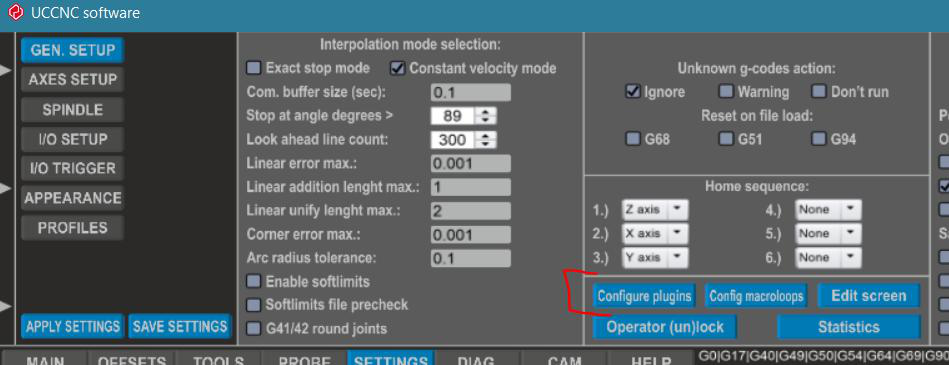
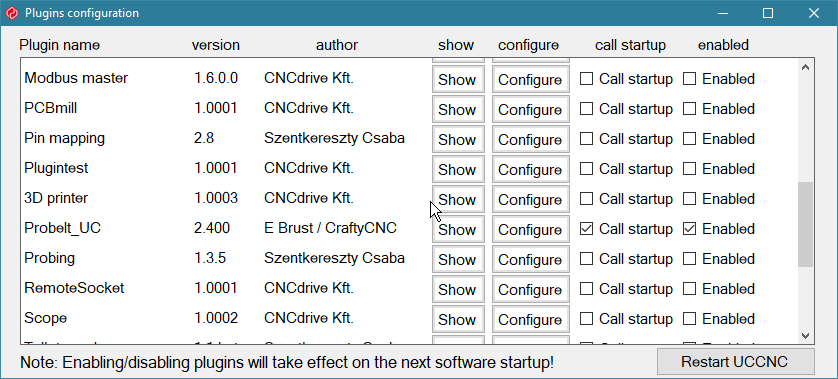
Tick Enabled for ProbeIt_UC in the list, and restart UCCNC. If you also tick Call startup,
ProbeIt starts and shows up when UCCNC starts. If ProbeIt_UC is not listed, check that ProbeIt_UC.dll is in the
UCCNC Plugins folder and that you installed the build that matches your UCCNC.
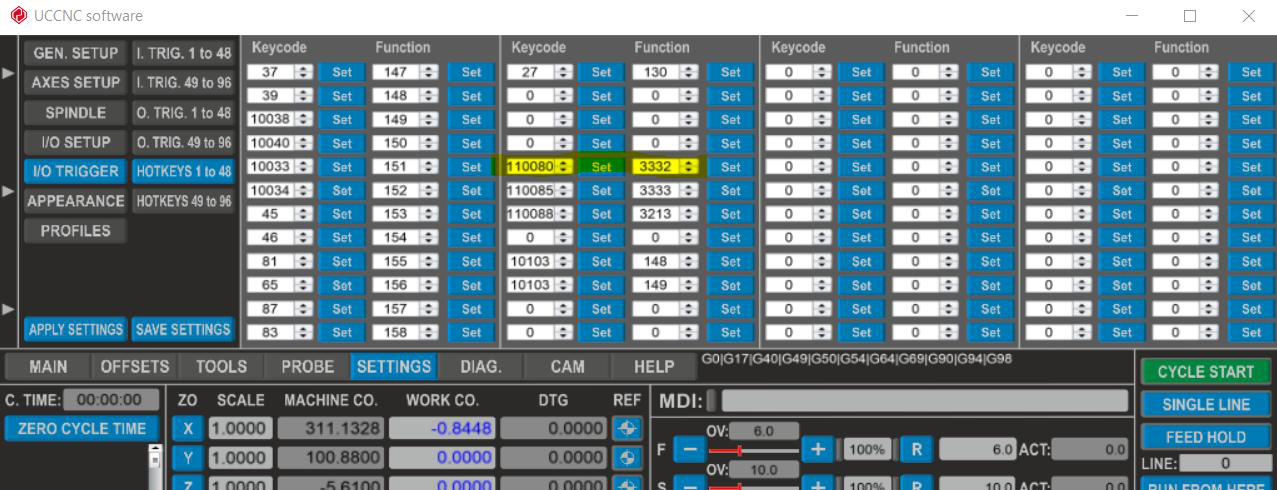
To start ProbeIt on demand, assign it a button code. Click the Configure button for ProbeIt in the plugin configuration window; the box shows the current code and lets you set a new one.
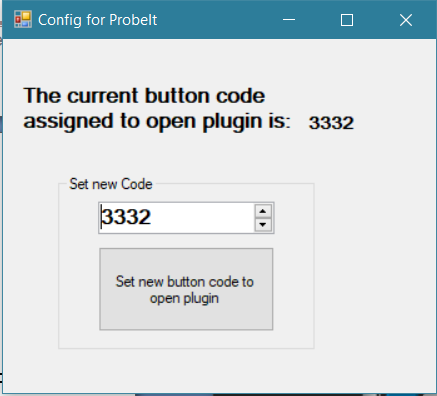
Then use that number in UCCNC’s IO trigger hotkeys or on a screen button. In the example below, the key code 110080 (Ctrl+Alt+P) triggers function 3332, the code set in the box above, and opens ProbeIt. You can also add a screen button that sends the same code, or re-open the plugin configuration window and click Show.
ProbeIt has three main windows: the main window, the 3D viewer and the status / measurement window. They snap and stick to each other and move as a group when you drag the main window; drag the viewer or the status window away to un-stick them. A pop-up result box shows the measurement of each routine. The settings are in their own windows, opened from the Settings / Help button.
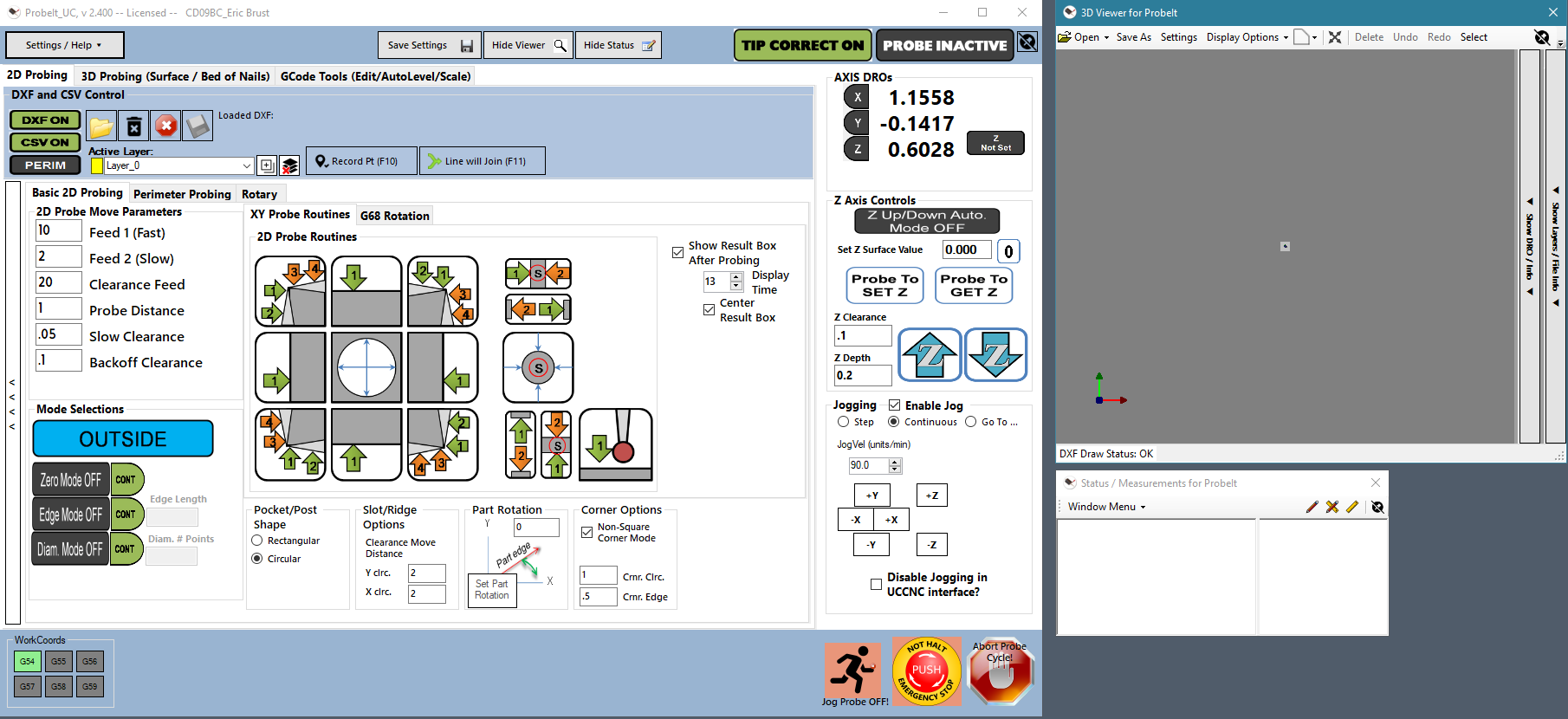
The main window has these tabs, in a layout similar to UCCNC’s own:
The probe settings, general settings, email setup and About pages are no longer tabs: they open in their own windows from the Settings / Help button at the top left of the main window (section 6.2).
Always visible, whichever page you are on:
The left panel with the settings of the current page slides open and closed (use the small arrow on its edge); ProbeIt remembers the state between sessions. The probe routine buttons keep a square shape as you resize the window.
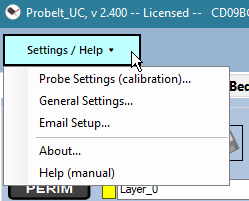
The Settings / Help button opens a menu with:
Each of these windows remembers where you left it, can snap to the other windows, and keeps its settings when you close it with the X (it is just hidden).
The viewer shows the point-cloud data and the DXF data that you record while probing, and the live probe position. It also
shows information about the DXF file, and has a layer panel to create, rename, delete, hide and color layers and to choose the
active layer that new data is recorded onto (a layer is always selected: ProbeIt picks Layer_0, and makes it if there are no layers). It is the same viewer that UCamCopy uses. You can:
The viewer is not used for G-code; the G-code tab has its own viewer for that.
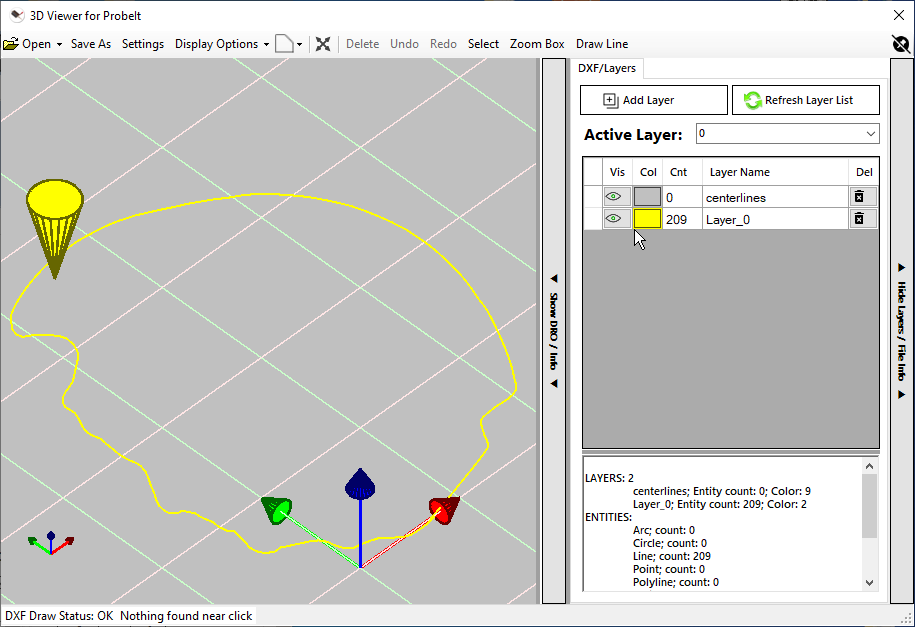
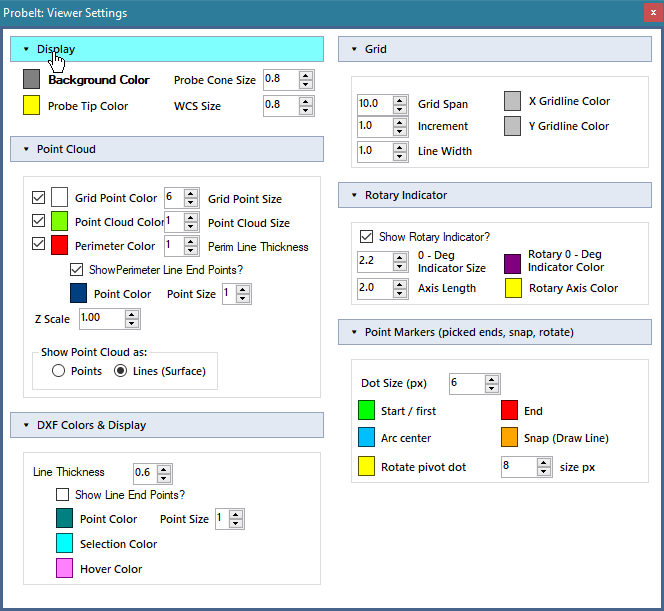
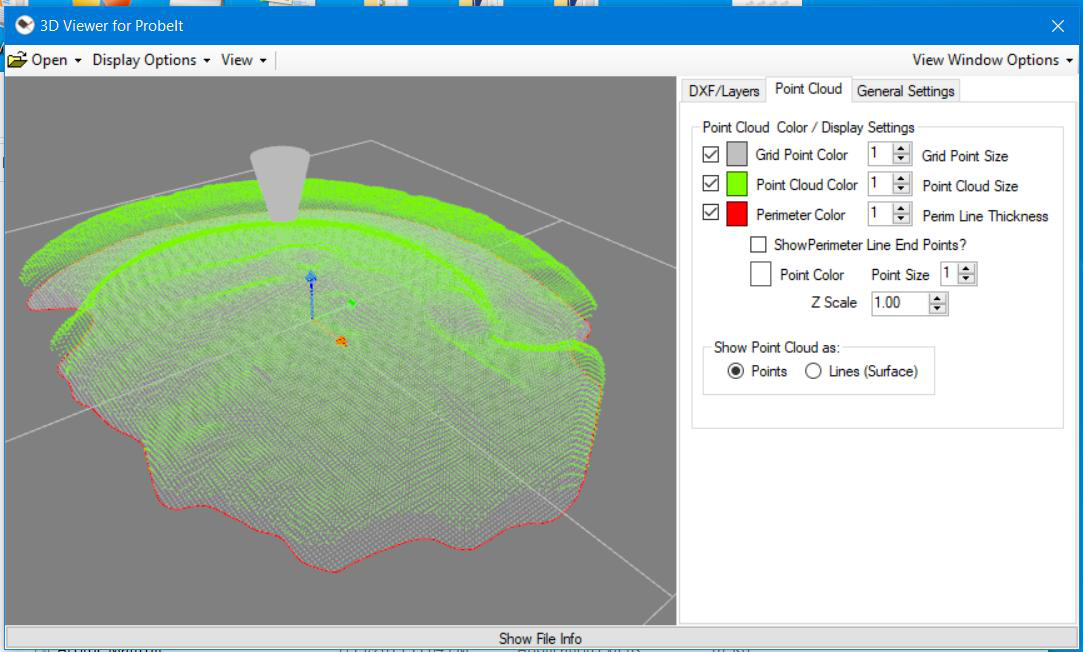
You can clean up the recorded DXF data in the viewer before you save it, and add to it. Everything here works on the DXF data only.
Click a line, circle, arc or polyline to select it; it is drawn in the Selection Color (cyan by default). Ctrl-click or Shift-click adds an entity to the selection, or removes it if it is already selected. To select many at once, click Select on the toolbar and drag a box: everything the box touches is selected (hold Ctrl or Shift to add to the selection, Alt to remove from it). Zoom Box works the same way but zooms to the box. Esc clears the selection.
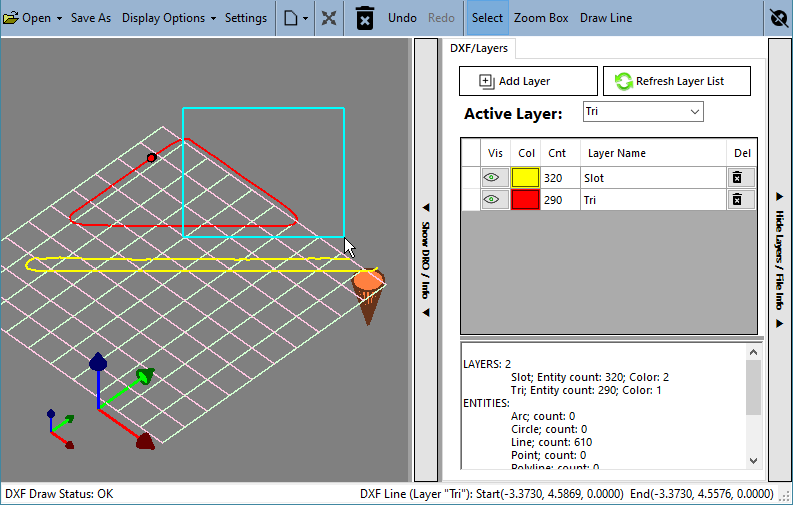
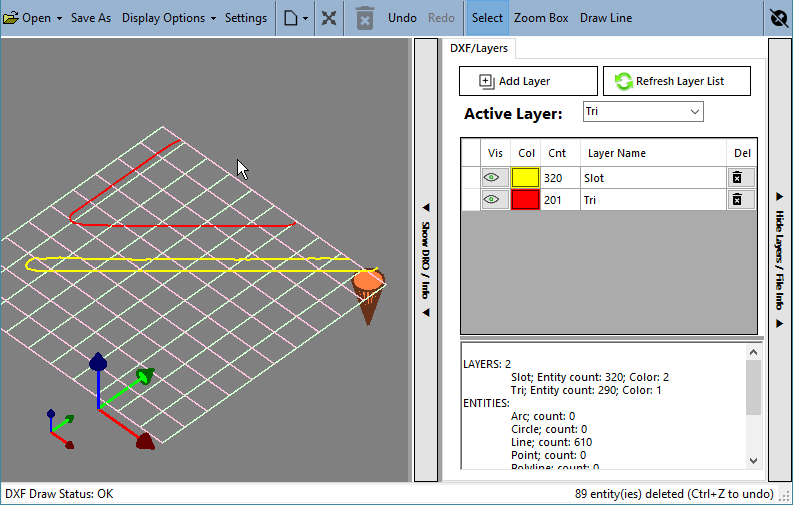
With entities selected, click Delete (or press Delete) to remove them from the DXF data. Undo (Ctrl+Z) takes back the last change and Redo (Ctrl+Y) puts back what you undid; the history covers deleting entities, drawing lines and moving entities to another layer. Any edit marks the DXF as having unsaved changes, so the Save button on the main window becomes available.
Draw Line adds new lines to the DXF by clicking in the view. Click Draw Line on the toolbar (the button stays highlighted while the tool is on), click the start point (a green dot marks it), then click the end point. A line is added, and its end point becomes the start of the next line, so you can keep clicking to draw a connected series; a rubber-band line follows the pointer. Press Esc once to end the series and again to leave the tool; clicking the button again also turns it off. Use the Top view for drawing: in an edge-on view such as Front or Right a click cannot be placed on the Z = 0 plane.

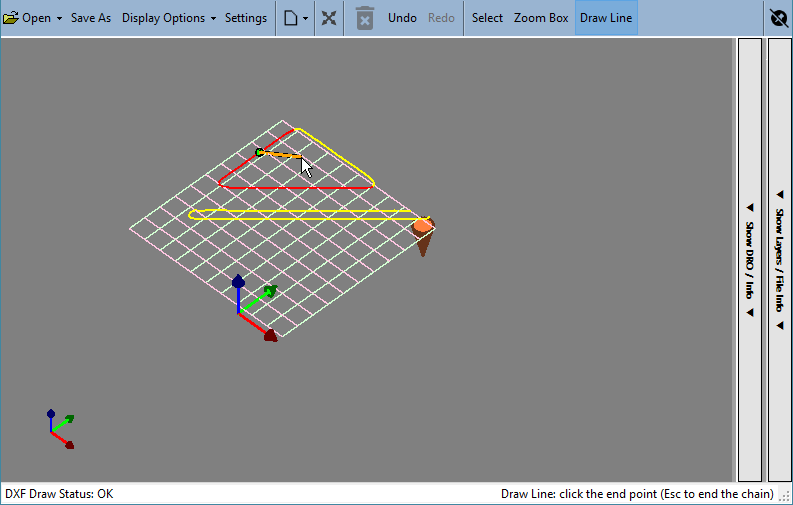
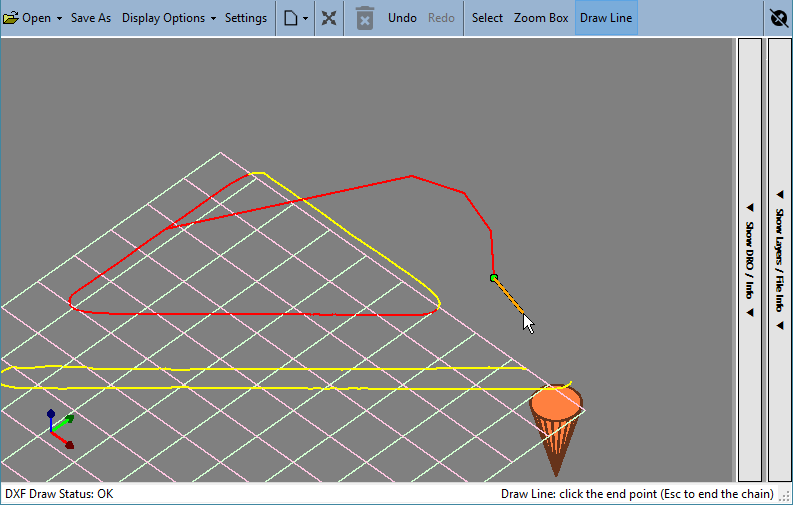
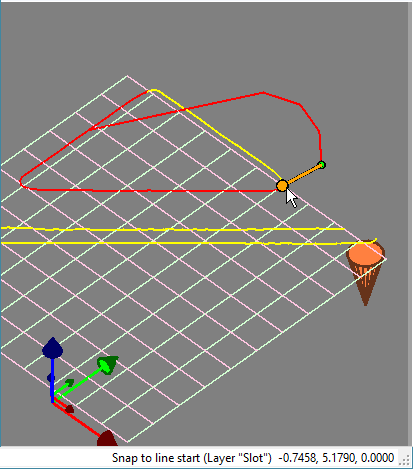
Snapping: within about 12 pixels of the start or end of an existing line, an orange dot appears on that endpoint and the status bar names it. The point you click is then exactly that endpoint, so lines join cleanly. Away from an endpoint the point is where you click, at Z = 0. Only the endpoints of lines are snap targets.
New lines go on the active layer. Each line is one Undo step.
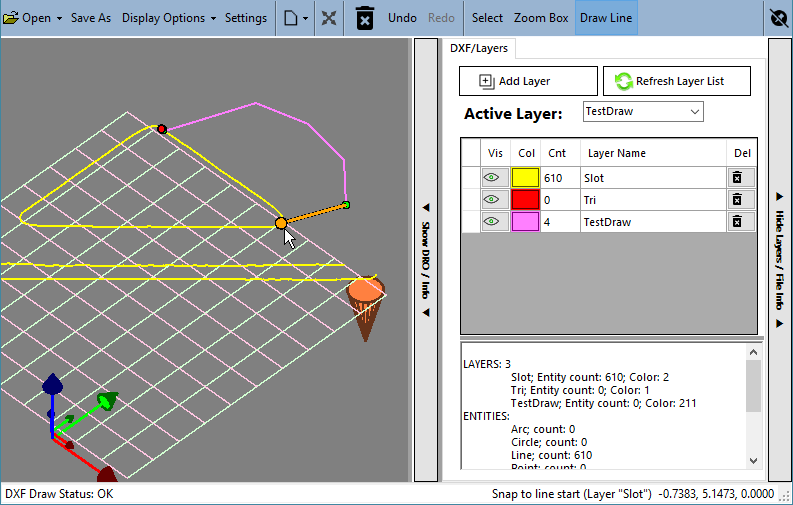
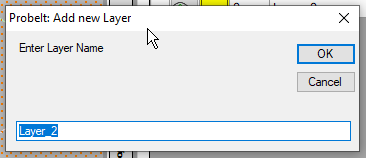
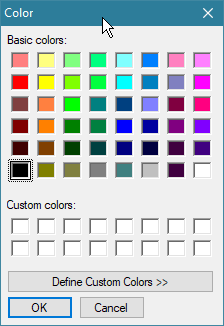
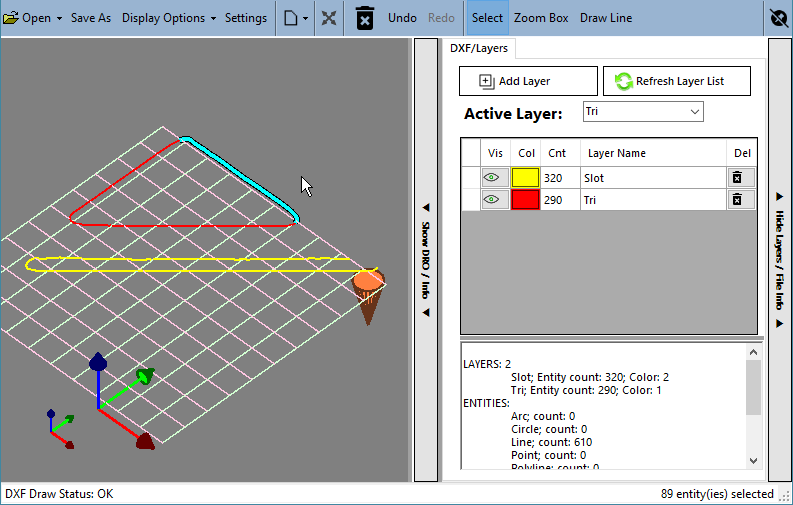
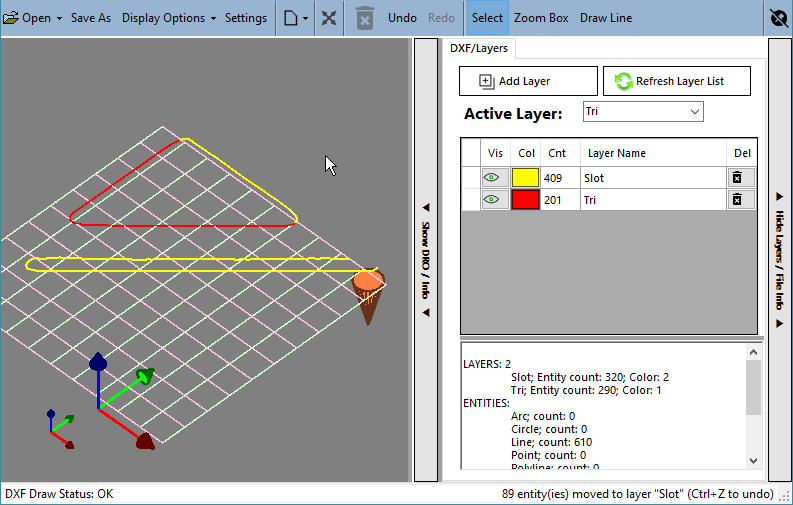
The layer list has these columns: Vis (click to show or hide the layer), Col (double-click to change its color), Cnt (the number of entities on it), Layer Name (edit it to rename the layer) and Del (delete the layer and its entities, after a confirmation). Add Layer (or New Layer… in the right-click menu) asks for a name and then a color; Refresh Layer List rebuilds the list. Layer names must be unique (upper and lower case count as the same): a name that is already in use is refused, both for a new layer and when renaming.
To move entities to another layer, select them, right-click one of them, choose Move to layer and pick the destination layer. The entities keep their positions; only their layer changes, and Undo moves them back.
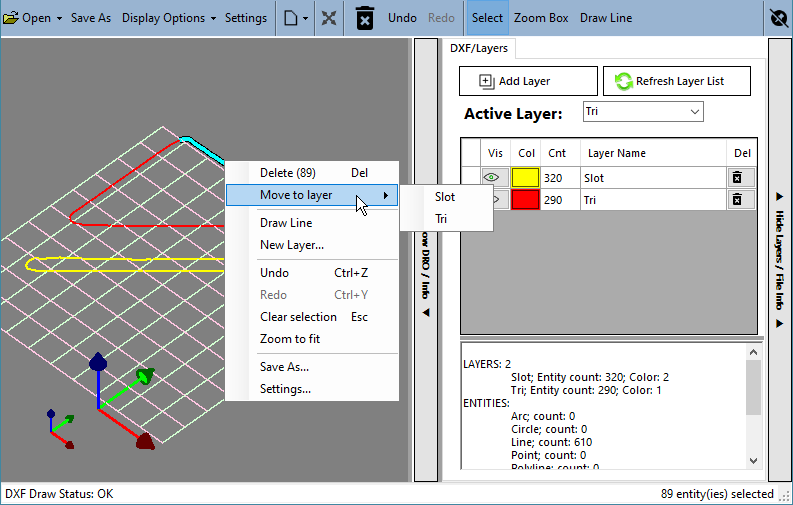
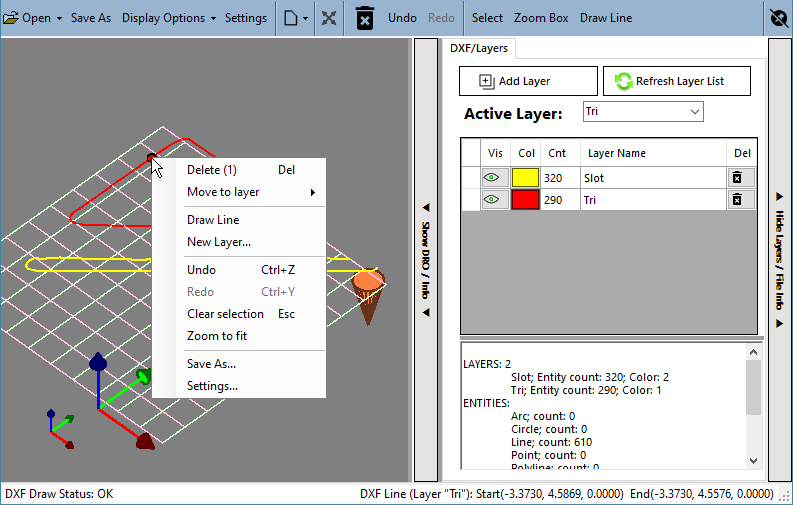
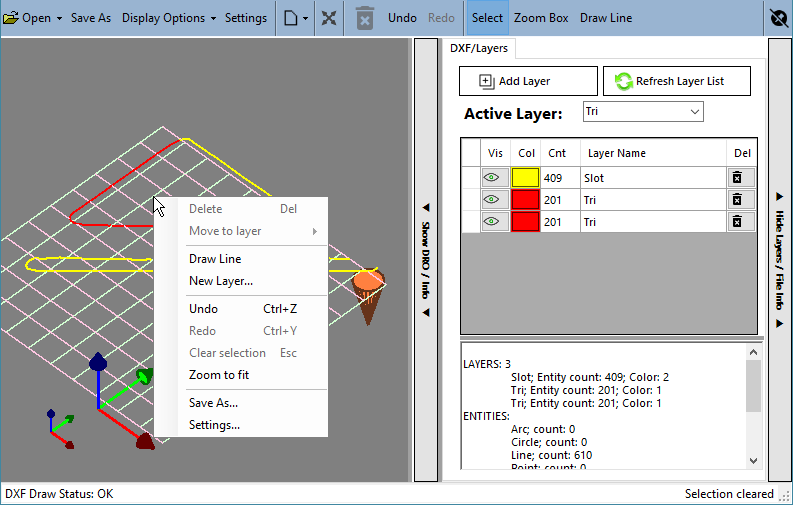
Right-click (without dragging) in the 3D view to open a menu. If you right-click an entity that is not selected, it becomes the selection; if it is already part of the selection the whole selection is kept, so you can act on a group. The menu has Delete (n), Move to layer, Draw Line (checked while on), New Layer…, Undo and Redo, Clear selection, Zoom to fit, Save As… and Viewer Settings…. Entries that do not apply, such as Delete with nothing selected, are greyed out.
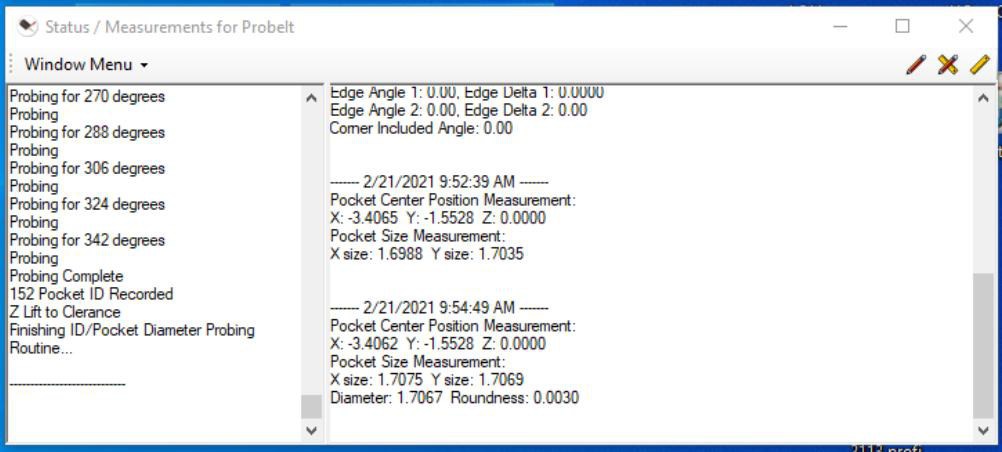
The status window collects status information while you probe (left half) and builds a measurement report for the 2D routines (right half). Buttons show only the status, only the measurements, or both. You can copy both, e-mail them or save them to a text file, and type your own notes next to the results. The Status Messages option in the General Settings chooses whether status messages go to this window or to UCCNC’s own status box.
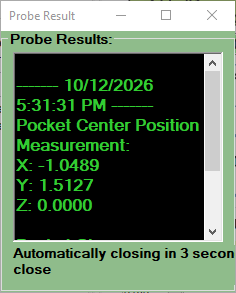
After a routine, a pop-up result box shows the measurements. It can use your choice of font and background colors (set in the General Settings), stays open for a time you set, opens at the size and place where you left it, and stops auto-closing if you click it. The Show Result Box check box and the display time are on the XY Probe Routines page.
The Abort button stops the running probe routine. It is gray when no routine is running and yellow while a routine is running and the button can cancel the motion. You can also use feed hold or the E-stop; after a reset, you can always restart the probing. If the button does not turn gray after you click it, the plugin may be hung and need a restart.
Feed rates and distances are typed in the units that UCCNC is set up for (inch or mm; feed rates per minute). There is no unit conversion in ProbeIt: a value of 1 is one inch if UCCNC is in inches and one millimeter if UCCNC is in metric. This is also true of the recorded files (section 13).
Positioning before probing is done manually, by jogging. Placing the tip is not critical: make sure it is closer to the part than the max probe distance. If you use the auto Z up/down feature the tip can be left above the surface; after the Z surface is touched off and set, the probe moves down automatically before, and up after, each probe event. You can use a pendant, an Xbox controller or the jog buttons in the plugin.
When you open a file to record to, you can start and stop recording as needed. You can probe a perimeter, jump to the XY page and record a bore, set a new Z, return to the perimeter page and record another perimeter, all into the same file. When you are done, close and save the DXF file. If you were also recording a CSV and a perimeter file, they are saved with the same name.
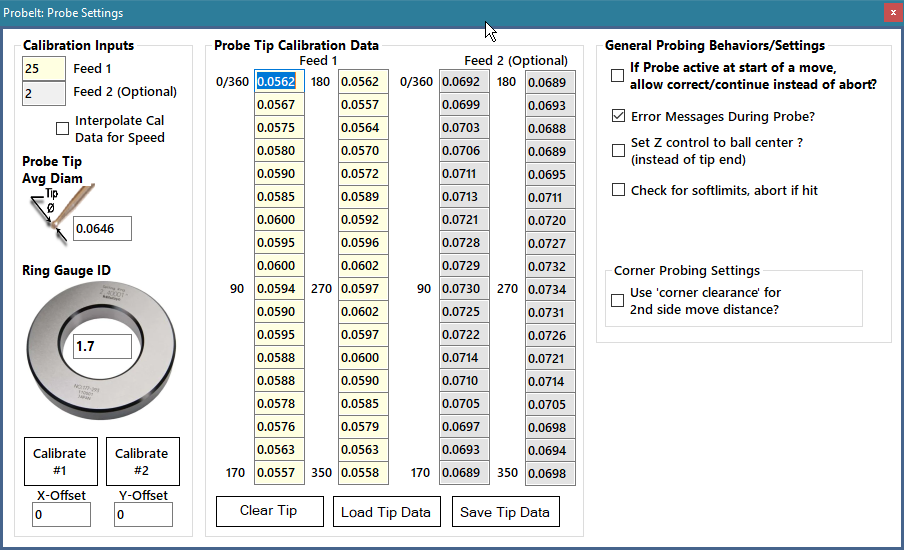
The Probe Settings window (Settings / Help → Probe Settings (calibration)…) is mainly for calibrating the probe tip, which builds a table of corrected tip diameters at various probing angles. Using the table corrects for:
The probe’s contribution may not be the same in all directions, so install your touch probe in the same orientation every time (for example, so that the lead always exits in the same direction).
Calibrate the probe
You calibrate with a master ring gauge of known inner diameter. Calibration is optional: you do not have to calibrate to run any of the probing routines, but you must enter a value in Probe Tip Avg Diam, which is used as the default tip diameter.
Save Tip Data saves the tables to a file you name, useful if you alternate between several tips or probes; Load Tip Data asks for the name of a saved file (you have to type the name) and fills in the tables and the Avg Diam box. Clear Tip Data empties the tables.
Click the Tip Correct button to turn tip correction on or off. Leave it on once you have calibrated and the table is correct, and off if the table is out of date (for example you just changed the tip and did not recalibrate). With correction off, the Avg Diam value is used for every probe event. Starting a calibration turns it off until the routine completes.
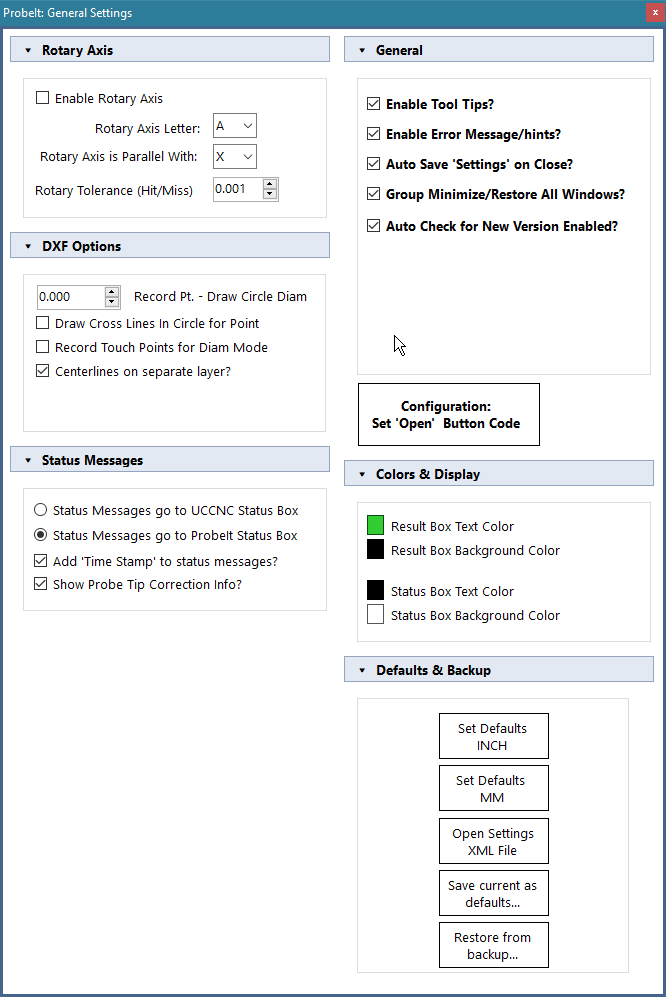
The Set Defaults INCH and Set Defaults MM buttons reload the starting values for the units you choose (they also reset the viewer’s grid and marker sizes to match), and Open Settings XML File loads a settings file you choose. Use Save Settings afterwards to keep the values.
These settings appear on several pages. Feed rates are in your native units per minute, distances in your native units:
| Input | Meaning |
|---|---|
| Feed 1 (initial feed) | The feed rate at which the probe travels during a probe operation. Start slow and increase to your comfort and accuracy level. |
| Feed 2 (slow feed) | A second, slower feed: the probe travels at Feed 1, backs off, then re-probes at Feed 2. Set to 0 for no second slow probe. Recommended: 1–5 in/min (25–125 mm/min). |
| Clear feed | The feed for clearance moves, such as moving along an edge between points or around a corner. |
| Slow clear | How far the probe backs off before the slow probe. Ignored if Feed 2 is 0. |
| Probe distance (max distance) | How far the probe will travel toward the surface. With the hit tolerance, it decides whether the surface was hit or missed. |
| Backoff clearance | How far the probe backs away from the touched surface before a clearance move. |
| Corner clearance | How far the probe travels to get around a corner. Make it larger than the distance from where you start probing to the corner. |
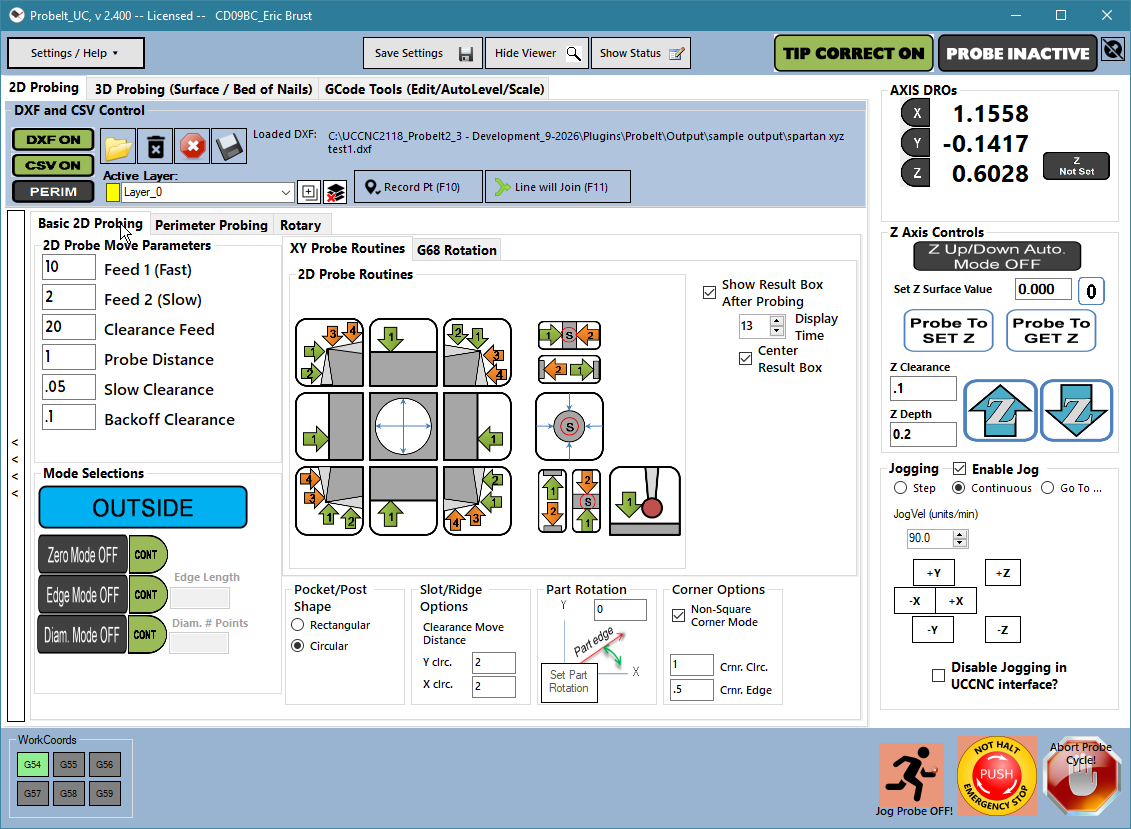
The XY Probe Routines page can serve several purposes. For general probing and setup work it locates edges, corners, bore or post centers and slot mid-points, and sets the coordinates. It reports measurements: point location (edge and corner), diameter and roundness (bore and post), width or height (pocket, slot, ridge) and angle (edge). For reverse engineering it complements the perimeter routine: with DXF or CSV recording on, the routines record their data, and you can jump between the perimeter page and the XY page and record all the geometry in one file.
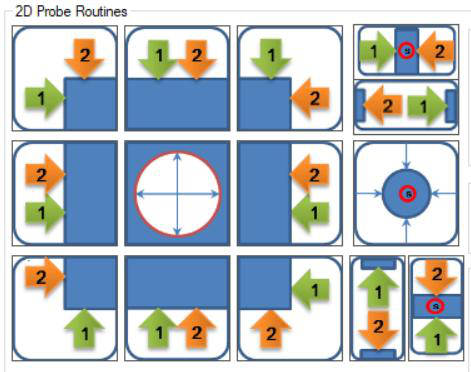
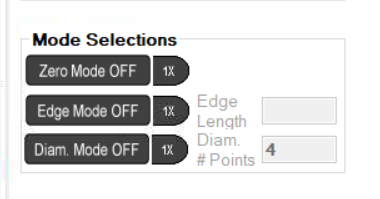
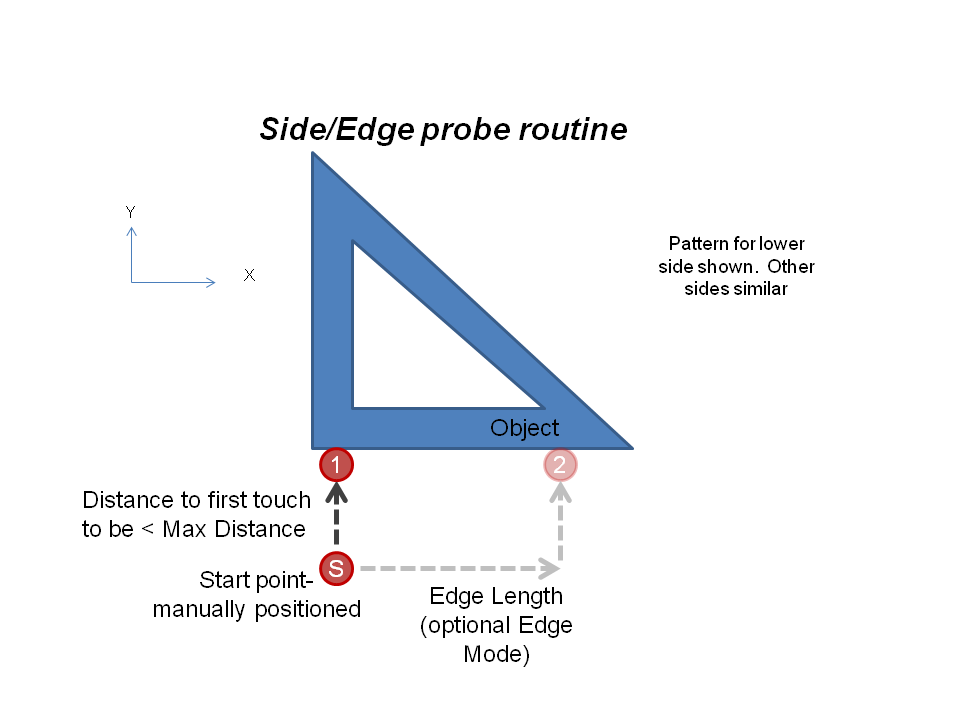
These buttons probe a side, or an edge if edge mode is on. Edge mode measures the slope of the side (two points); probing a side returns the X or Y point touched. If zero mode is on and edge mode is off, the X or Y axis is zeroed (depending on whether you probe horizontally or vertically). The part rotation value modifies the event, and auto up/down can be on.
During an edge move, if the Edge Length is positive the probe moves from 1 to 2 as pictured on the button; if it is entered negative, the order is reversed, from 2 to 1.
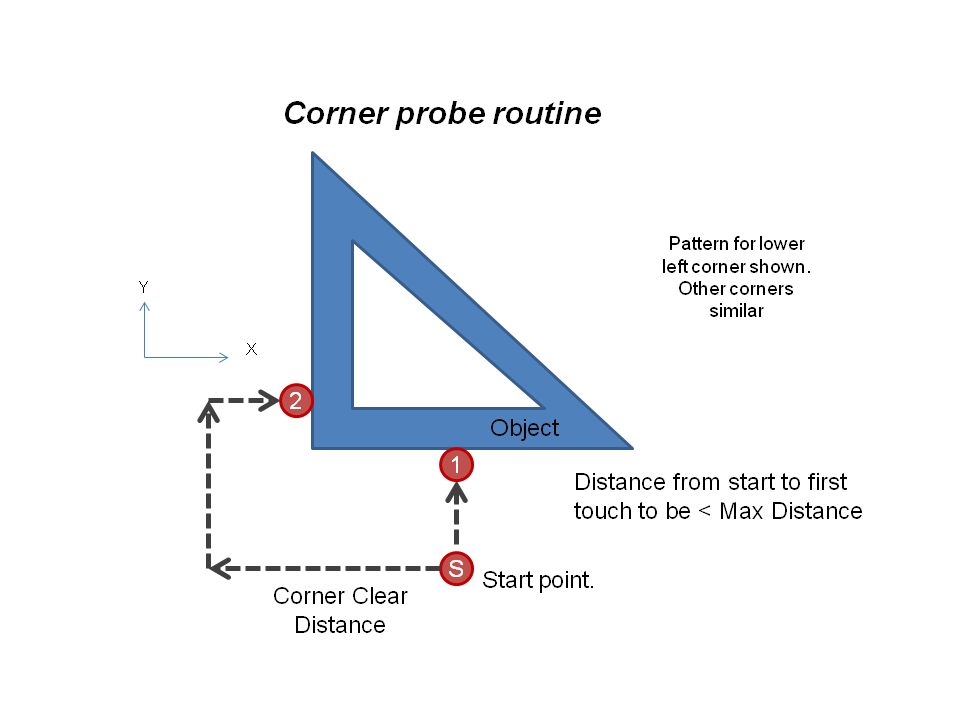
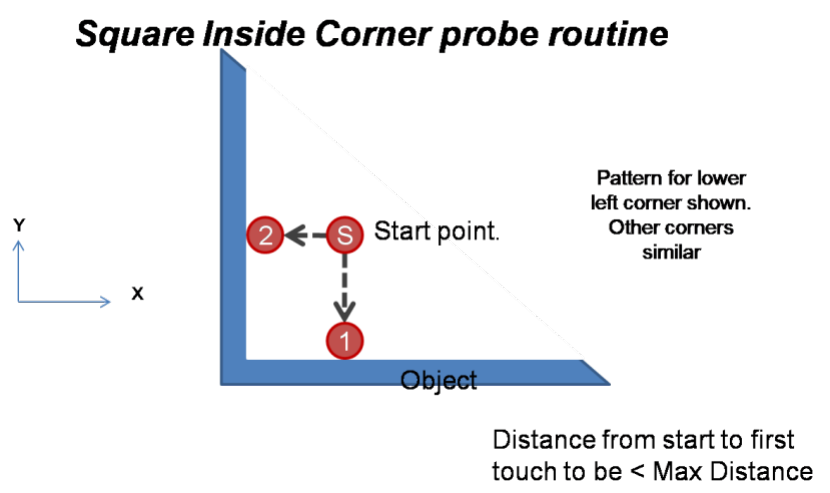
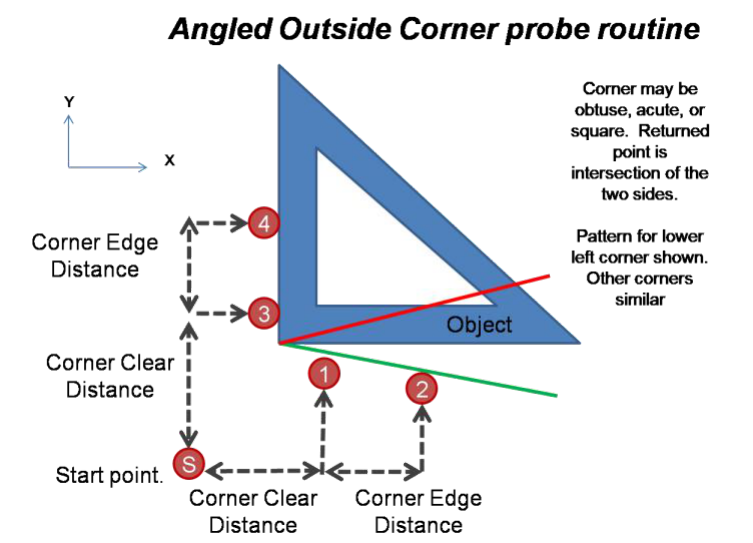
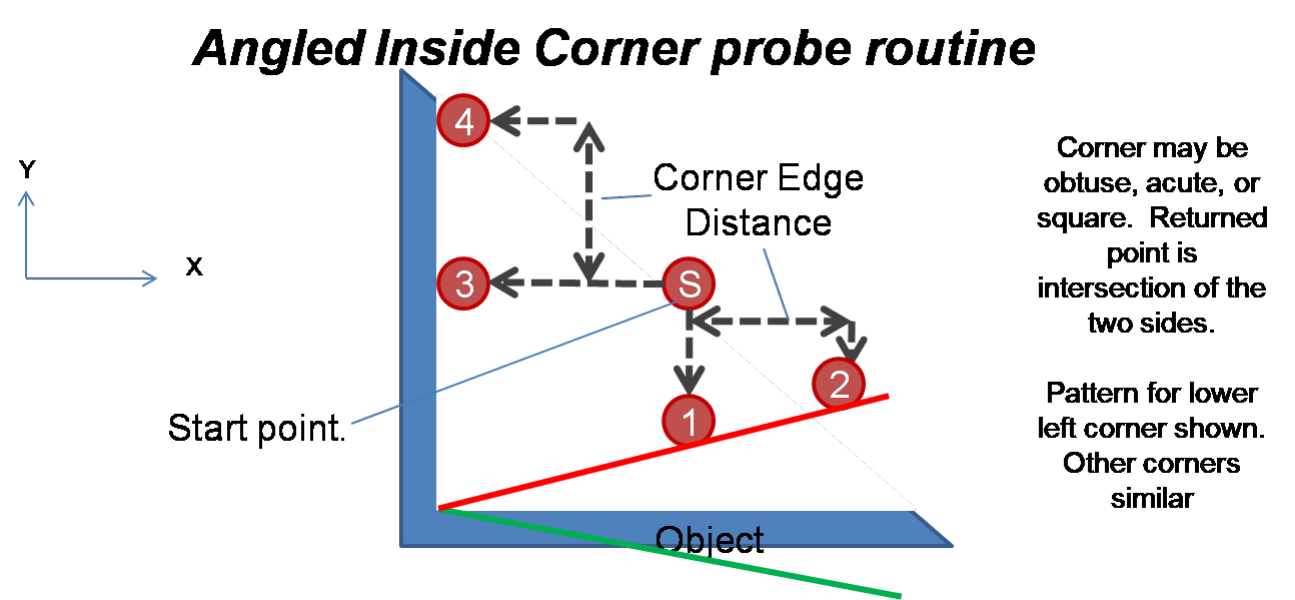
Choose inside or outside, and square or angled corners, with the Corner Options (Non-Square Corner Mode, Inner / Outer, Cmr. Clrc. and Cmr. Edge). The returned point is the intersection of the two sides, the exact corner, and can be set to X0 Y0 if zero mode is on. Corner routines are modified by part rotation and can use auto up/down. Position the probe closer to the corner than the corner clearance value.
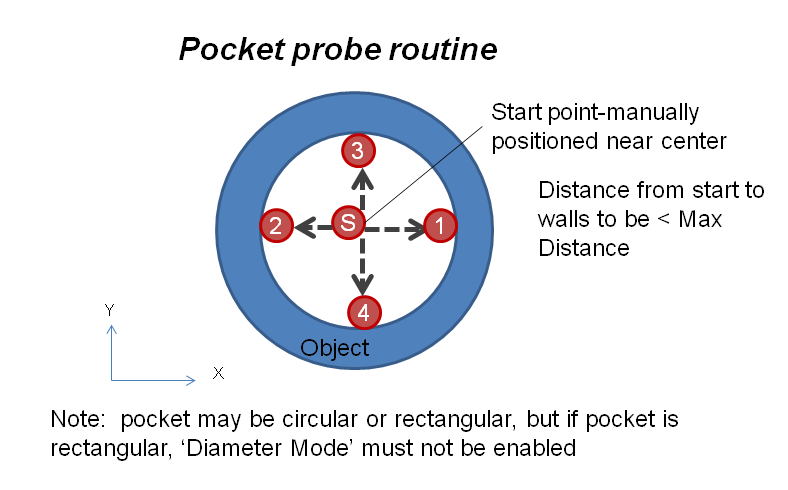
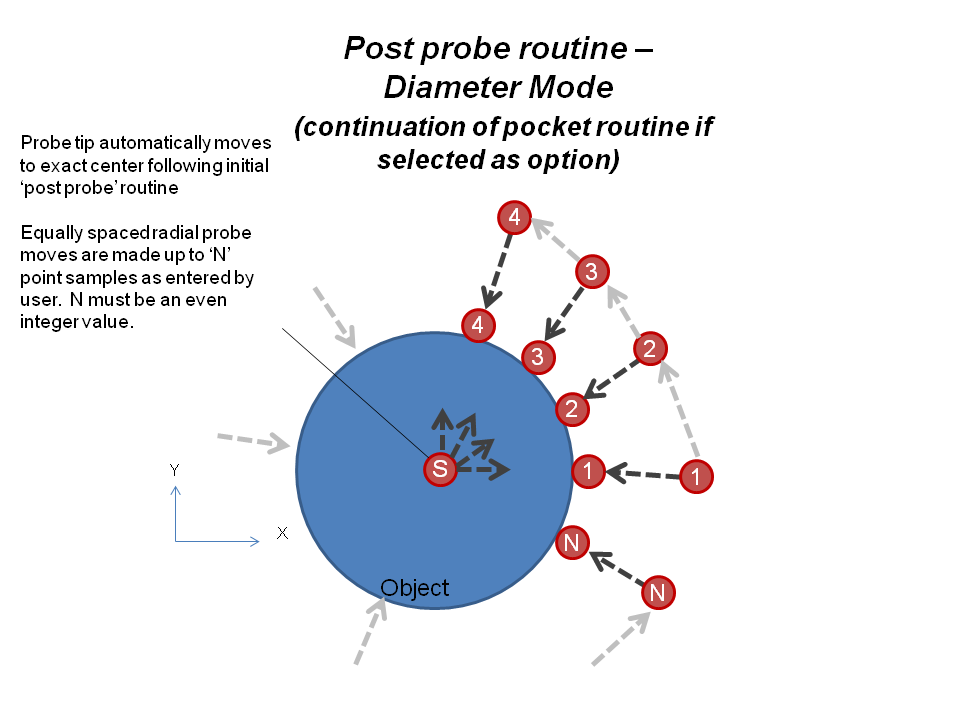
The probe bore button probes the inside of a round bore or a rectangular pocket. Put the tip near the approximate center in XY. With Diameter Mode in Holes off, the routine finds the center of a bore or rectangular pocket, probing ±X and ±Y only; if DXF recording is on, a circle or a rectangle is recorded depending on the Pocket / Post Shape option (rectangular or circular). With diameter mode on, it finds the center of a round bore and then samples the ID at as many points as you enter in Diam # Points, returning a measured diameter and roundness and recording a circle.
This event is modified by part rotation (if diameter mode is off) and can use auto up/down.
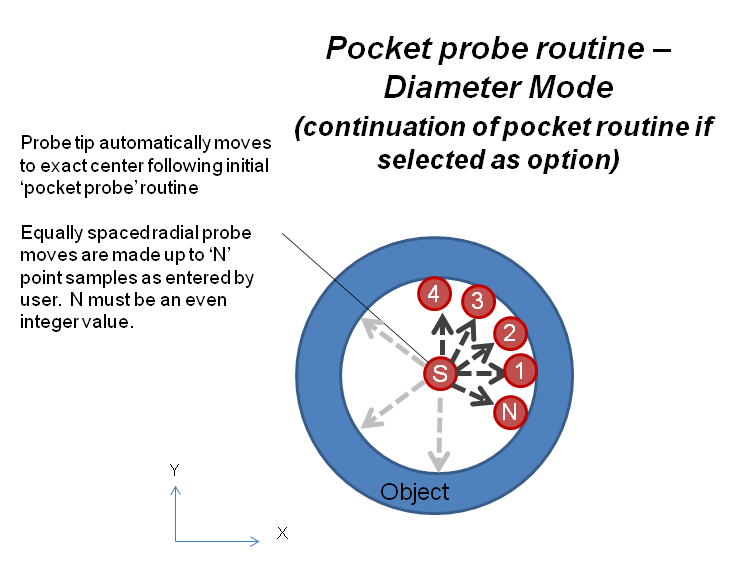
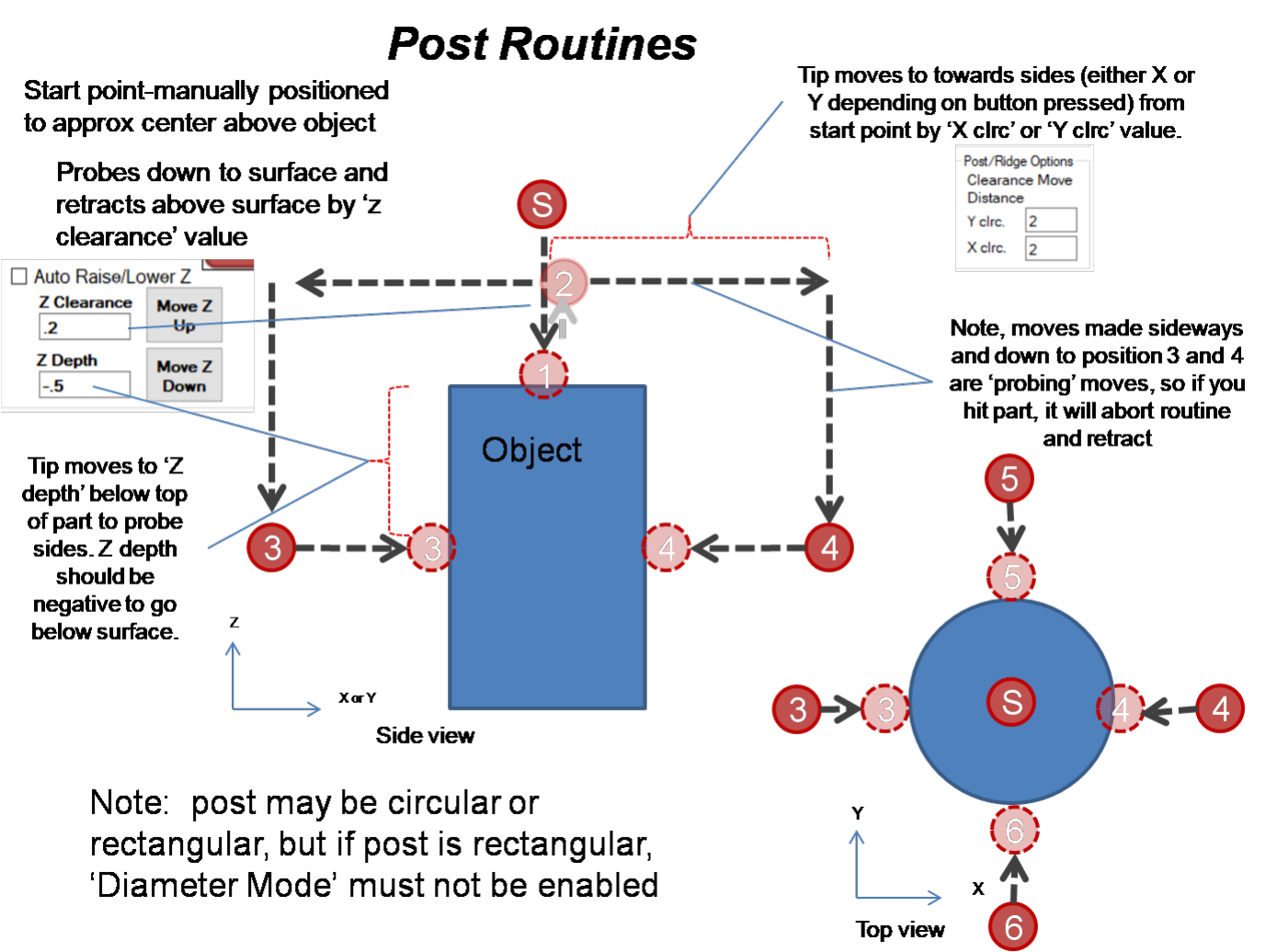
The probe boss button probes the outside of a post. Put the tip above the approximate center of the post, a small amount above it. With diameter mode off, the routine finds the center of a boss or rectangular post, probing ±X and ±Y; if DXF or CSV recording is on, you are asked whether the post is round or rectangular, so that the right geometry is recorded. With diameter mode on, it finds the center, then samples the OD at Diam # Points points.
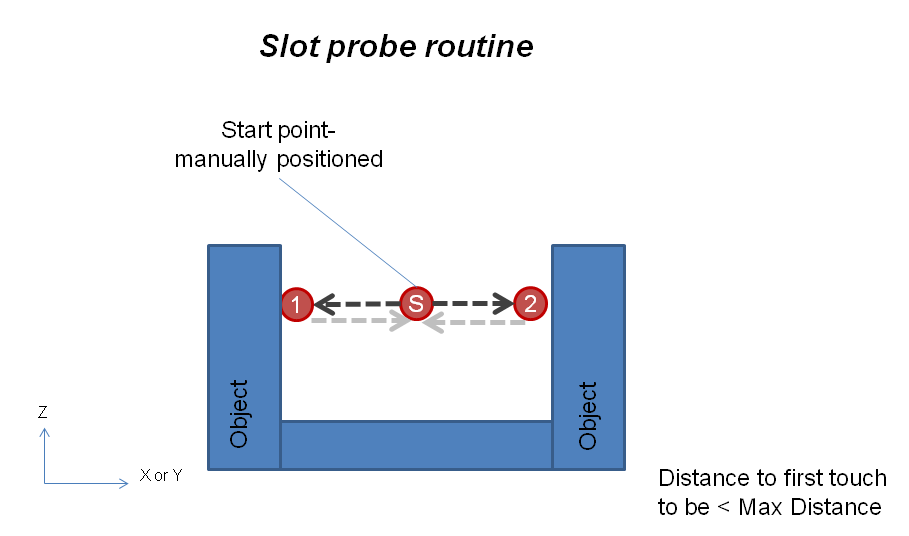
Slot. Start with the probe approximately centered in the slot. The probe makes moves to probe both sides, then returns to the exact center of the slot, and returns the width or height and the center position. Modified by part rotation; can use auto up/down.
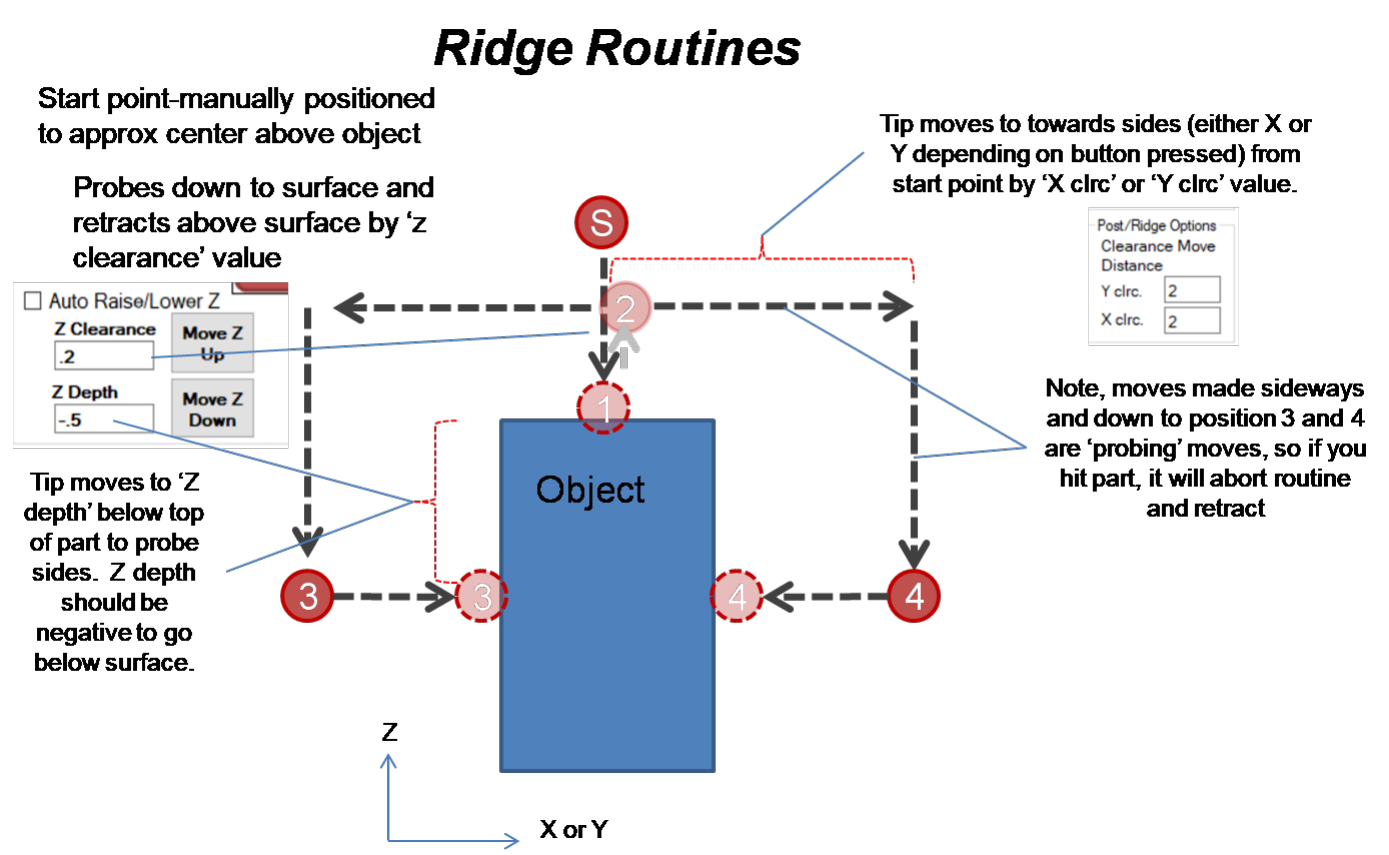
Ridge. Start with the probe approximately centered above the tab or ridge. The probe first goes down to find the top of the ridge, then makes moves to probe both sides, and returns to the exact center above the top surface; width or height and center position are returned. Modified by part rotation. A ridge routine cannot run with auto up/down: if it is on when you start, it is turned off. Use Y clrc. and X clrc. (Post / Ridge options) to set how far the tip moves to the sides.
Probes a Z surface and gets its height without changing the Z Is Set LED or the Z Surface Value. If zero mode is on, it also zeros the Z axis DRO (and if Z Is Set was on, it is cleared by the zeroing).
Each mode button has a Cont. check box: when it is checked, the mode stays on; when it is not, the mode turns off after one routine.
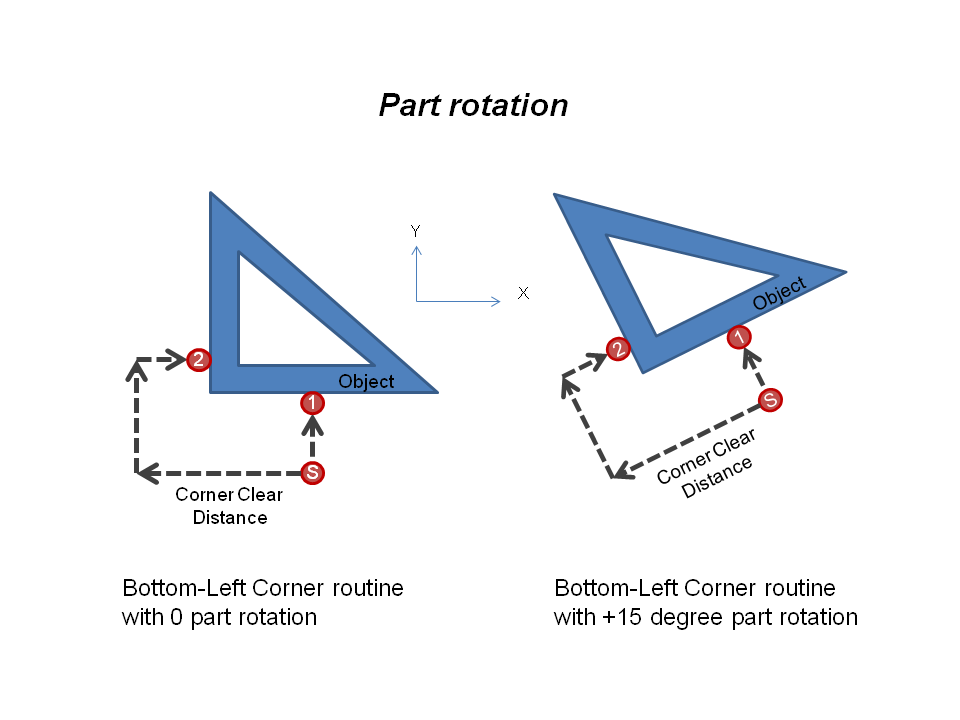
The part rotation value modifies the orientation of all probing events except edge and diameter modes. Use it when your part is not square to the table, or when you have rectangular pockets or corners that are not square to the table. Enter the angle in degrees, positive for counter-clockwise. +X is 0 degrees, and the angle is that of the part’s bottom edge relative to the X axis. Part rotation also rotates the features that are recorded to DXF.
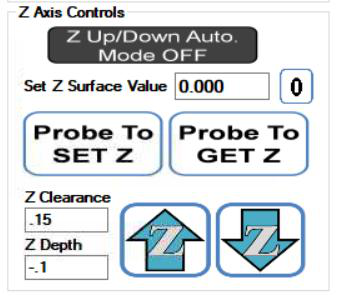
Initial Z surface (Probe To SET Z). Sets the Z axis DRO to a value that represents the surface of your object (its top, for example). The value is what you enter in Set Z Surface Value. Move the probe above the surface first. The button works with the Z Is Set LED: if the LED is on, pressing the button turns it off and you must touch the surface again; if it is off, the routine probes down until it touches, sets the Z DRO to the Z Surface Value, and retracts to the Z Clearance. Example: to make the Z DRO 0 on a surface, enter 0 in Set Z Surface Value and press Probe To SET Z.
Probe To GET Z. Probes down to a new surface (a flange, another level) and puts the measured Z into the Z Surface Value box. It requires that an initial surface has been set and the Z Is Set LED is on.
Z Is Set LED. It is a safety: it must be on (by probing an initial surface) before auto up/down works, so that the surface and probing depths are known and the probe can be protected. While it is lit, the Z recorded in CSV/DXF is the Z Surface Value; if it is not set, the recorded Z is the actual probe Z. Get in the habit of clearing it when you move to a new surface height.
Z Surface Value. The value that represents the top surface of what you are probing. It is the Z coordinate recorded in your CSV/DXF, and is separate from the Z axis DRO because the tip must be below the edge you want to define.
Z Depth. How far (in native units) the probe goes below the set surface when probing. Do not make it deeper than the length of your probe tip, or you will crash the probe body into the part; about one probe diameter is a good start. It takes ± values: negative goes below the surface, positive keeps the tip above it. Example: with the top surface at Z = 1.000 in and a Z Depth of −.100, the probe moves to Z = .900 to measure, but the recording saves Z = 1.000 (if Z Is Set is lit).
Z Clearance. How far above the set surface the probe goes after probing, so you can jog around without hitting the part. Example: with the surface at Z = 1.000 in, a Z Clearance of .150 moves the probe to Z = 1.150 afterwards.
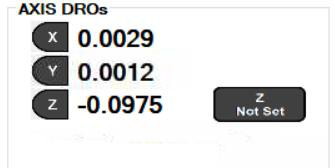
How far to move along an edge to take the second point. Make it smaller than the length of the edge being measured, so the second touch does not miss.
The G68 command in UCCNC rotates the working coordinate system relative to the machine coordinates. With the G68 Rotation page you probe the edge of a part and have the coordinate system rotated so that X and Y are parallel and perpendicular to the part, handy when the part is not set square to the table.
There are four buttons, for the four corners of a part (upper left, upper right, bottom left and bottom right). The edge that is aligned with the rotated X or Y axis is the one that gets “hit 1” and “hit 2” for the button. The routine expects the corner between “hit 1” and “hit 3” to be square; this is not strictly required, but if you set the corner as 0,0 there is a small position error if it is not square.
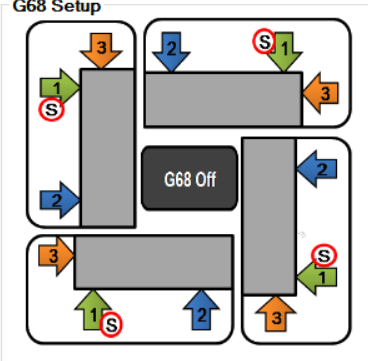
Position the probe tip at the approximate place shown by the S in the button, and press it. There are two methods, chosen with the G68 corner / edge options: Edge probes a single edge (two hits, using the Edge Length), Corner probes a corner (using the Corner Clearance to get around it; start closer to the corner than that distance).
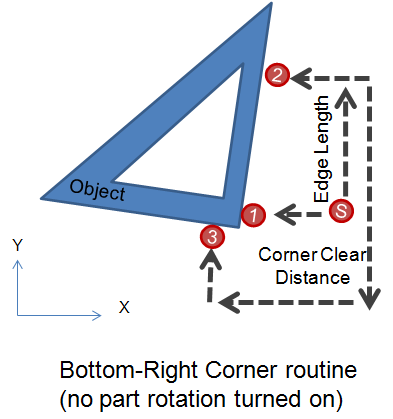
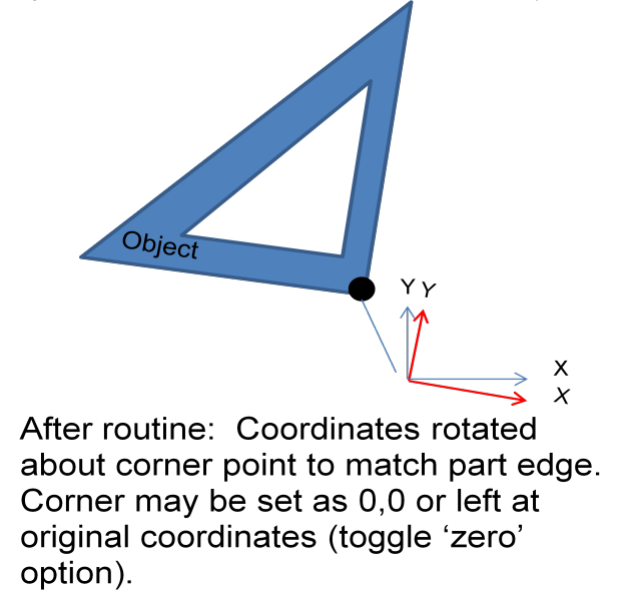
When the routine is done:
From now on every move is relative to the rotated system, until G68 is cancelled: click the LED button, or enter 0 in the angle box. The DROs go back to white when the rotation is cancelled. If G68 is already active when you start a routine, you are asked whether to clear it (G69) first. The G68 enable check box must be on before a G68 routine is run.
The Perimeter Probing page runs a routine that automatically follows the outside shape of an object and records the touched points, joined by lines, directly into a DXF file, or as X, Y, Z rows in a CSV file. It tries to always probe perpendicular to the surface and continually adjusts the probing angle. Probing square to the surface and using the tip table from the Probe Settings window lets the perimeter be reproduced accurately.
It works on both external and internal perimeters. It always works in the same direction: counter-clockwise around an external shape and clockwise around the inside of a pocket. Use the three sub-pages: XY Perimeter, XZ Perimeter (surface) and YZ Perimeter (surface) (section 11.4).
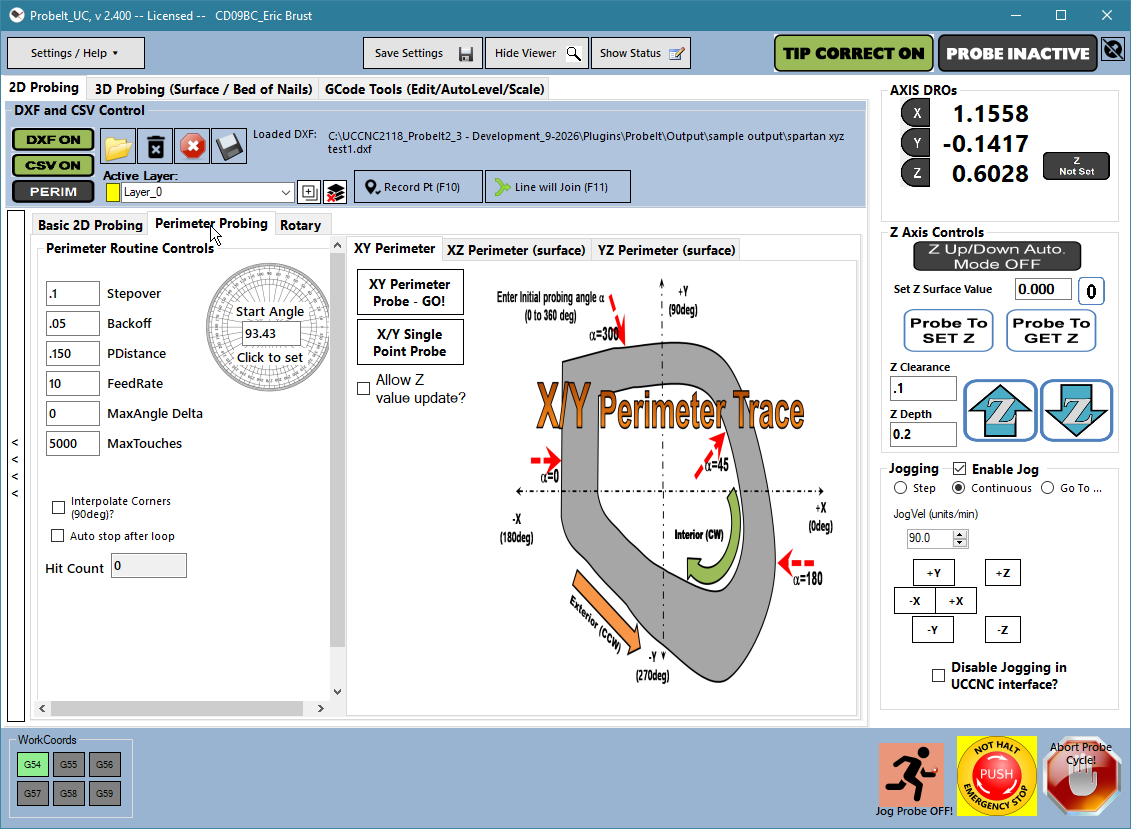
XY Perimeter → GO! starts the routine. Enter the settings, set the option LEDs, put the tip near the start of the perimeter of the object (at the proper depth), and press the button. It continues around until the maximum number of hits is reached, or the edge is lost in error. Use Abort at any time. You can reposition the probe and restart while recording to the same file; the data has a break in the curve where you restarted, which can be joined in the CAD program afterwards.
Single Point – Manual performs one probe event in the direction of the Initial Probing Angle. It is handy for collecting a few points around an object, or for adding points where the perimeter routine had difficulty. It records a point and a circle. The center of the circle is the part edge (where the tip touched), not the center of the tip: the tip radius offset is already included.
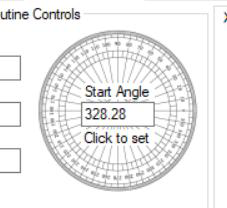
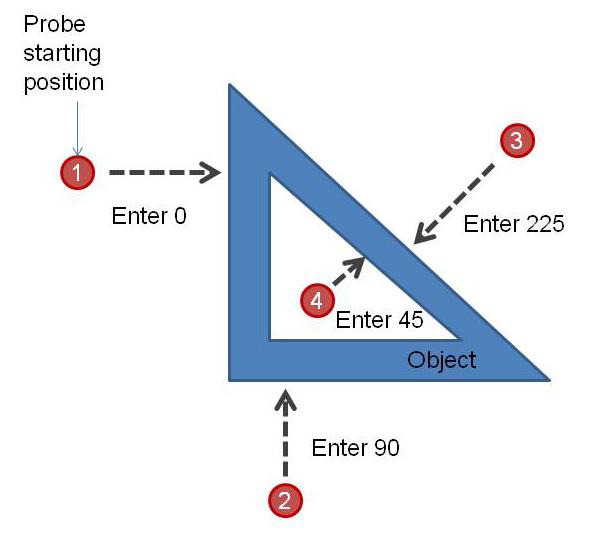
Initial Probing Angle. The angle (degrees) of the first probing vector from the current tip position, relative to the machine’s +X. Imagine polar coordinates with the origin at the tip, 0 degrees toward +X and 90 toward +Y. Click on the protractor to set it. Examples: probing +X when the probe is on the left of an outside perimeter: 0. Probing +Y from the bottom: 90. Probing −X and −Y toward a face at 45 degrees from the top right: 225. Probing +X, +Y toward a 45-degree face from the bottom left of an inner perimeter: 45.
Probing Feed. The probing feed. The perimeter routine probes at a single feed, one touch per hit (no back-off and slow re-touch). You can change it while the routine runs: use a fast feed for simple areas and slow down for complicated corners or to improve accuracy (less overtravel).
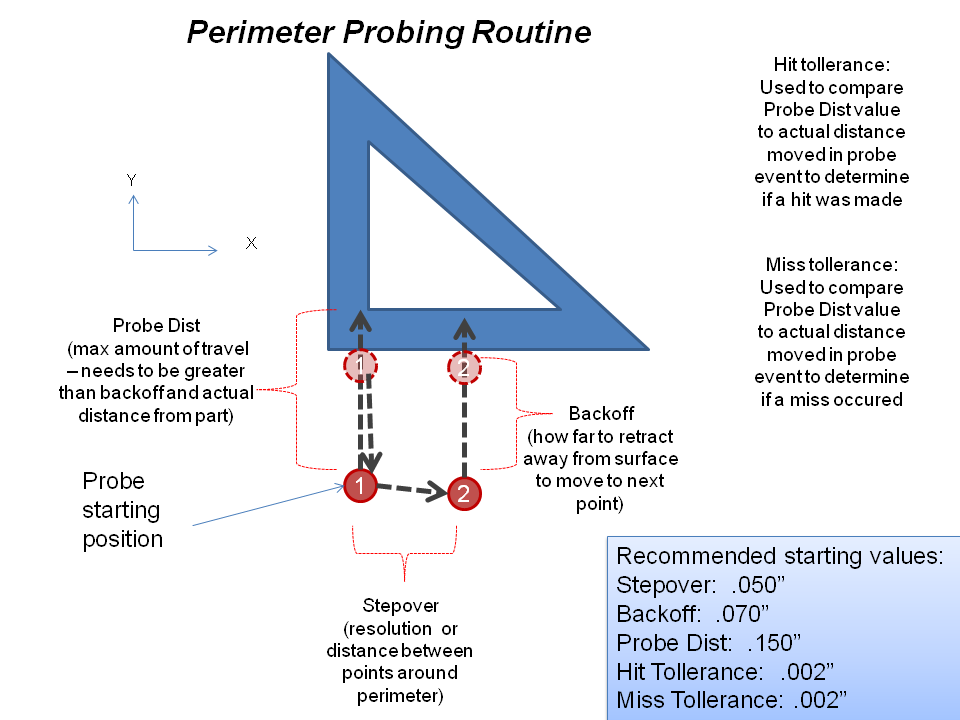
Stepover. The distance between probe points around the perimeter (actual points are only exactly this far apart along a straight line). A smaller stepover gives more samples and finer resolution. It cannot be changed while the routine is running: stop and restart it.
Backoff. How far the probe backs away from the surface to prepare for the next hit. It cannot be changed while the routine runs.
Probe Distance. How far the probe travels from the backoff point toward the surface. With the hit tolerance, it decides whether the surface was hit or missed. Always make it larger than the backoff, by about 1–3 probe-tip diameters. It cannot be changed while the routine runs.
Max Touches. The number of touches before the routine stops, so you can enter a large number and walk away. Estimate it as the approximate length of the perimeter divided by the stepover, plus about 20%. If it was not enough to get around the part, restart and keep recording to the same file, as long as you have not closed it; update the initial probe direction where you restart. In demo mode the routine stops at 1000 points. It cannot be changed while the routine runs.
Auto Start/Stop. With this on, probing stops by itself after completing a lap and returning to the start location.
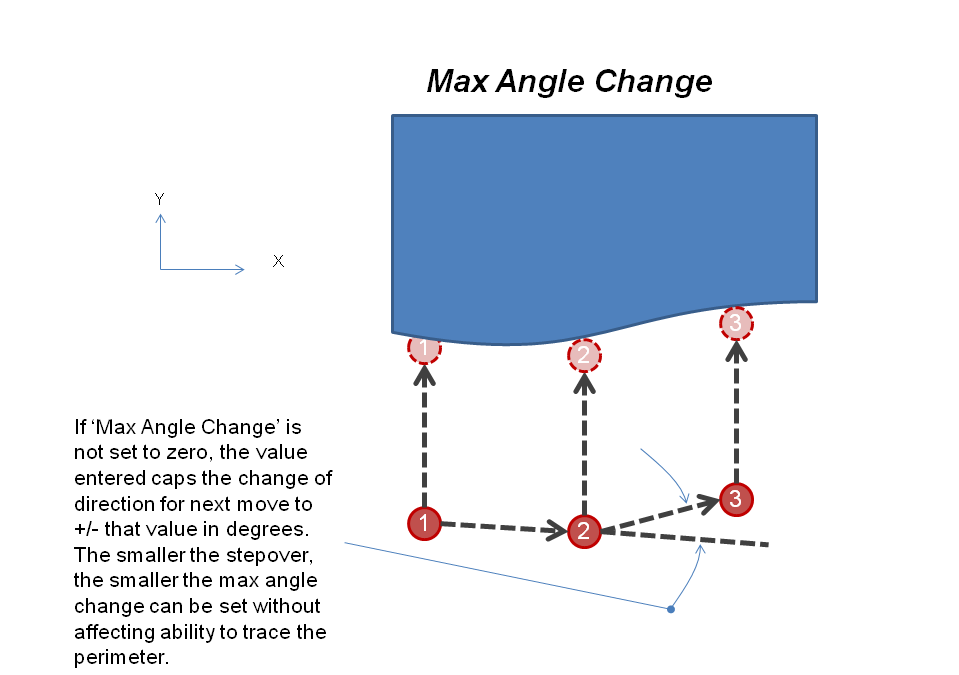
Max Angle Change. Limits how fast the routine may change direction: 0 disables it, 10 means the direction cannot change by more than 10 degrees (plus or minus) from one point to the next. Useful with a very small stepover, where small surface deviations cause large changes in the calculated angle and so errors in the data. It can be changed while the routine runs.
Error Message ON/OFF. With this on, a message interrupts the routine when:
These messages are useful while you learn how the routine works, and give you a pause to assess it. With the option off, the routine just keeps going. It can be turned on or off while the routine is running.
Interpolate Corner ON/OFF. With this on, an estimated corner point is inserted at an abrupt change of direction (for example when the probe misses and turns around a corner), assuming that the corner is square. The DXF/CSV then has a better representation of the corners, which you can correct in CAD. With it off, only real touch points are recorded, which may leave corners under-defined. It can be turned on or off while the routine runs.
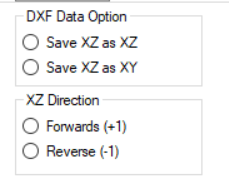
These routines probe along a surface in the X/Z or the Y/Z plane. The buttons and inputs are very much like the XY perimeter routine (see above). The differences:
The Rotary page has routines that are handy for setting up parts on a 4th (rotary) axis. Enable and set up the rotary axis in the Rotary Axis group of the General Settings window: Enable Rotary Axis, Rotary Axis Letter, Rotary Axis is Parallel With and the Rotary Tolerance (Hit/Miss). The routines assume:
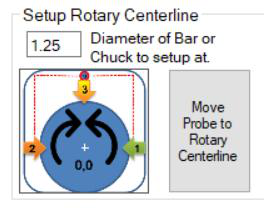
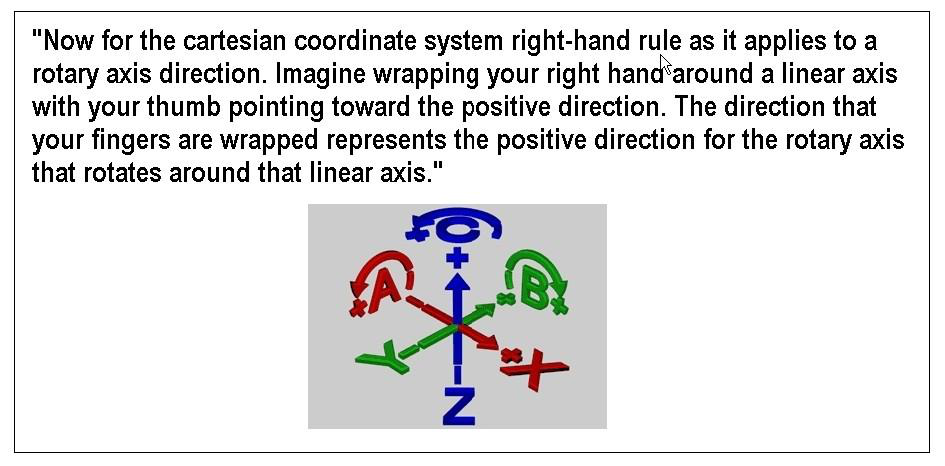
The routines rotate the rotary table (and move Z up and down if needed). X and Y stay as you positioned them (center the probe on the rotary centerline). They let you set the rotary angle to align with a feature on a shaft such as a keyway or ridge.
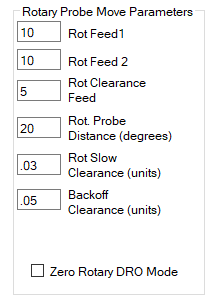
Rot Feed1, Rot Feed2 and Rot Clearance Feed are like Feed 1, Feed 2 and the clearance feed of the XY routines, but they are the tangential speed of the probe tip relative to the rotary at the current Z of the tip. Enter your native units per minute, not degrees per minute: the routines use the Z height of the tip (and Z = 0 at the centerline) to calculate the rotary feed. Feed 2 = 0 means no second slow hit. The clearance feed is used for transfer moves, such as moving sideways during the ridge routine.
Rot Probe Distance is like the XY probe distance, but in degrees of rotation: 90 lets the table turn up to 90 degrees to find an edge; if nothing is hit it stops and reports a miss. Rot Slow Clearance and Rot Backoff Clearance are in normal units (inch or mm); the rotation needed is calculated from the Z height.
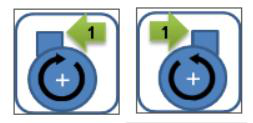
Rotary Side(s). Rotates the axis clockwise or counter-clockwise (depending on the button) and probes the side of a feature. Use it to make that feature vertical when the rotary DRO is set to a value you choose. With Offset Probe Tip by D/2 the tip moves off the centerline by its radius so that the wall can rotate fully vertical into the tip. Check Set Rotary DRO Value and enter a value to have the DRO set from the probing event.
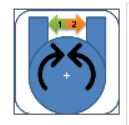
Rotary Slot. Rotates the axis clockwise and counter-clockwise inside a notch such as a keyway, then rotates back to the center and sets the axis DRO if chosen. Lower the probe into the groove by hand, and set a Rot. Probe Distance large enough for both sides to be touched.
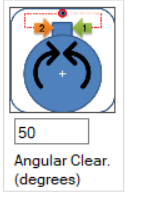
Rotary Ridge. Rotates the axis around a male key or tab and rotates back to the center, setting the DRO if chosen. Position the probe above the tab first. Set the Z Depth in the Z controls to how far down to go from the top. The routine probes down onto the top of the tab, moves to clear the tab by the Angular Clear. value, drops to the Z depth, and probes toward the outsides of the tab.
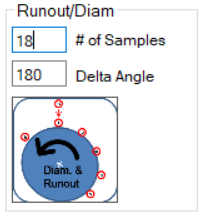
Rotary Roundness / Diameter. Sweeps the rotary clockwise or counter-clockwise over the Delta Angle: 180 for half a turn, 360 for a full turn. Over the sweep, Z probes down as many times as the # of Samples (18 samples over 180 degrees probes every 10 degrees). It then reports a measured diameter and roundness. The calculation assumes the axis centerline is Z = 0, so it is only as good as your centerline setup.
ProbeIt records probing data to a CSV file (comma-separated values, importable to Excel), to a DXF
file, or to both at once. Recorded files are saved in the output folder of the ProbeIt folder, for example
C:\UCCNC\Plugins\ProbeIt\output\. A third option, PERIM, records a simplified X/Y/Z perimeter file that the
3D probing page can use as a boundary.

Turn on DXF, CSV, or both. You are asked for a file name when you start; with both on, the name is used for both formats. Once the LED is on and a name is entered, you just probe: everything is recorded until you close the file. Record Perimeter captures the profile as data that the Surface / Grid Probing page can use as a containment perimeter.
The DXF format is standard and can be opened by any program that reads DXF. Geometry is drawn as points, lines, circles and so on. DXF files are suitable for VCarve and LightBurn: ProbeIt opens files exported from them and saves files they open. Layers and layer colors can be created, renamed, deleted and changed (see the viewer).
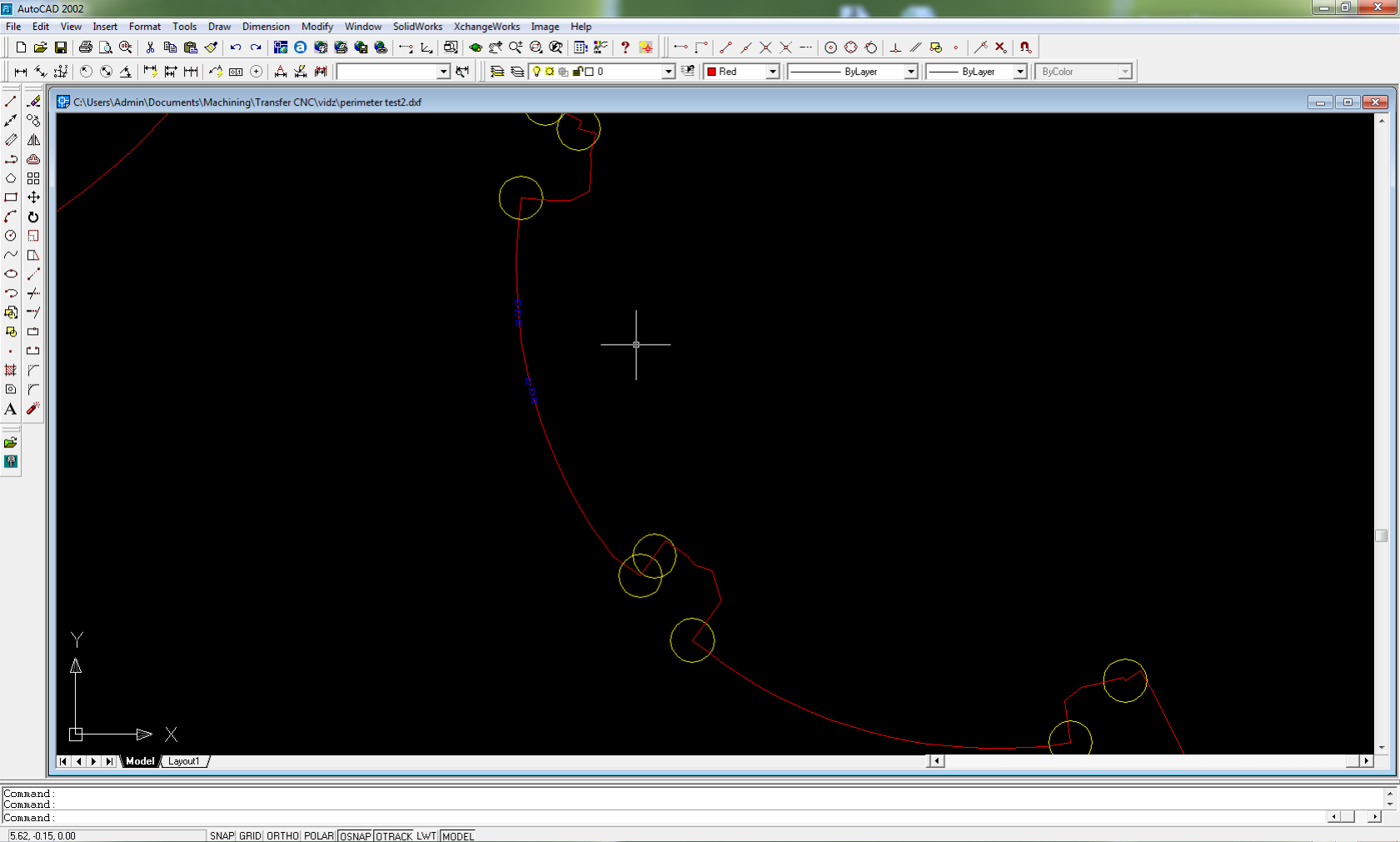
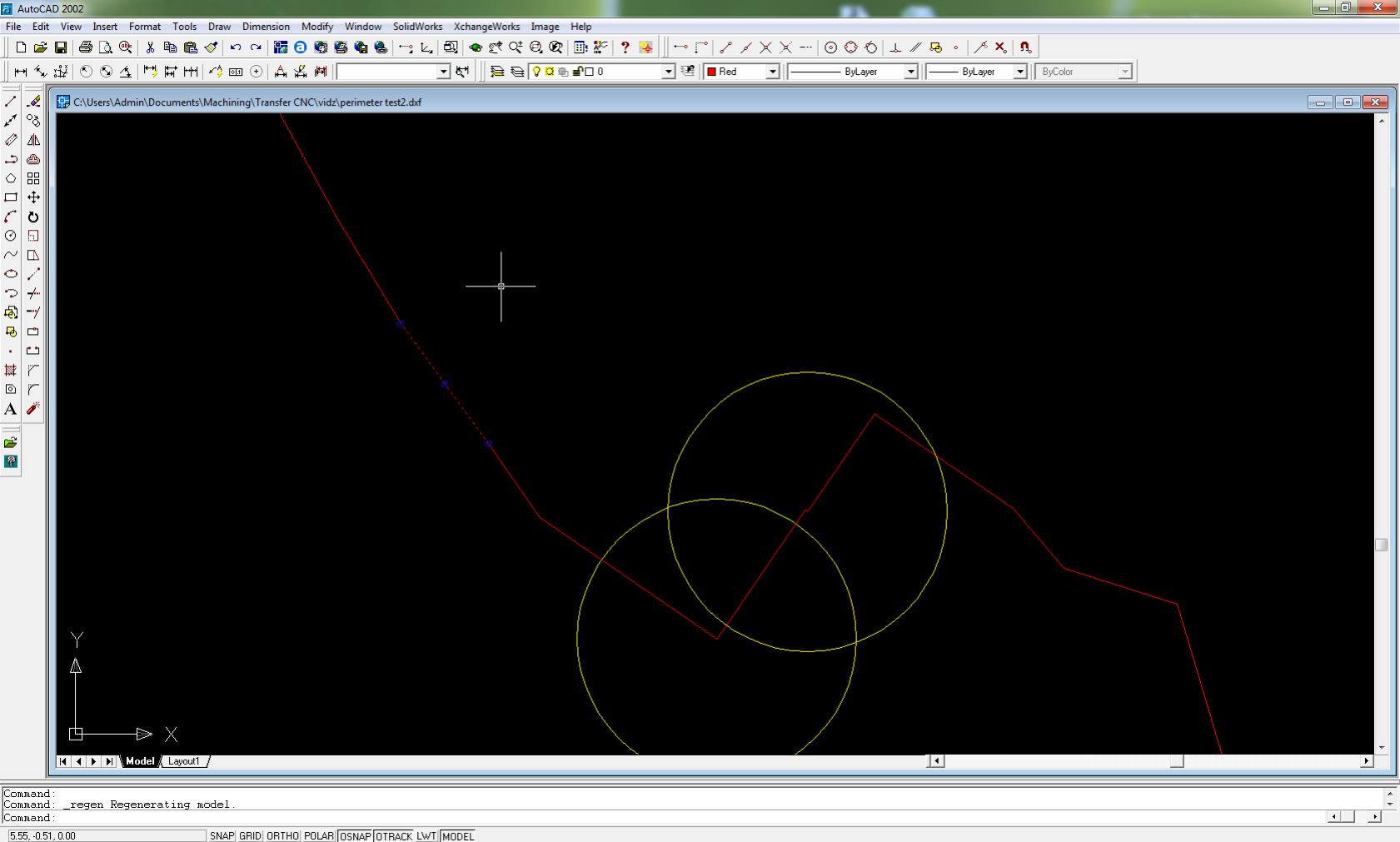
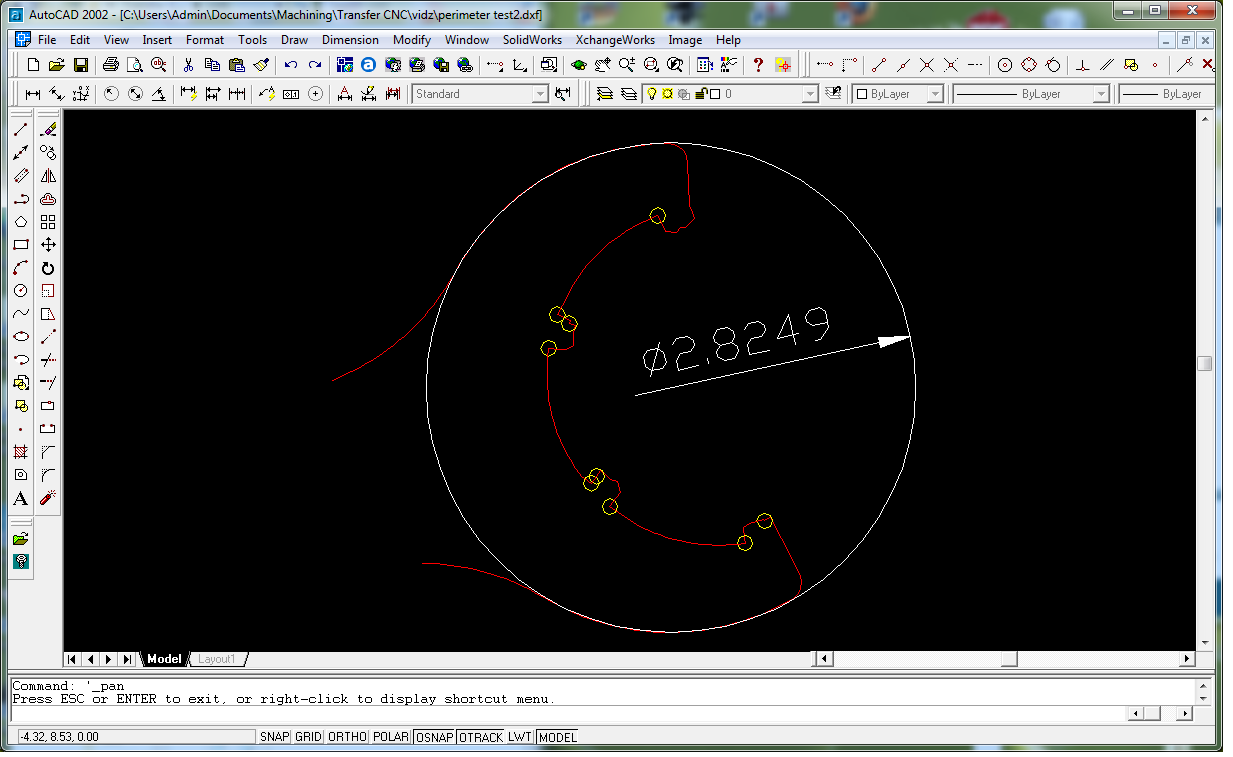
Perimeter probing creates a series of short line segments. A segment’s start and end points are the actual locations probed (as adjusted for the probe tip): the lines run along the true perimeter of the part and are not the center points of the probe ball. Occasionally, when a corner is found or missed during a direction change, the routine guesses and interpolates a corner point. These are drawn as small yellow circles whose center is the guessed location, and may need cleanup.
You can use the geometry to build better CAD geometry, join it into smoothed polylines, or import it into a CAM program to make cutting paths. You can measure by snapping circles and dimensions to the endpoints, or by curve fitting. Below, a recorded perimeter of an ER collet wrench: the red perimeter is many short segments, but the diameter is easily measured by building a 3-point circle that snaps to segments; the yellow circles mark guesses at abrupt direction changes.
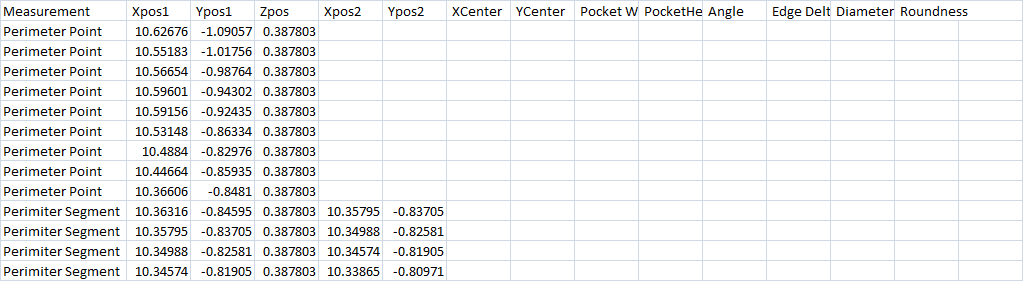
The CSV format is tabular and can be opened in Excel. It works well for simple CMM-style inspection: the diameters and locations
of a series of holes, for example. The plugin saves Filename.csv, where Filename is the name entered for the DXF. Each
row describes the probe event with the numbers; the example is a bore measurement, then perimeter data. In the perimeter data,
segments are short lines from a start point (Xpos1, Ypos1) to an end point (Xpos2, Ypos2).

The perimeter file (Filename_perim) is a very basic CSV with only X, Y, Z points and no header. It is meant to be
opened on the 3D probing page as a perimeter that bounds a point-cloud routine.
The GCode Tools tab has a full G-code editor and viewer. You can preview G-code files, edit them, and review the changes, and the toolbar has tools to:
Click a toolpath in the 3D view to select the matching line of G-code, and select a line to see it highlighted in the 3D view; selected moves show a direction-of-travel arrow, and hovering shows a preview highlight of the path under the mouse. Large G-code files load in the background without freezing the window.
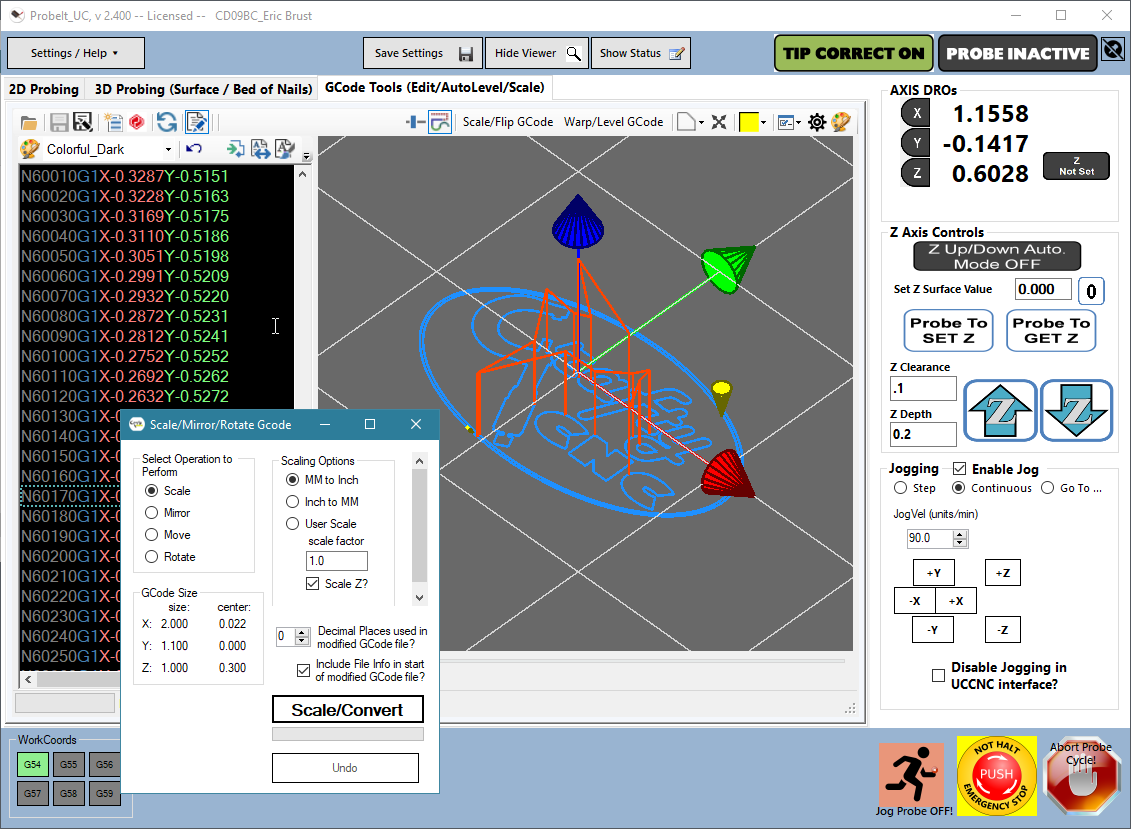
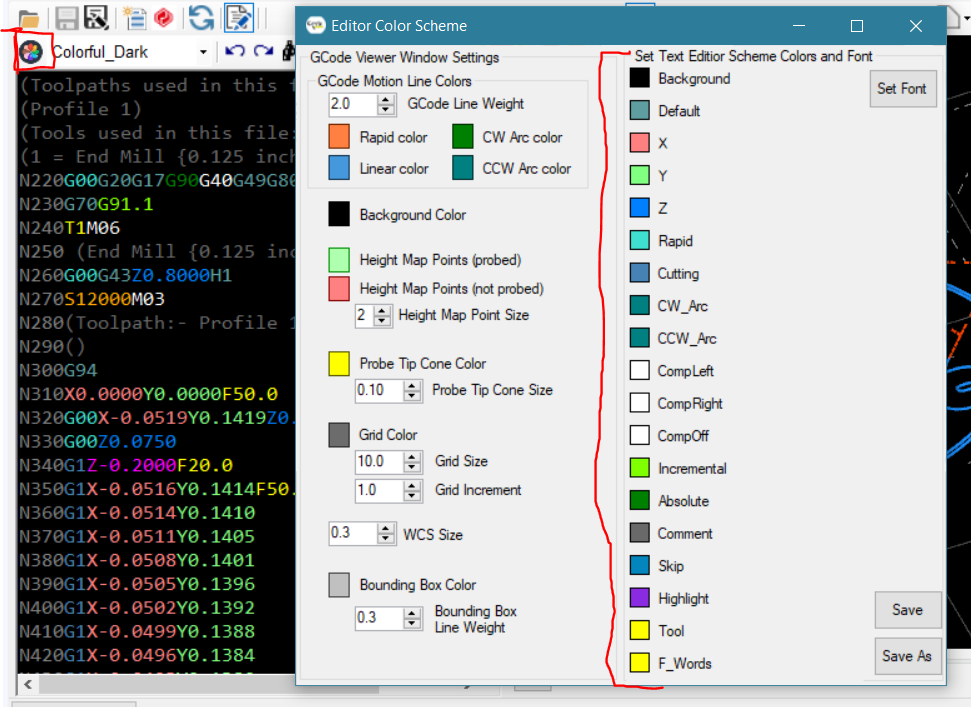
The text in the left panel can be edited by hand. Text colors can be customized in the color settings panel. The selected-line highlight color can be changed with the color picker.
The Warp/Level GCode button opens a form that lets you autolevel (“wrap”) your G-code onto a surface that is not flat. First you need a height map that covers the area the G-code covers.
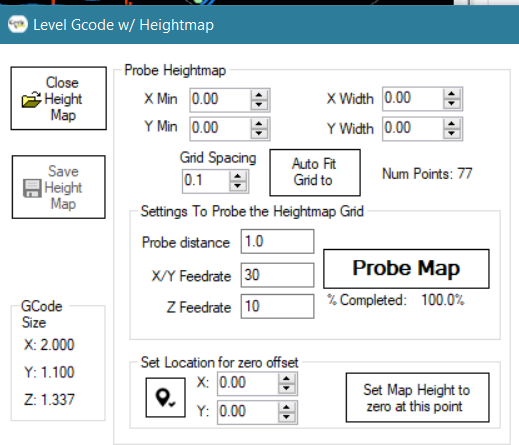
Use the Probe Heightmap settings to define a grid of points, and probe them for their Z values. Auto Fit Grid to GCode places a grid centered on the G-code with the spacing in Grid Spacing; you can adjust the Min X/Y, the widths and the spacing to cover the material better. Set the probe search distance and feed rates, and press Probe Map to collect the height map. You can also save a previously probed surface to an HMap file and re-open it later (use Save after probing, Open to reload).
Set Location for zero offset slides the height map up or down so that you can choose where zero is: move the machine to the location, press get location (or type X/Y), and press Set Map Height to zero at this point. No Z offset is applied at that point, and that is the place where you should then zero the bit before running the G-code. You can do this after loading or probing a height map, and save the map with or without the offset.
Once a G-code file is open and a height map is loaded (it must be 100% probed), you see the grid of points and the G-code together in the viewer.
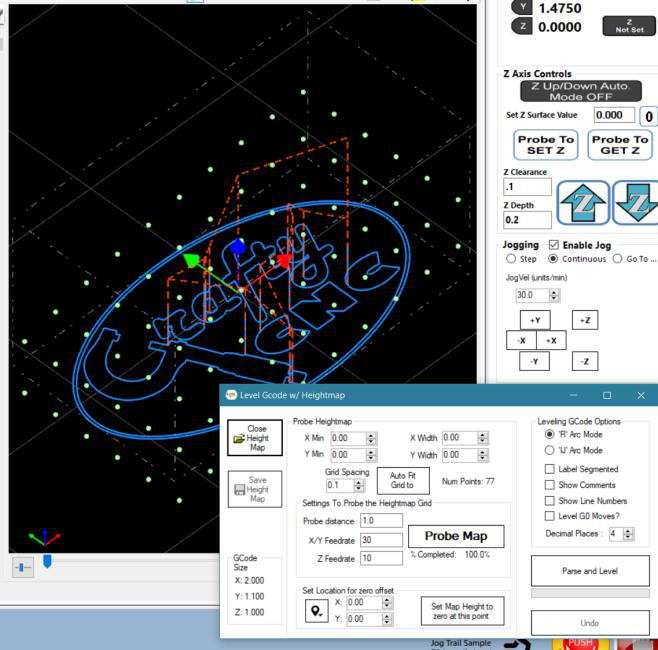
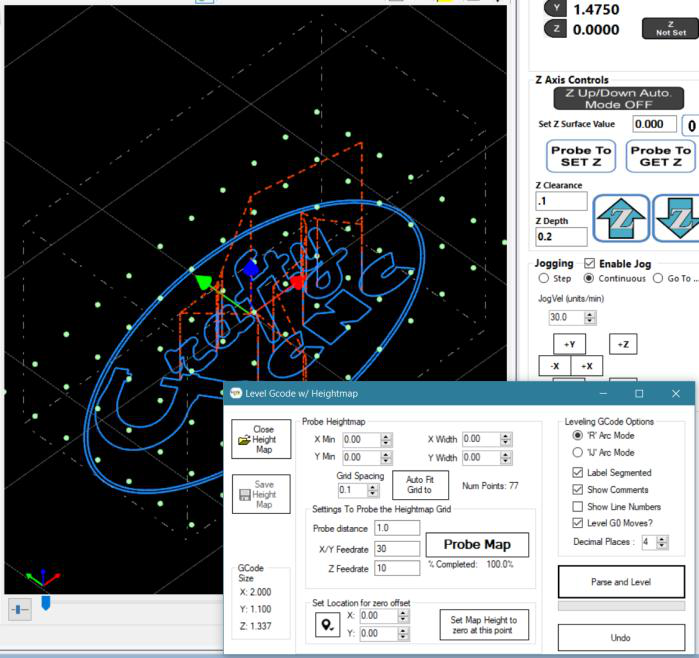
When the options are right, press Parse and Level. It processes the G-code and puts the new edited file in the editor and viewer. Undo reverts to the code before the last leveling, so you can change an option and run it again. If you are happy with the result, save it to a new file, or use Send to UCCNC to send it directly to UCCNC. The original file is not changed until you save over it.
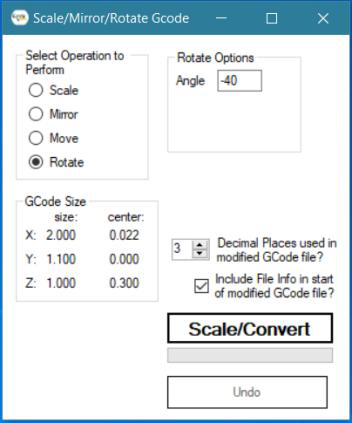
The Scale/Flip GCode button opens a form. Choose the operation:
You can choose the number of decimal places of the output G-code and whether to include a summary of the changes in the output. Press Scale/Convert to process; Undo reverts. Save the result or send it to UCCNC: the original file is unchanged unless you save over it.
The 3D Probing (Surface / Bed of Nails) tab holds what used to be a separate plugin, ProbeCloud. It probes the surface of an item to make a CSV text file of X/Y/Z coordinates, the usual “point cloud”, with a bed-of-nails style routine. Unlike typical routines it does not just do a rectangular grid: it can probe only the points inside (or outside) a perimeter you define. You can even probe a perimeter to a file and open it as the boundary. Features that help with thousands and thousands of points:
The rough steps:
name.perim is saved. (You do not need to
jog back to the start: the last and first points are joined.)name.grid file. Once the
grid file exists you are ready to probe.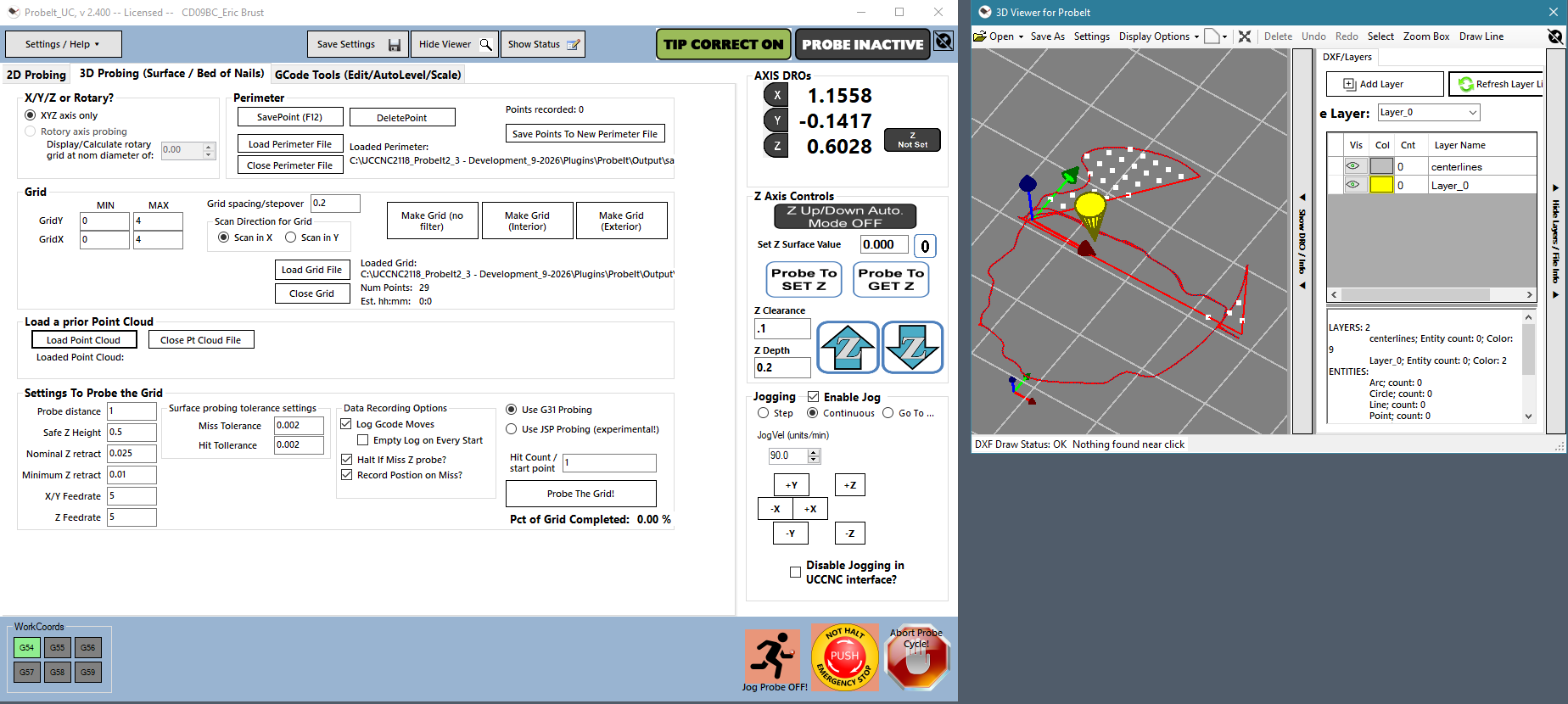
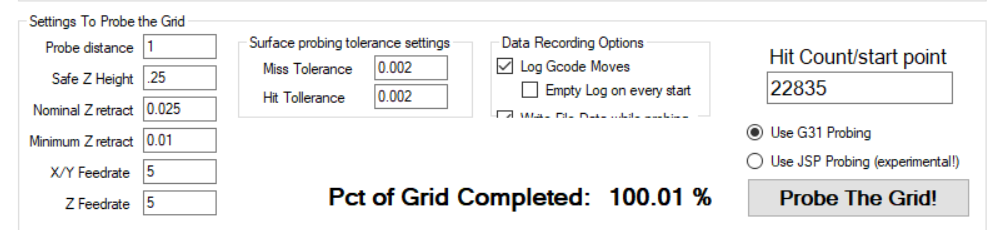
| Setting | Meaning |
|---|---|
| Probe Distance | The distance the routine attempts to probe in Z. The value is not important, as long as it is larger than the Z height of the part. |
| Safe Z | A plane above your part. The tip retracts to it only when necessary (for example if it hits the edge of the part during an X/Y move). |
| Nominal Z retract | How far the tip retracts, nominally, from the surface after a Z probe to move to the next point. The plugin keeps raising and lowering it according to the slope of the surface. |
| Minimum Z retract | The absolute minimum retract. The plugin varies the retract with the slope, but never below this. |
| X/Y Feedrate | The feed for the X/Y moves to the next point, all done as G31 probe moves at this feed. |
| Z Feedrate | The feed for the Z probe move (sampling the surface and recording). All Z moves are G31 probe moves at this feed. |
| Hit Count / Start Point | The starting point used at the start of a run. It increases with each point recorded, so you can stop and restart. To start over, set it back to 1 before pressing Probe The Grid! |
| Update Plot during probing | Plots the points in green as collected. Turn it off if the number of points is large (more than about 10,000), as the screen update slows the probing. |
| Log GCode Moves | Writes fname_gcode_log.txt to the output folder, logging every GCode command sent to UCCNC. Only needed when debugging. |
| Write File Data while probing | Writes fname_out.txt, a comma-delimited file of the X, Y, Z points for your CAD or meshing program (for example MeshLab). Leave this on unless you are only testing. |
| Probe The Grid! | Starts the routine; the button turns into STOP. Press it to stop or pause, and again to restart. The routine runs until it is stopped, all the points in the grid file are collected, or an E-stop or feed hold occurs. |
| Miss Tolerance, Hit Tolerance | In your length units (the numbers shown are for inches; keep them small). Miss tolerance: the probe did not hit an object on a move where it was not supposed to (such as moving in X/Y to the next point). Hit tolerance: the probe hit an object on a move where it was supposed to (such as probing in Z to the surface). |
Your settings are saved with the main settings, using Save Settings.
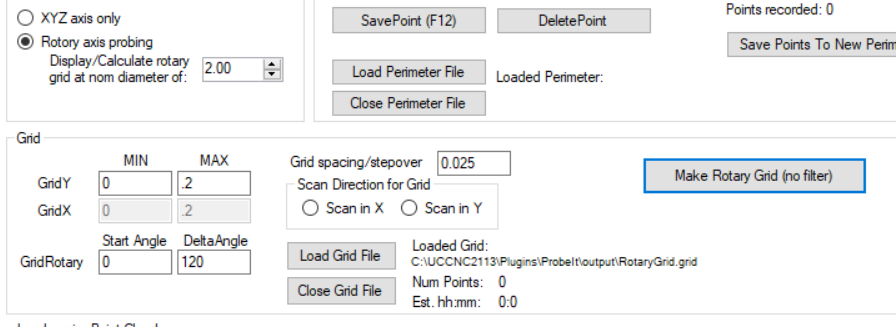
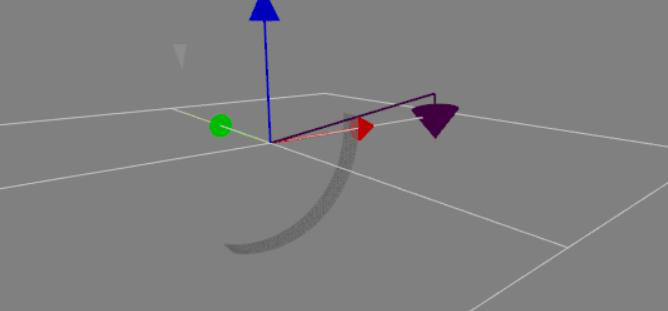
Rotary grid probing creates a point cloud using the rotary axis. It is much like the XYZ routine, with these differences:
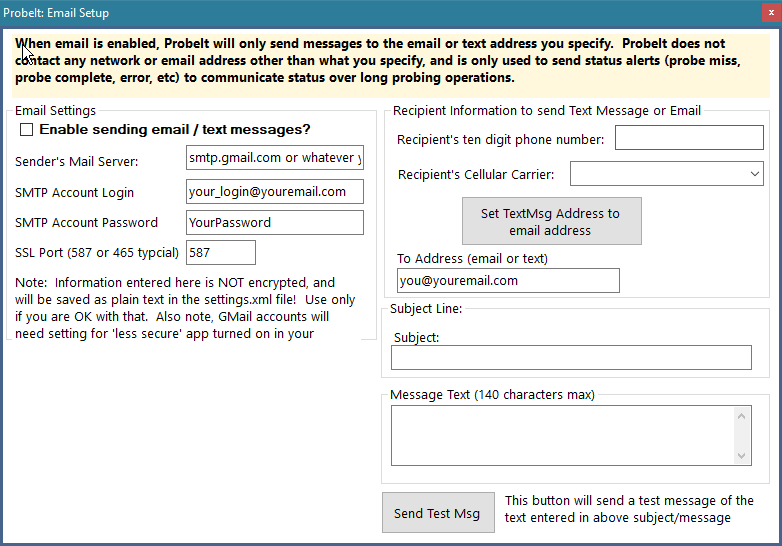
ProbeIt can send an email or text message on errors or when probing finishes successfully. Open Settings / Help → Email Setup….
| Setting | Meaning |
|---|---|
| Enable sending email/text msg | Turns sending on or off. |
| Sender’s mail server | The SMTP server to send through, such as smtp.gmail.com. |
| SMTP account login | The account, usually your email address. |
| SMTP account password | The password (or app password) for that account. |
| Port | The mail server port. 587 is typical. |
| Recipient’s ten-digit phone number, Recipient’s cellular carrier | ProbeIt only sends email, but you can text yourself through your carrier’s email gateway. Enter your number and pick the carrier from the list (for example @tmomail.net for T-Mobile), then press Set Text/Msg Address to fill in the To Address automatically. If your carrier is not listed, ask your provider for its gateway address. |
| To address | The address to send all messages to: a normal email address or a phone-number gateway address (8881234567@tmomail.net, for example). |
| Subject, Message | Used only by the test message. |
| Send Test Msg | Sends a test. You get a success message, or error information that points to something wrong with the server settings or login. |
During probing a message is sent if the target is missed and probing stops, the probe sticks on in the triggered state, an E-stop or feed hold happens, or the probing completes successfully.
Open Settings / Help → General Settings…. The window has collapsible groups (click a group’s heading to open or close it; ProbeIt remembers which are open):
Use Save Settings to save all of the settings (every check box, number box and text box, and which groups are open) to the
ProbeIt.xml and ProbeItViewer.xml files in Plugins\ProbeIt\Settings\. If Auto Save on Close is on, they are
saved when ProbeIt closes. Settings are written safely (to a temporary file that is checked before it replaces the old one).
The starting values are built into the plugin, one set for inch and one for metric (the viewer’s grid and marker sizes follow your
choice). Set Defaults INCH and Set Defaults MM in the Probe Settings window load them again. Save current as defaults…
asks whether the current values are inch or metric and writes the current main-window and viewer settings (without your email
account and password) to Settings\Defaults\; those files then replace the built-in values for the Set Defaults buttons and for a new
install. Make sure the values really are in the units you choose.
Whenever a settings file is about to change, ProbeIt keeps a copy in Settings\Backups\ (the newest 10 of each file are kept).
Restore from backup… lists them and puts one back. If a settings file cannot be read when ProbeIt starts, you are offered the
newest backup; if you decline, the defaults are used and the damaged file is not overwritten by the close-time save. A line is added to
Settings\SettingsLoad.log for each settings load, and for every value that could not be applied: look there first if a setting does not
stick.
Press Abort. It halts any running routine, the basic XY routines and the perimeter routine included. If things are really going wrong, press the E-stop; you can always restart your probing after a reset.
If you are licensed (or still within the demo limits), you may stop and restart the perimeter routine as often as you need and keep recording to the same DXF or CSV file. You can mix XY routines with perimeter routines in one file; change stepover and backoff for more precision in some places and speed in others; and recover from an error where the routine lost the part or got hung up on a difficult spot. The recorded data has a broken line where the routine was restarted. It is easily fixed in CAD, as there are points at the line ends to join.
Yes. You can change the probing feed and the max angle change at any time. To change the stepover, backoff or other values, stop the routine (Esc), change them, and restart. It would be too risky to change the others on the fly, because they are used to determine the probe positions as it goes.
This is the focus limitation (section 2.1): UCCNC jogs only while it has keyboard focus. Do not multi-task while a routine runs.
Check the probe wiring and the probe input setup in UCCNC. Do not run a routine until the LED turns on when you trigger the probe by hand and off when released.
The button and LED pictures are loaded from Plugins\ProbeIt\Images\. Re-run the installer to put them back. You can also replace
them with your own pictures of the same name.
Look at Plugins\ProbeIt\Settings\SettingsLoad.log (section 17.3), and use Restore from backup… if needed.
| Version | Notes |
|---|---|
| 2.400 | Windows installer and this HTML manual; inch/metric defaults and a first-run units dialog; Probe Settings, General Settings, Email Setup and About as pop-out windows; settings saved safely, with backups and Restore; viewer with selection, Delete / Undo / Redo, Box Select, Draw Line with snap, Move to layer, a viewer settings window and sliding side panels; G-code editor click-to-select and direction arrows. Layer names are kept unique (a damaged DXF with repeated layer names opens and is corrected, and Save refuses to write one), an active layer is always selected for recording, and windows snapped to the main window move with it. The version for UCCNC 2.2116 and later. |
| 2.203 / 2.300 | Dual release for UCCNC 2.2115 and earlier / 2.2116 and later. Forms are kept on screen; view form remembers its panels; DXF fixes; G-code scale/convert feed rate decimals; perimeter routines no longer hang at the maximum point count. |
| 2.2xx | 2.200: the G-code editor / viewer, scaling, rotating, auto-leveling. 2.201–2.202: bug fixes, jog probing fixes. |
| 2.1xx | New screen design, buttons and LEDs as external images, dual-speed calibration tables with interpolation, check online for a new version, pop-up result box, simple Z probe. |
| 2.0xx | OpenTK 3D viewer, DXF layers and colors, rotary axis support, status and measurement box, secondary (Calibrate #2) routine. |
| 1.xxx | Initial releases: XY routines, ProbeCloud surface scan, XZ and YZ tracing, corners, DXF open/append, 3D viewer. |
The full list of changes for each version is in README.txt, installed with the plugin.
| Item | Location (in the UCCNC folder) |
|---|---|
| The plugin | Plugins\ProbeIt_UC.dll |
| Window-snapping helper | MagnetWindows.dll |
| Button and LED pictures | Plugins\ProbeIt\Images\ |
| This manual | Plugins\ProbeIt\Manual\ProbeIt-Manual.html |
| Settings (main window, viewer, G-code leveler and scaler, window positions, backups, log) | Plugins\ProbeIt\Settings\ |
| Saved defaults (override the built-in ones) | Plugins\ProbeIt\Settings\Defaults\ |
| G-code editor colors and machine files | Plugins\ProbeIt\Settings\EditorData\ |
| Recorded DXF / CSV / perimeter / grid files | Plugins\ProbeIt\output\ |
| Sample G-code, height maps and recordings | Plugins\ProbeIt\Gcode\ and Plugins\ProbeIt\Output\sample output\ |
| License agreement and install notes | Plugins\ProbeIt\PIT_EULA.rtf, README.txt |
ProbeIt for UCCNC is copyright CraftyCNC and E. Brust. ProbeIt and CraftyCNC are in no way affiliated with CNCDrive or UCCNC.