CamCopyM4
UCamCopy for Mach4 — User Manual — Version 2.400
UCamCopy for Mach4 — User Manual — Version 2.400
CamCopyM4 is the Mach4 edition of UCamCopy, a vision-based probing and line-following program for CNC machines. It needs a webcam, preferably a “microscope” camera with fairly high magnification and adjustable focus. The camera image is processed with the EMGU/OpenCV libraries to find edges, lines, circles and enclosed shapes. Once an edge or target is found, CamCopyM4 drives the machine along it and records the path to a DXF file (and optionally a CSV file), so that you can reconstruct or copy existing geometry.
It runs as a separate program next to Mach4 and talks to the running Mach4 through Mach4’s own inter-process library, Mach4IPC.dll. No Mach4 plugin or screen-set change is needed. The windows, the image processing, the PID velocity control, the recorder and the 3D viewer are the same as in UCamCopy for UCCNC,
so everything from section 6 on works the same way. Sections 1 to 5, and the notes marked Mach4, are specific to this edition.
There is no scaling or dimensional calibration between the camera image and the machine. The image is used in a unit-less way to calculate position errors, and those errors drive the machine’s velocity through a closed-loop PID (proportional / integral / differential) controller using gains that you enter. The PID only generates velocity commands. Every dimension recorded in the DXF comes from Mach4’s actual axis position in the active work coordinate system, so the recorded data is as accurate as your machine’s steps-per-unit calibration.
| Topic | UCamCopy for UCCNC | CamCopyM4 (Mach4) |
|---|---|---|
| What it is | A plugin loaded by UCCNC | A separate program (CamCopyM4.exe) |
| Starting it | Plugin button code, hotkey or screen button | Start Mach4 first, then start CamCopyM4 (section 5) |
| Motion | Always allowed | On by default, confirmed in a dialog at start; the switch /read-only turns it off |
| License ID | From the motion controller’s serial number | From the computer ID that Mach4 reports for this PC (section 4) |
| E-Stop button | Asserts E-Stop | Asserts E-Stop, and clears it again after you confirm (section 5.5) |
About the picturesThe screenshots in this manual were taken from the UCCNC edition. The windows are the same in CamCopyM4; only the title bar, the About tab’s License ID and a few messages differ.
Started normally, CamCopyM4 can jog and move the machine. A dialog at start says so, and asks you to confirm that the machine is clear and you can reach the E-Stop. Answer No and the program closes without touching the machine.
To work without any risk of motion, start it with the switch /read-only (the installer adds a read-only shortcut). It then only reads Mach4: positions, state and limits. It never jogs, moves, changes an offset or sends G-code;
anything that would is refused with a message on Mach4’s status line, so you can set up the camera, the image detection and the viewer, and check the DROs, safely. Stopping is always allowed.
The title bar shows [MOTION ENABLED] when motion is on.
| Event | What happens |
|---|---|
| Stop button, or the jog released | The jog of each axis is stopped. Mach4 can refuse a stop at a very low jog rate; CamCopyM4 raises the rate first and retries the stop until Mach4 accepts it. If it still cannot stop an axis it tells you on Mach4’s status line to use the E-Stop. |
| Mach4 in E-Stop, or the control not enabled | Nothing moves: jogs, step moves and G-code are refused with a message on Mach4’s status line. |
| CamCopyM4 crashes or is killed | Mach4 keeps whatever jog was running. Be ready to press the E-Stop whenever a trace is running, and keep the feed rate low until you trust your setup. |
CamCopyM4 tries to be as reliable as possible, but it operates your machine through Mach4 and its settings. Setting up Mach4, your machine and the camera is your responsibility. You are responsible for checking and testing all signals, for the setup of your machine, and for becoming familiar with the software and its routines.
Machining is dangerous. Even though CamCopyM4 is only a video-probing utility and is not used while cutting, operate the machine as carefully as if you were machining. Keep your hand near the E-Stop whenever motion is enabled. Never place your hands in the machine’s working envelope while video probing. Always turn off or disconnect the spindle motor power when a camera is mounted. Do not video probe at excessive feed rates, and use common sense. By using CamCopyM4 you accept all liability for damage or harm that could be caused by its use, to you and to your equipment. If you do not agree, do not use this software.
CamCopyM4 is still in development. It has been tested to make it as bug-free as possible, but it is not guaranteed to work with every setup. CraftyCNC is not liable for any damage or lost time resulting from its use. UCamCopy, CamCopyM3, CamCopyM4 and CraftyCNC are in no way affiliated with Newfangled Solutions (Mach3, Mach4) or CNCDrive (UCCNC).
CamCopyM4 talks to Mach4 through Mach4IPC.dll, which is part of every Mach4 installation. It has been checked against Mach4 4.2.0.4612 and 4.2.0.5036
(Mach4 Hobby). Other 4.2.x builds are likely to work but have not been tried. The program is a 32-bit (x86) program, which is what Mach4IPC.dll needs;
it runs on 32-bit and 64-bit Windows. You need the .NET Framework 4.0 or later, which every current Windows has. Mach4 must be running, with your profile loaded, before you start CamCopyM4.
Mach4IPC.dll from the folder of the Mach4 that is running (and, if none is running, from C:\Mach4Hobby or C:\Mach4Industrial).
A Mach4IPC.dll from a different Mach4 build is refused by Mach4 with error −17. If that happens, CamCopyM4 shows both versions and the folders; start it with
/mach4dir="C:\your Mach4 folder" to name the right one. If you keep several Mach4 versions on one PC, start Mach4 first and CamCopyM4 afterwards. When connected, the status line says which Mach4 and which IPC library are in use.It was developed and checked on a router profile in inches (Mach4Router). Other profiles and controllers should work the same, because the program uses Mach4’s own jog and motion functions.
You need a video camera connected and configured on the PC that runs CamCopyM4. Notes on the camera:
See the appendix for the camera I use and what I do not recommend.
Run CamCopyM4-2.400-Setup.exe (it needs administrator rights). It asks for the folder for the program (default C:\CamCopyM4; use a folder you can write to, because your settings and recordings are kept below it) and adds
Start Menu shortcuts: CamCopyM4, CamCopyM4 (read-only) and the manual. Nothing is installed into Mach4, and no Mach4 setting is changed.
Silent install: CamCopyM4-2.400-Setup.exe /S /D=C:\CamCopyM4 (/D must be last, without quotes). The installer never touches your settings and recordings, and the uninstaller keeps them too.
Before the first real use, run CamCopyM4.exe /probe with Mach4 running. It writes Mach4Probe.txt next to the program, a read-only report of what Mach4 answers (positions, velocities, signals).
Nothing moves. The report is also what to send if something does not behave.
Mach4IPC.dll at the same time as CamCopyM4 was refused with error −17. Close other tools that talk to Mach4 through the IPC library while CamCopyM4 runs.CamCopyM4 installs in a demonstration mode. In Demo Mode all features are fully functional for a trial period, so that you can try it before buying. The window title bar and the About tab show the current status.
To get a license, send an email asking to purchase one, and include the License ID shown on the About tab. It looks like
1a2b3c4d5e6f7a8b9c0d_Mach4: a 20-character code followed by the fixed word Mach4. The code is made from the computer ID that Mach4 reports for this PC (the same ID as the
MAC: line in Mach4’s Licenses\Mach4Lic.dat). A Mach4 license holds no name, so the ID has none either. After payment, a passkey for that ID is emailed to you. Enter it in the Passkey box on
the About tab and click Validate License Key. The status then shows Licensed.
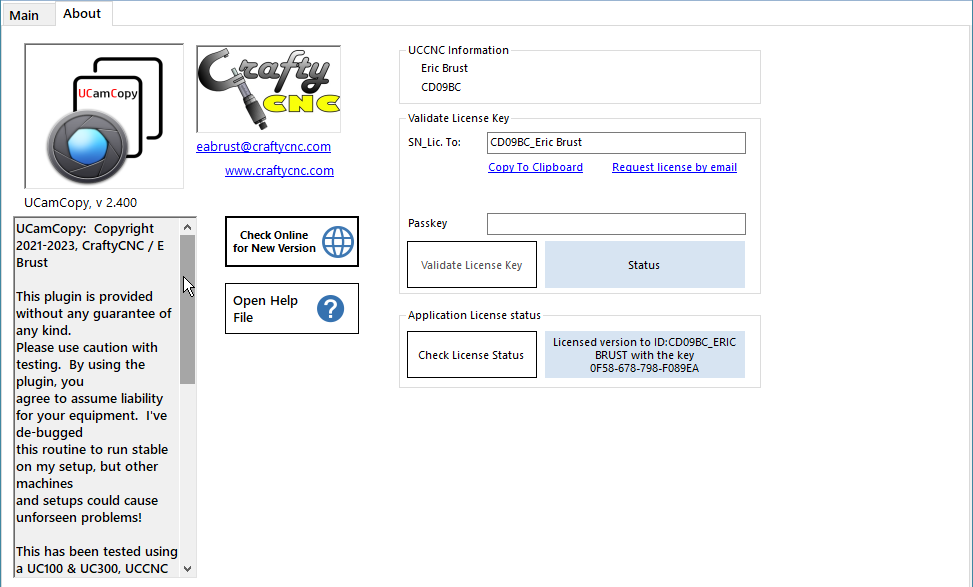
The Check Online for New Version button on the About tab compares your version with the latest one on the CraftyCNC website.
Mach4IPC.dll does not match your Mach4, section 3.1) and offers Retry.Mach4IPC.dll are in use.Nothing moves while Mach4 is in E-Stop or while its control is not enabled (the same state as Mach4’s Enable button being off). Enable Mach4 first, then jog or run.
| Control | How it reaches Mach4 |
|---|---|
| Jog buttons, Move To | Mach4 velocity jog (per axis), and G-code for Move To |
| Step moves | Mach4 incremental jog |
| Work coordinate G54 to G59 | Reads Mach4’s active system; clicking another one selects it |
| Zero / Set DRO | Changes the active system’s offset (G10 L2) so that the work DRO reads the value you entered |
| Go to safe Z | Moves to the top of Z’s soft-limit range in machine coordinates (G53 G0 Z…). Needs Z soft limits turned on in Mach4; otherwise it is refused with a message |
| G68 / G69 rotation | Sent as G-code; the rotation center and angle are read back from Mach4 |
Each axis is jogged by Mach4’s own velocity jog at a rate that is a percentage of the axis’s maximum velocity, so X and Y can run at different speeds together. The jog panel on the right of the main window has Continuous (hold the button) and Step (a fixed distance; it runs to its target and does not stop on release). Moving by hand with the jog panel works the same as with Mach4’s own keys; CamCopyM4 does not take over Mach4’s jog keys, so do not touch them or a pendant while Run is on.
The top speed per axis is read from Mach4: the slowest motor driving the axis, converted from counts per second using the motor’s counts per unit. If Mach4 does not report one, the switch
/maxvel=NNN (units per minute) supplies it; it is also the number the feed rate is turned into a percentage with, so it should be the real maximum.
Mach4 refuses to start or stop a jog while the jog rate is below about 0.05% of the axis maximum, and an idle axis does not move at all below roughly 0.15 units per minute. The PID asks for such tiny speeds when it settles on a target, so CamCopyM4 starts a jog at no less than 0.1% and stops at no less than 0.5%, lowers the rate after the start, checks every call, and retries a refused stop. The practical effect: very slow corrections at the very end of a move may be ignored, which is harmless. Mach4 remembers the jog rates, so CamCopyM4 puts your original jog rates back when it closes.
The E-Stop button in the main window is a toggle. Not in E-Stop, it stops all jogs and puts Mach4 into the not-enabled state, which is the same as pressing Mach4’s Enable button off. In E-Stop (or not enabled), it asks you to confirm and then enables the control again and waits up to 1.5 seconds for Mach4 to follow. If a hardware E-Stop input keeps Mach4 in E-Stop, it says so. The button flashes while Mach4 is in E-Stop or not enabled.
Close CamCopyM4 with its window close button. Any jog is stopped first, and Mach4’s jog rates are put back. Settings are saved if Auto Save is on (section 18).
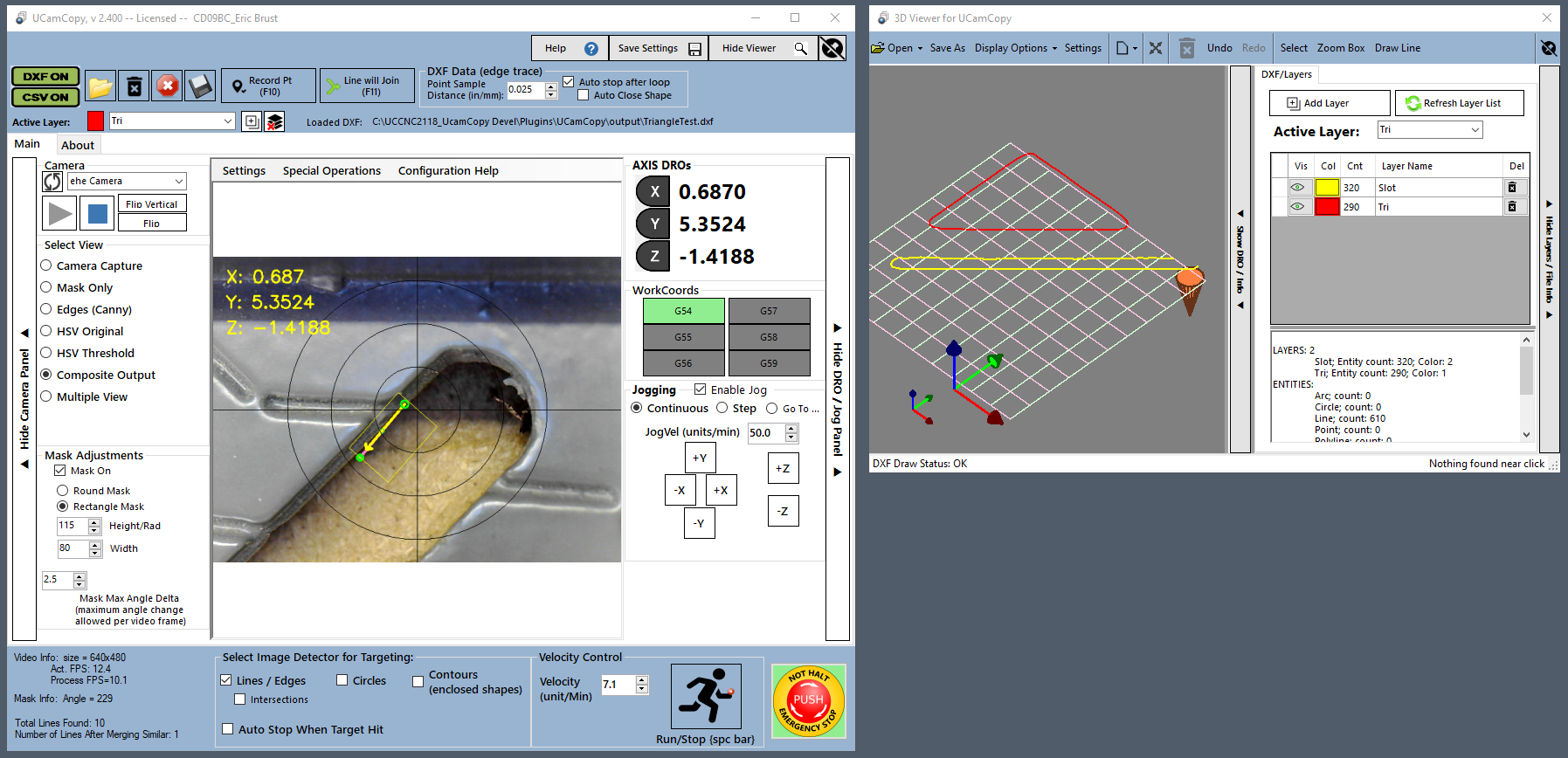
CamCopyM4 is made of two main windows, plus a few settings windows:
Windows snap to one another when you drag them close together. When the viewer is stuck to the main window the pair moves as a group if you drag the main window; grab the viewer and pull to unstick it. CamCopyM4 works best at a screen resolution of 1280 × 1024 or higher.
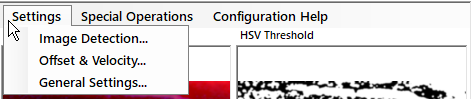
The settings are not in tabs under the video any more. They are in separate windows that you open from the Settings menu, the first item of the menu strip above the camera view:
| Menu entry | Contents |
|---|---|
| Image Detection | Auto Tune, the HSV option, blur, Canny, circle and line-detection values (section 10) |
| Offset & Velocity | Camera/spindle offset moves and calibration (section 17), PID mode, gains and axis enables (section 13) |
| General Settings | Interface, safety and jogging, startup and updates, video overlay, detection colors, defaults and backup, DXF recording, live info (section 18) |
The windows have a blue frame, can be dragged anywhere (also onto a second monitor), and remember where you left them. They snap to the other CamCopyM4 windows too. Closing a window only hides it. The viewer has its own settings window, opened from its toolbar.
The side panels can be tucked away to give the video more room. The small arrow buttons on their edges (labelled Hide / Show) slide a panel away and bring it back. The viewer has the same strips for its two right-hand panels (Hide DRO / Info and Hide Layers / File Info). Which panels are shown, and how wide they are, is remembered.
The E-Stop button flashes while Mach4 is in E-Stop, so it is hard to miss (section 5.5).
The main window gives access to all of CamCopyM4’s features, laid out like a CNC control screen:
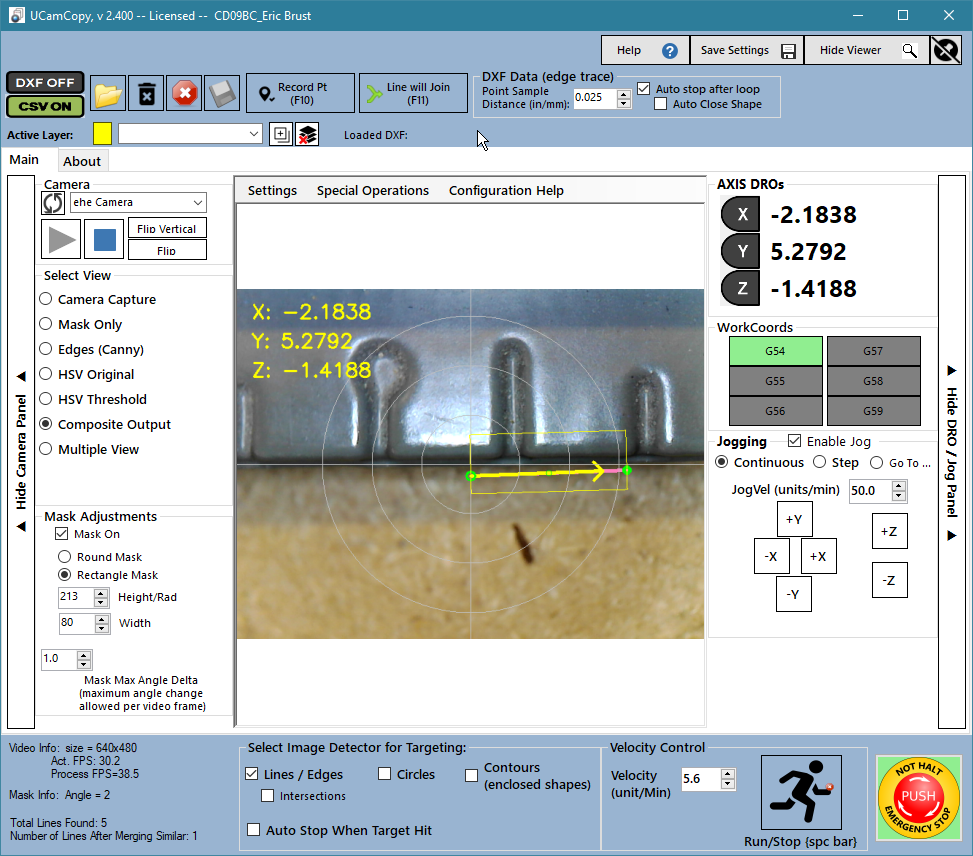
The Special Operations menu holds the arc/circle collection dialog (section 12.3) and the G68 rotation setup. The Configuration Help menu opens two guides that walk you through the first setup: camera alignment, and calibrating axis velocity (section 13).
This is the shortest path from an unconfigured install to a traced part. Each step is described in detail in the later sections.
The left panel controls the camera and selects which stage of the image processing is displayed.
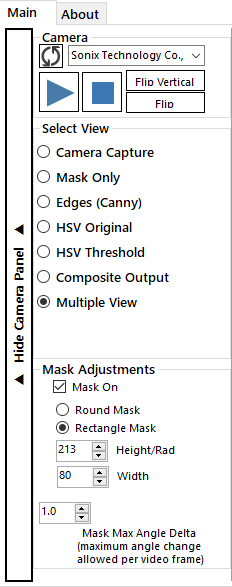
The Use HSV color for edges and detections checkbox (in the Image Detection window, next to Auto Tune) makes CamCopyM4 use color information instead of grayscale to find edges. This helps when your part looks similar to its background in grayscale. It is always better to create a color or shade difference yourself, for example by placing the part on light or dark paper.
I usually zoom in so that about 1 cm (0.5 inch) spans the width of the camera view. Even with 640 × 480 pixels that gives less than 0.001 inch (0.015 mm) per pixel, which makes CamCopyM4 accurate without any calibration.
EMGU/OpenCV captures the video and runs several steps to find lines, edges and circles:
Grayscale flow (HSV off): Capture → Grayscale → Blur → Mask (narrow region of the image) → Canny filter (edge detection) → Detections → output to drive the machine.
HSV color flow (HSV on): Capture → HSV conversion → Blur → Mask → Canny filter → Detections → output to drive the machine.
The Select View options let you look at each stage, so you can set thresholds more easily. During normal operation you will leave Composite Output selected.
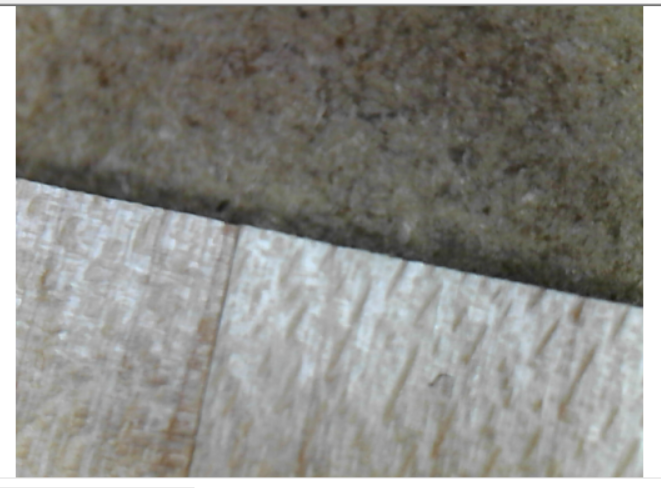
The pictures below all use the same example part so you can compare the stages.
The original, unmodified camera image. Use it to check lighting and focus.
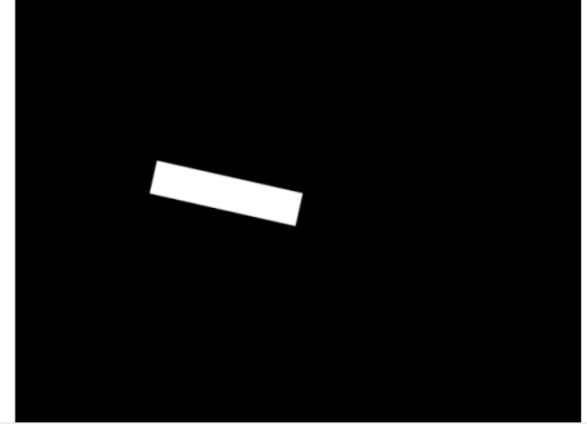
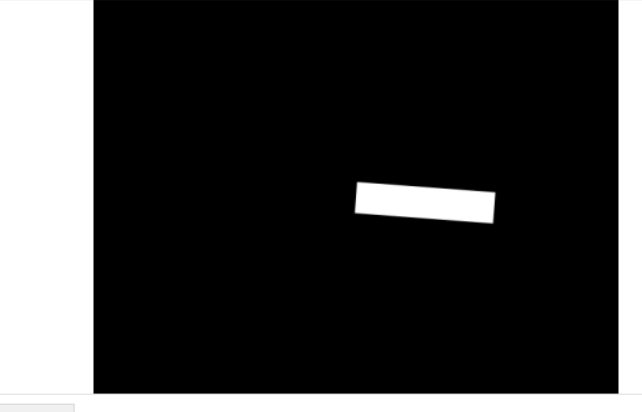
A black and white picture of the mask. Image processing is limited to what falls in the white area.
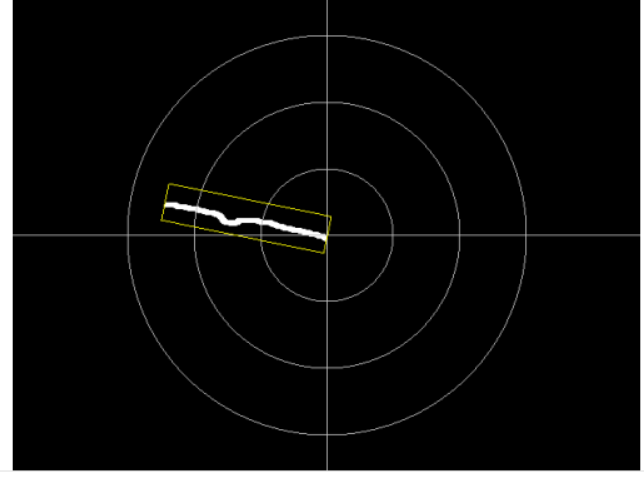
The most important view. It shows the edges the program finds after processing the image inside the masked region (yellow outline). Use the Edge (Canny) Threshold values and Thicken Edge (Canny) Lines to filter the edges until you get a strong, clean result like this one.
The grayscale image with blur applied. Available only when HSV is not checked. Adjust the Blur Amount in the Image Detection window to remove noise: too much blur makes edge detection difficult, too little leaves a lot of noise.
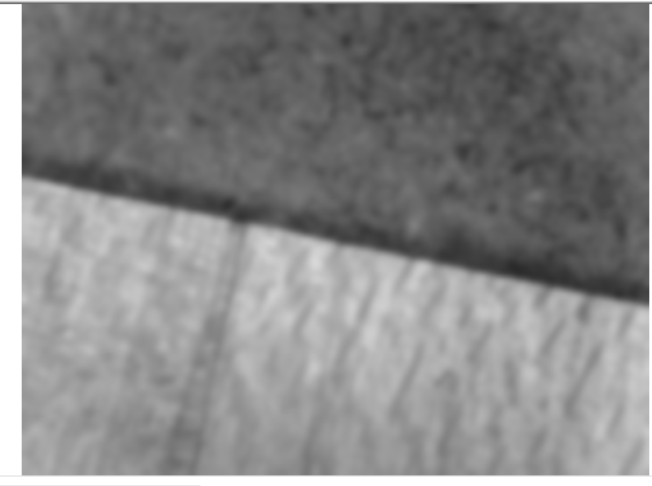
The original image converted to HSV color space and blurred. This can separate the image much better than grayscale, but needs extra thresholds to isolate the area of interest.
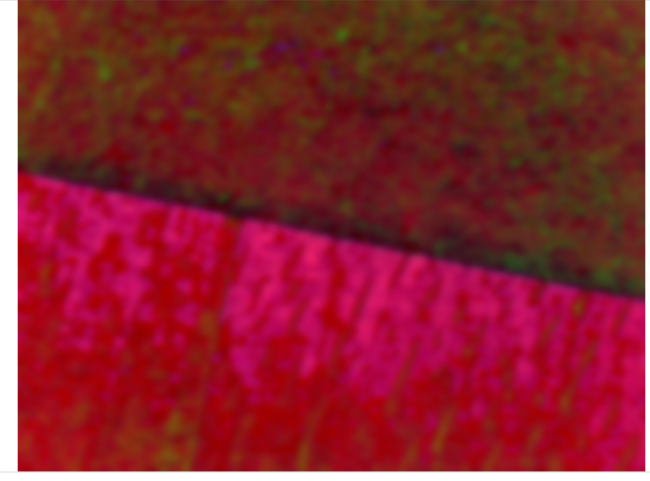
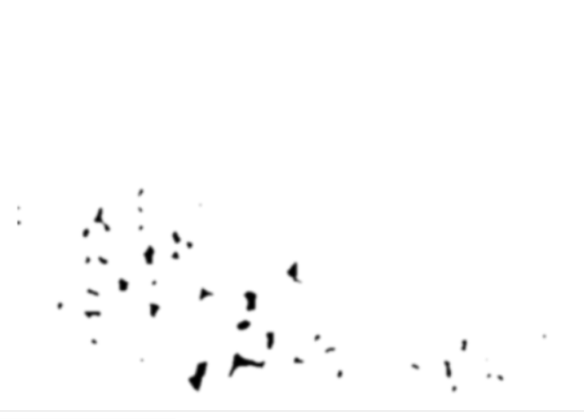
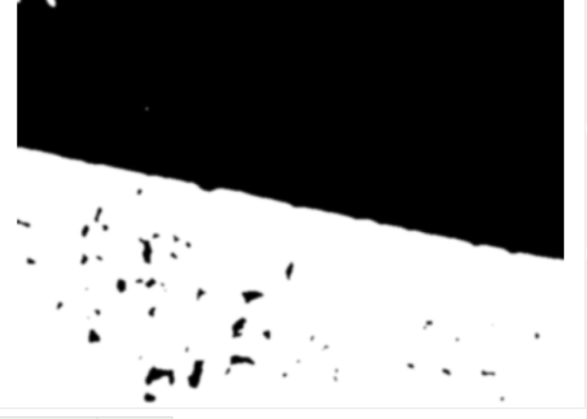
The HSV image needs the Color Detection Thresholding sliders adjusted. On the left below there are no thresholds and the areas are not separated well enough to detect an edge; on the right the thresholds give a clear edge.
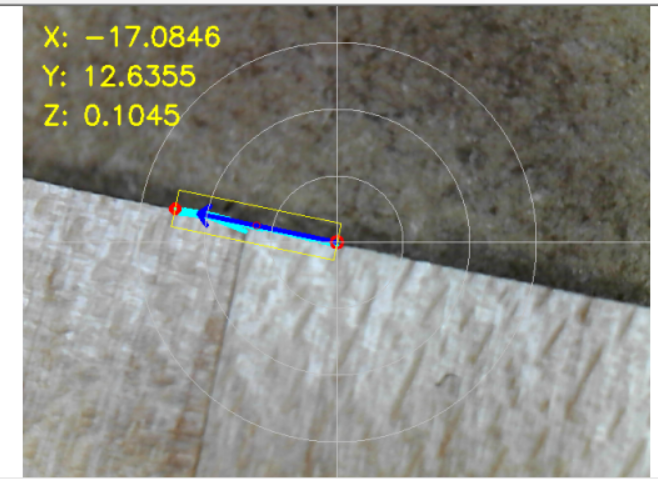
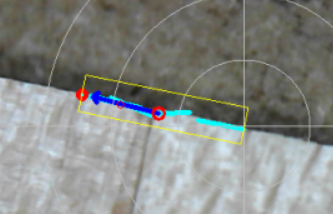
The final image, with overlays of the DROs and cross-hairs (if turned on) and the detections that drive the machine. The dark blue arrow is the direction the machine moves when Run is on. Red points and light-blue lines are the detected edges and the endpoints used to calculate the movement.
Shows the four most useful views at once, so you can adjust thresholds without switching back and forth. With HSV on you see the HSV image, HSV threshold, masked Canny edges and composite output; with HSV off you see the gray image, gray threshold, masked Canny edges and composite output.
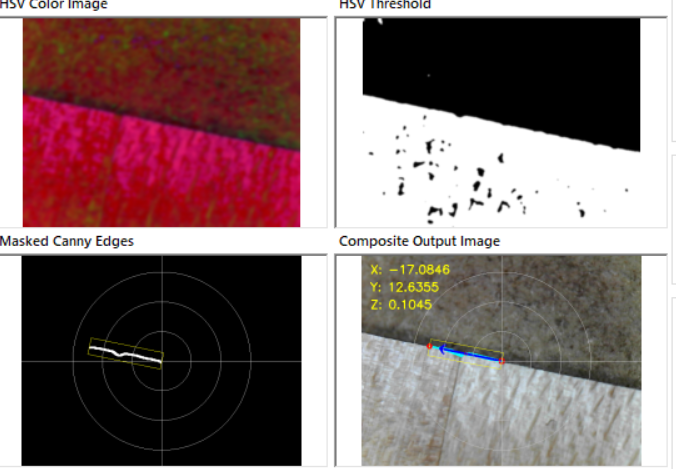
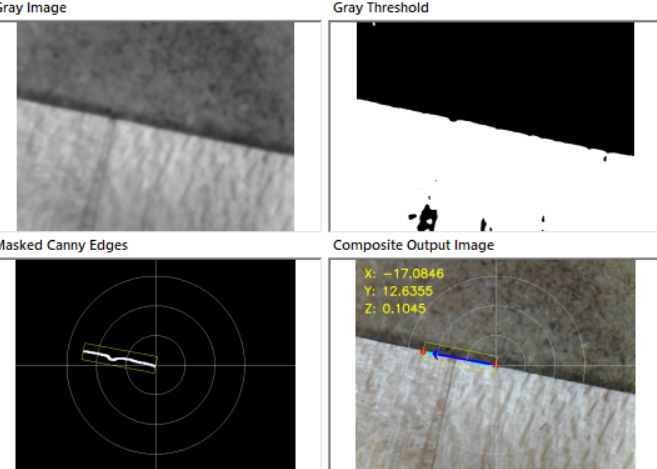
Open Settings → Image Detection. The window opens in a Simple view that shows only what most people need: Auto Tune and its Undo button, the Use HSV color checkbox, the blur value, the Canny low/high thresholds and, when HSV is on, the HSV color range sliders. Tick Advanced settings to show every detection setting.
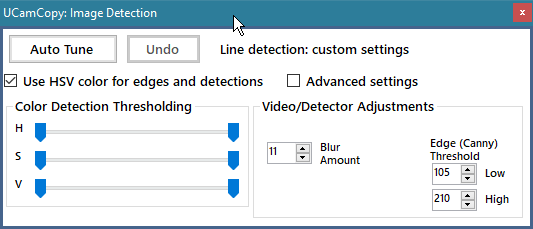
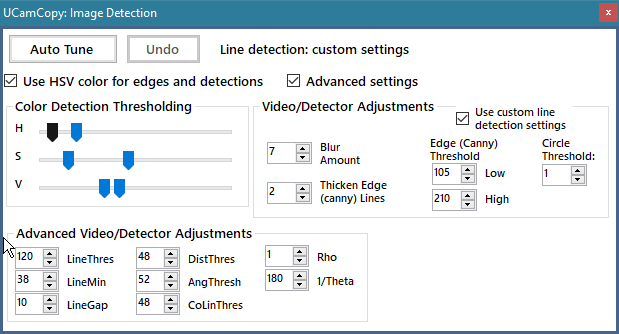
| Setting | What it does |
|---|---|
| Blur Amount | Removes noise before edges are found. |
| Edge (Canny) Threshold Low / High | Limits which edges are kept. Raise them to ignore weak edges. |
| Thicken Edge (Canny) Lines | Makes detected edges thicker. Advanced. |
| Circle Threshold | How strong a circle must be to be detected by the circle detector. Advanced. |
| HSV color range | With HSV on, the range of hue, saturation and value that counts as the target. |
| Use custom line detection settings | When ticked, the Hough and merge values below are used. When unticked, built-in defaults are used. Auto Tune turns it on. Advanced. |
The line-detection values (Advanced view) control the line detectors and the line-merging algorithm:
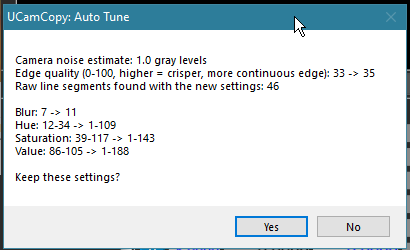
Finding good blur, Canny and line-detection values by hand can take a while. Auto Tune sets them for you with one click.
Auto Tune needs the camera running (it asks you to start it first). You can still adjust any value by hand afterwards.
The mask limits the part of the image that is used for detection. It has two shapes (round and rectangular) and an adjustable size. When you edge-trace, the size and shape of the mask are important: they reject noise and keep the tracing on course. The mask follows the angle of the edge it finds, which helps with steering. Items inside the white area of the mask are “seen”; items in the black area are rejected.
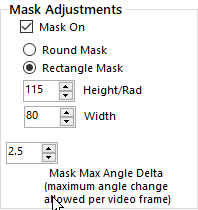
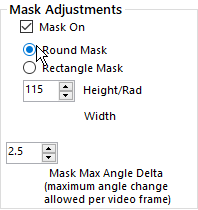

When edge tracing, your goal is to adjust the image and the mask until you have essentially a single line with a target dot at each end inside the mask. That is the line that will be followed.
The detector buttons in the bottom panel choose what CamCopyM4 looks for:
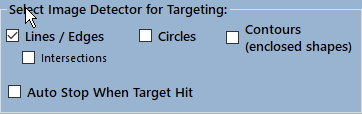
The detector you will use most, for auto-tracing the outside edges of objects. It needs a clear edge in the image and a mask that limits detection to the area of interest.
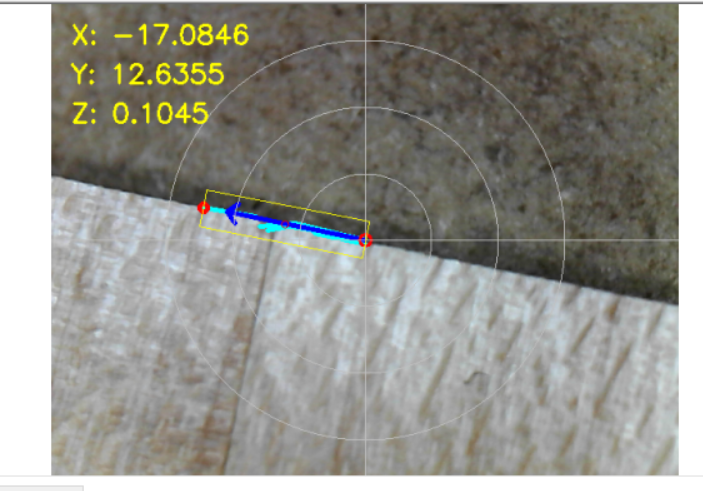
You choose the direction the machine travels around the perimeter by double-clicking the image to re-orient the mask in the opposite direction:
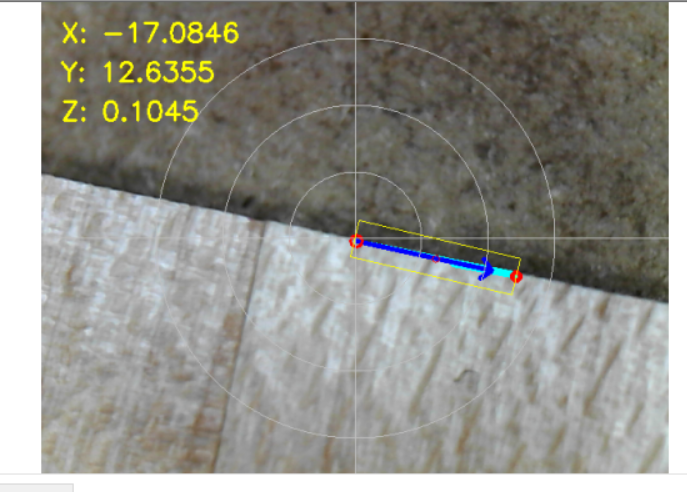
You may have to help by positioning the part so the edge is initially centered, and by orienting the mask. In the next picture the edge is in the right place but is not detected, because the mask is not oriented over the edge:
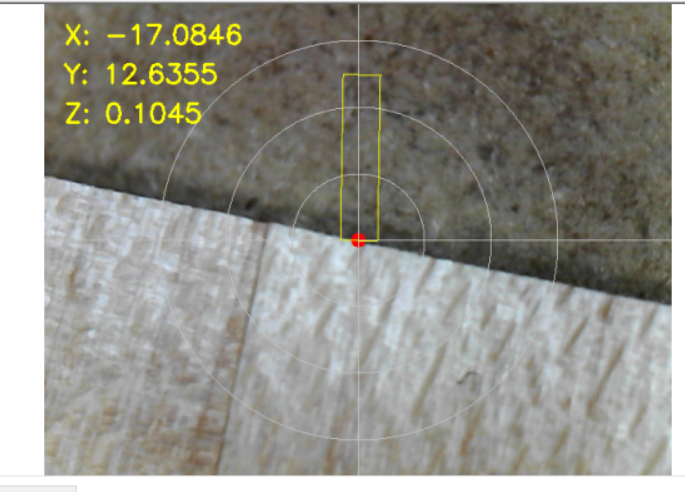
When you are calibrated and ready to trace: switch to line mode, jog until the cross-hair is over an edge, and adjust the image and the mask until you have a clean line with target dots at both ends. The mask aligns itself with the edge and can go either way around the part (clockwise or counter-clockwise makes no difference). Double-clicking near the center of the image re-orients the mask direction.
You can start and stop the velocity and move around as needed to cover all the edges. If the line is lost or the machine gets off track, stop the velocity, jog back into place, adjust the video and mask, and enable velocity control again.

When enabled, the detector looks for the two most prominent lines in the image and uses their intersection as the target. Turn the mask off.
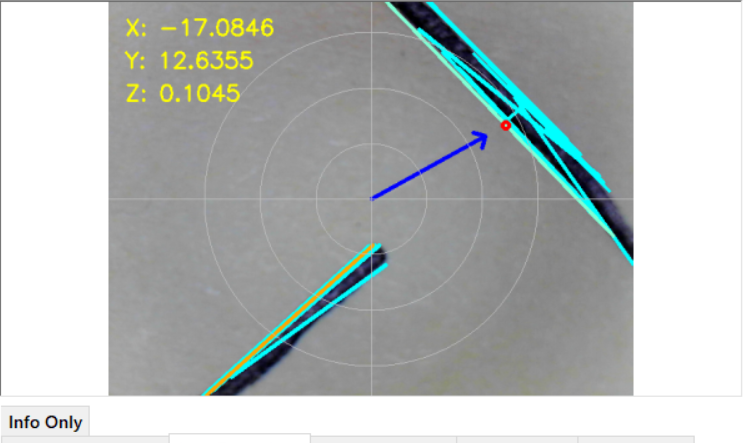
There are two ways to deal with holes and circles.
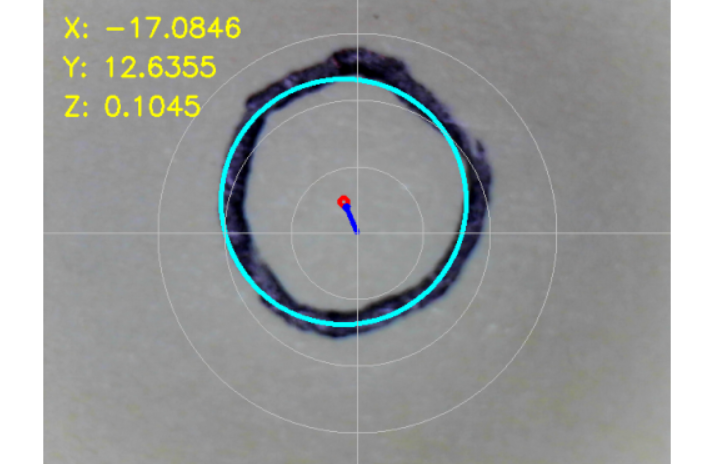
If the hole is small and fits completely in the camera view, select the circle detector and the machine drives to its center point. It only finds a location; the size of the circle cannot be determined from the camera image alone. Adjust the Circle Threshold until you get a reasonable detection (it may bounce around quite a bit). In the picture, the red dot is the center target and the dark blue arrow is where the machine will drive.
For geometry that is too big for the camera view, open Special Operations → Arc or Circle From Points. The dialog helps you collect circles and arcs into the DXF or find sizes and center points.
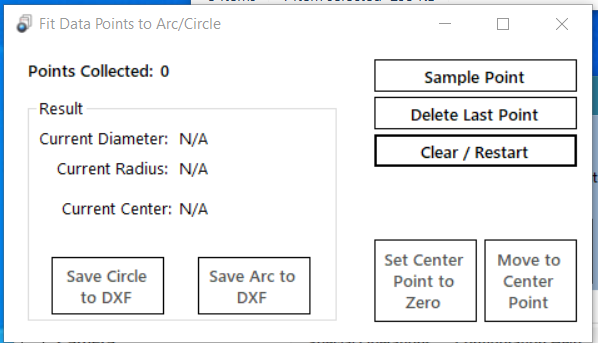
Follow the prompts: jog to at least three locations on the arc or circle and click Sample Point at each. With three points the center and the diameter/radius are calculated and shown. You can collect more points for a least-squares fit, and then use the result to:
For an arc you can only use three points: sample one end, a point along the arc, and then the opposite end.
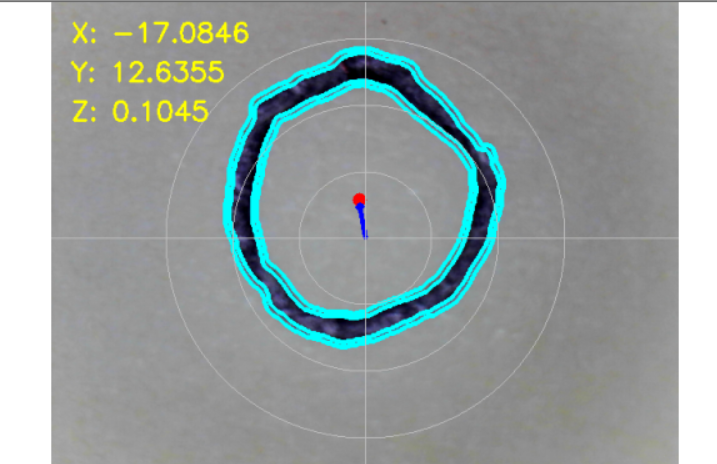
Similar to the circle detector, but it finds shapes that are not perfect circles more easily. It is the detector I recommend when calibrating, because it is more reliable and stable than the circle detector and has no threshold to adjust.
Before going far with CamCopyM4, set up the PID controllers (proportional / integral / differential) that drive the axes together with the velocity you choose. They are on the Offset & Velocity settings window (Settings → Offset & Velocity).
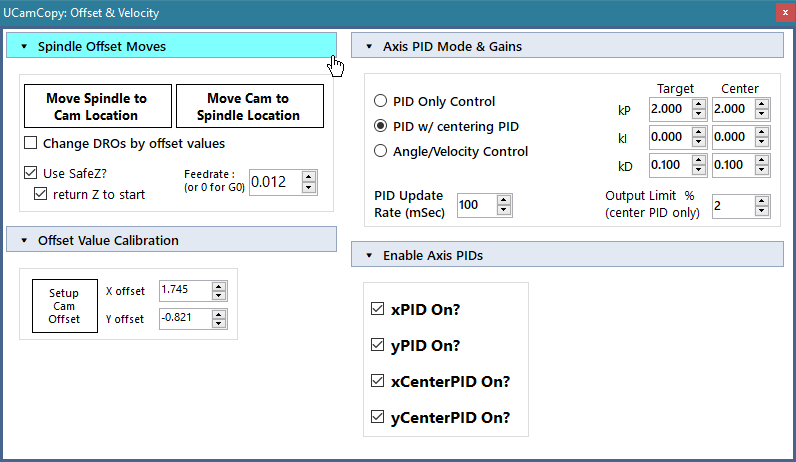
Under the Configuration Help menu, camera alignment and Calibrate Axis Velocity open guides that walk you through the initial setup.
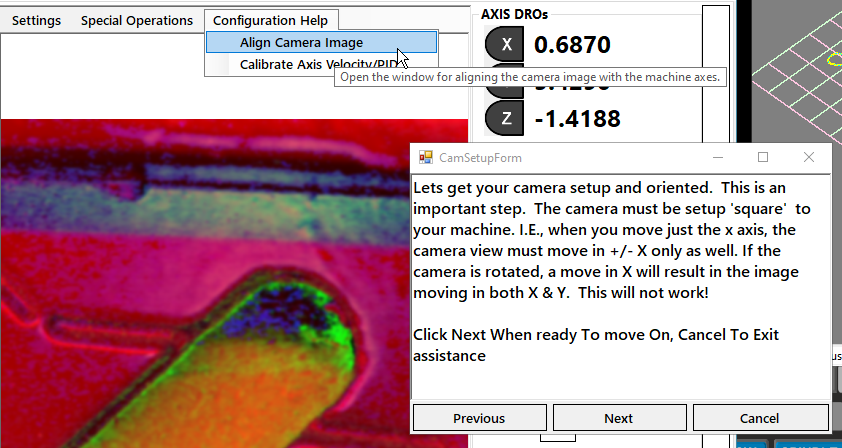
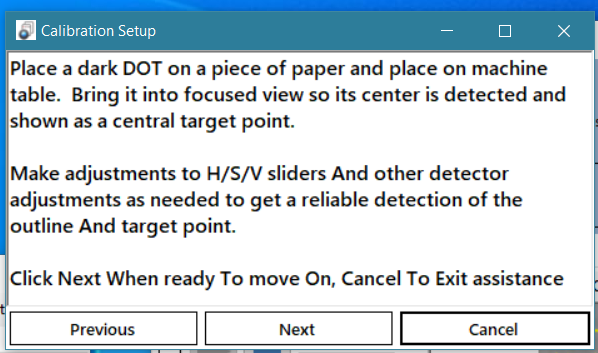
Key points:
| Mode | How it works | Use it when |
|---|---|---|
| PID Only | One PID per axis, aimed at a target held a fixed distance from the current position. The X and Y PIDs calculate separate velocity commands from the difference between target and current position. | The part has sharp corners or lots of twists and turns. |
| PID w/ Centering PID | As above, plus two “Center PID” loops that reduce the following error between the closest point of the edge and the current position. Recommended. Can be unstable if the center PID is poorly tuned or aggressive; set its max output to 5 or 10% (the limit is 50%). | Most work. |
| Angle/Velocity | Uses the Center PID loops to put the closest point of the edge at the target, and takes velocity out of PID control: speed and direction come only from the slope of the detected edge. A simplified algorithm that may work better on some machines. | The part has long straight sides and few twists. |
PID is a classic negative-feedback control (servos, thermostats and so on). In CamCopyM4 it looks at the error in the camera image — how far the center of the picture is from a defined target — and sends velocity commands to Mach4 to drive that error to zero. kP, kI and kD are gain coefficients. They must be set before you let CamCopyM4 control your machine.
The total gain fed to the machine is the combination of the maximum velocity you enter and the PID gains for the normal and center PIDs. If gains are too high the machine oscillates; if too low, it is slow and the following error grows, which turns into measurement error.
Place a small dot on a piece of paper as a target, then:
When it works, the target dot is brought to the center of the view and stops without oscillating. You can then change the values, jog off center and run again to test them. You want the machine to snap quickly to the dot without oscillating or overshooting.
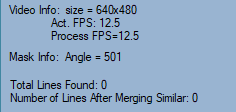
The PID Update Rate (in ms) is how often the PID loops are calculated and velocity commands are sent to Mach4. I suggest about 100 ms (10 times per second). It should be slower than the camera’s frame rate by about 50%. For example, a camera running at 15 fps delivers a frame every 67 ms (1/15 = 0.067), so set the update time larger than that; 100 ms gives 10 updates per second. If your camera has a consistently high frame rate you can decrease the value: 50 ms (20 Hz) works with a 30 fps camera.
You can see the real frame rate in the status messages at the bottom of the window:
CamCopyM4 does not run routines step by step like a touch probe. Instead you use the Run/Stop button to give CamCopyM4 control of the axes or to take it away.
If there are no targets, jog the machine by hand to bring one into view. If the target is in view but not detected, adjust the image and the detections until it is.
Machine moves can be aborted, and fail safe: if Mach4 is in E-Stop or refuses a move, CamCopyM4 stops rather than guessing.
Once you have opened a file to record to, you can start and stop recording as often as you like. For example, you can record some perimeter feature (click Abort to stop), record a bore or edge feature elsewhere, set a new Z location, go back and record another perimeter, all to the same file. When you are done, save it all with Save DXF.
The top panel controls recording of DXF or CSV data, opening, saving and closing files, choosing the DXF layer to record on, and so on.

You can also record points manually and choose whether each point is joined to the previous one by a line (line join / break).
The Point Sample Distance is used during auto edge tracing and sets how far apart the recorded points are, which controls the resolution of the edge: a smaller number means finer resolution. Edges are recorded as points joined by straight lines. You can fit this data to polyline curves in your CAD or CAM software afterwards.
CamCopyM4 records to a CSV (comma-separated values) file that Excel can import, to a DXF file, or to both at once. Files are stored in the output folder inside the program folder, next to CamCopyM4.exe (section 18.4).
Turn on the CSV checkbox, the DXF checkbox, or both. You are prompted for a file name; if you select both, the name is used for both formats. Once the DXF or CSV button shows ON and a name has been entered, you only have to trace the part: all data is recorded until you close the file. Starting a DXF recording creates (or selects) the DXF layer for you; use the Active Layer selector to record to a different layer.
If no DXF data has been recorded, Open opens an existing DXF file. You can open several files, which are appended together; new data you collect is merged into them. When you save, you can overwrite or save under a new name. As soon as a file is opened or data is recorded, the button works for saving until you clear the DXF buffer or save the file.
While a recording option is on, data keeps being collected and appended internally. After you finish probing a part, click Close DXF to close the file (you are asked to save if you have not). To throw away data you do not want, click Empty DXF, which clears it without saving.
You can click Save DXF at any time to make sure the results are on disk. If there is no file name yet you are prompted for one; if CSV and perimeter files are selected, they are saved with the same name as the DXF. Once the file has a name it is displayed, so you can confirm where the data is going.
To save the DXF data under a different name, use Save As on the viewer toolbar (or Save As… in the viewer’s right-click menu). Unlike Save DXF it writes the file whether or not the DXF button shows ON, and the new file becomes the current file, so a later Save DXF goes there (section 16.9).
The viewer shows the point cloud and DXF data measured and recorded while you probe, and the camera position in real time. It also shows information about the DXF, lets you control the layers and colors and choose the active layer to record on, and is a basic DXF editor: you can pick, delete, move to another layer and draw lines. Colors and visibility are set by you.
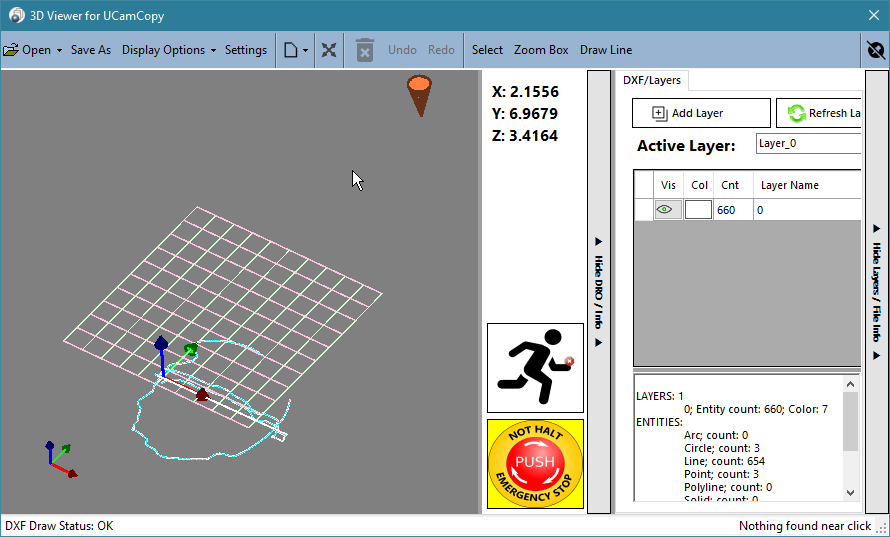
Each of the two right-hand panels has a vertical Hide / Show strip beside it. Click it and the panel slides away to give the 3D view more room; click again to bring it back. Drag the left edge of a panel to make it wider or narrower. Which panels are shown, and how wide, is remembered the next time the viewer opens.
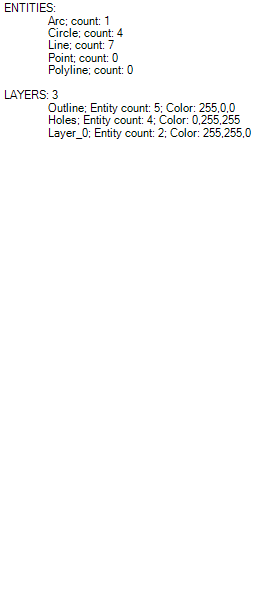
A short right-click that does not drag opens the right-click menu instead of rotating.
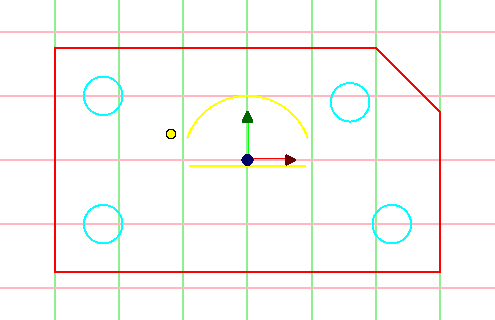
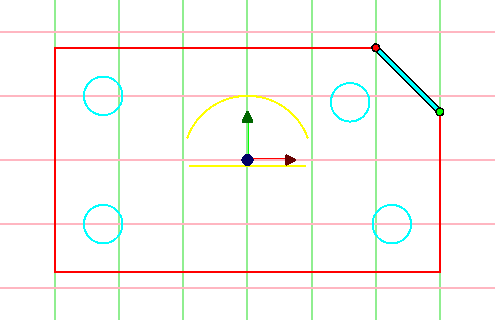
Click a line, circle, arc or polyline to select it. It is drawn in the Selection Color (cyan by default) and its layer and coordinates are shown in the status bar. Before you click, the entity under the pointer is drawn in the Hover Color (orange by default). Open shapes (lines, arcs, open polylines) show a green Start dot and a red End dot, and an arc also shows a blue Center dot. Closed shapes such as circles have none of these.
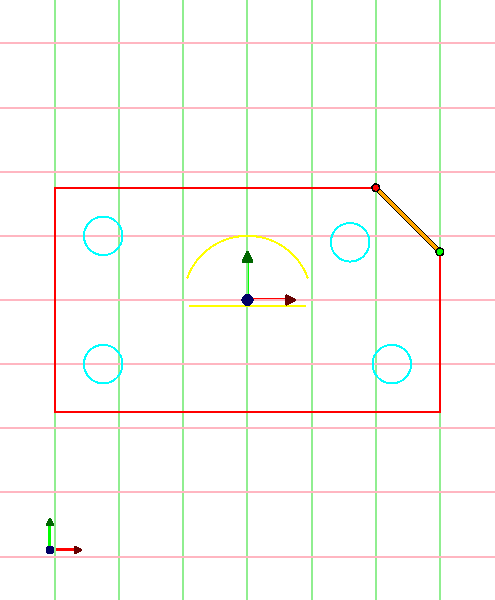
While Select or Zoom Box is on, dragging draws the box instead of panning the view.
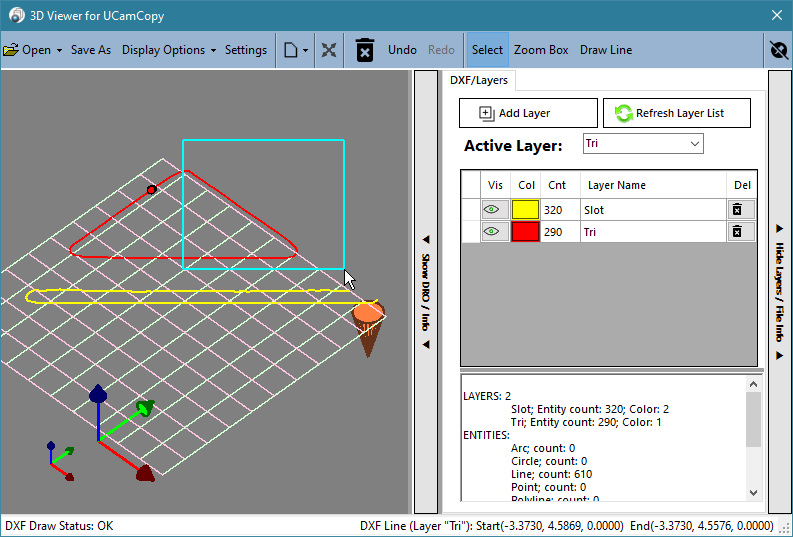
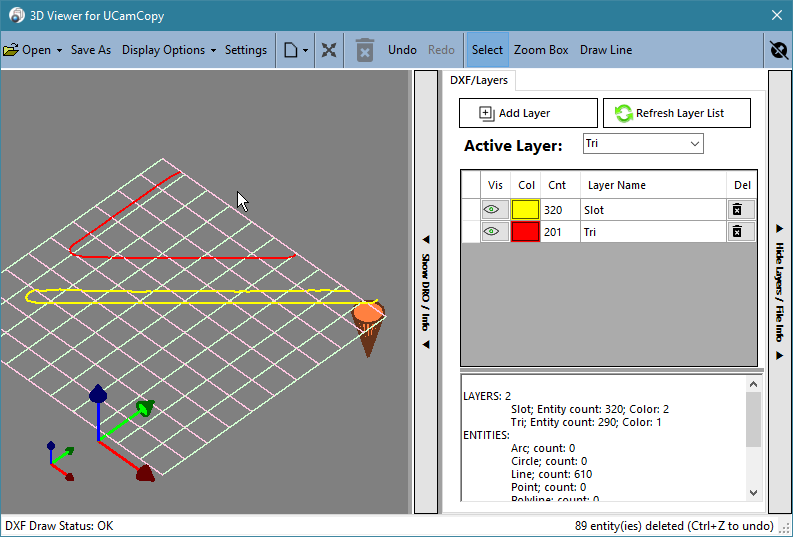
With entities selected, click Delete (or press Delete) to remove them from the DXF data. Undo (Ctrl+Z) takes back the last change and Redo (Ctrl+Y or Ctrl+Shift+Z) puts back what you just undid. The history covers deleting entities, drawing lines and moving entities to another layer, one change at a time. A new change clears the Redo history, and opening or clearing a DXF clears both.
Any edit marks the DXF as having unsaved changes, so the Save button on the main window becomes available.
Draw Line adds new lines to the DXF by clicking in the view. Click Draw Line on the toolbar (the button stays highlighted while the tool is on), then:

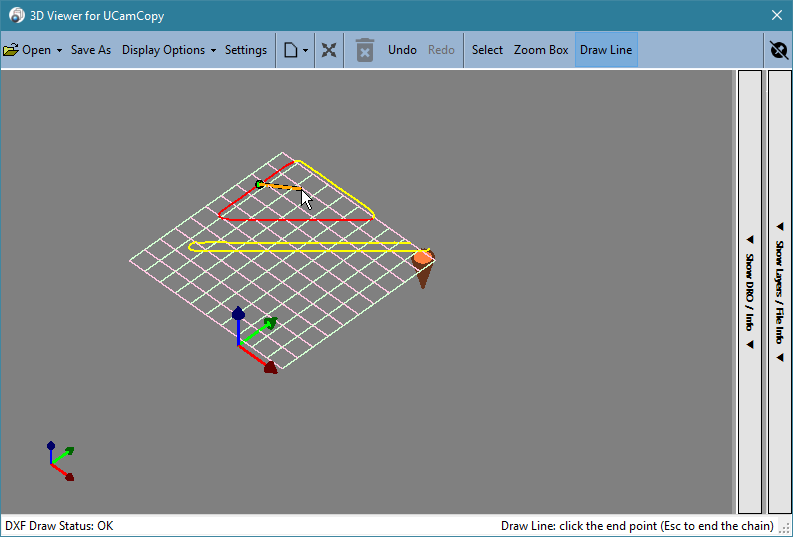
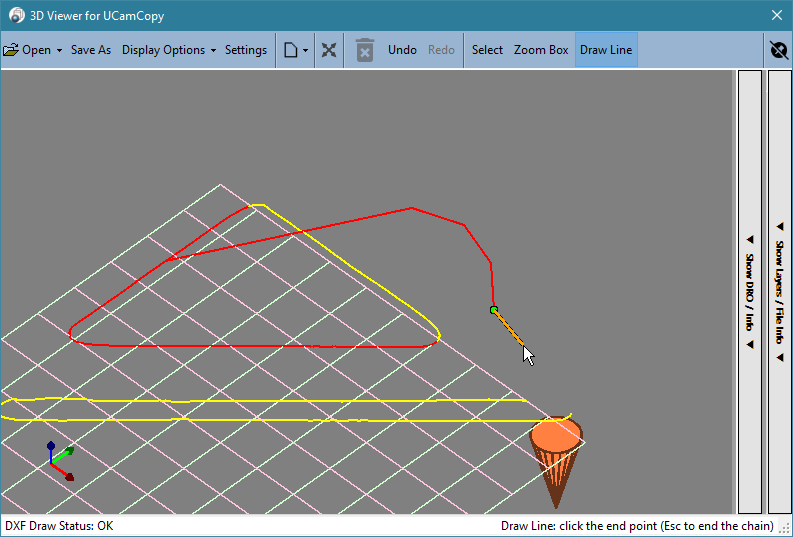
Snapping: when the pointer is within about 12 pixels of the start or end of an existing line, an orange dot appears on that endpoint and the status bar names it. The point you click is then exactly that endpoint, so lines join cleanly. Away from an endpoint the point is where you click, at Z = 0. Only the endpoints of lines are snap targets; arcs, circles and polylines are not.
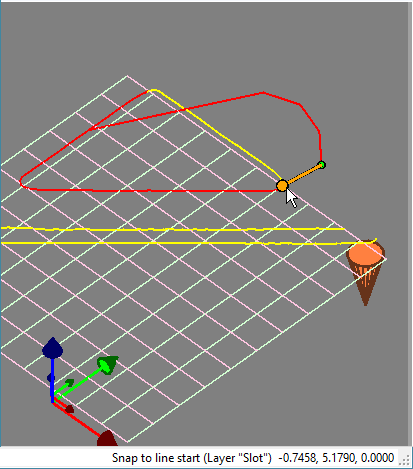
New lines go on the active layer (shown in the Layers panel; one is created if there is none). Each line is one Undo step. Pan, rotate and zoom still work while the tool is on. Use the Top view for drawing: in an edge-on view such as Front or Right a click cannot be placed on the Z = 0 plane.
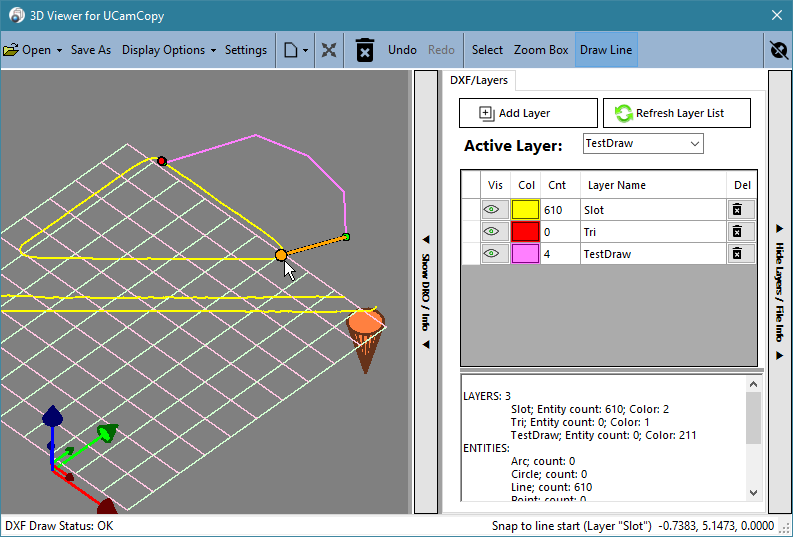
The layer list has these columns: Vis (click to show or hide the layer), Col (double-click to change its color), Del (delete the layer and its entities, after a confirmation), Layer Name (edit it to rename the layer) and Cnt (the number of entities on it). Add Layer creates a new layer and Refresh Layer List rebuilds the list. The Active Layer is the one that newly recorded data and newly drawn lines are put on. Layer names must be unique (upper and lower case count as the same): a name that is already in use is refused, both for a new layer and when renaming.
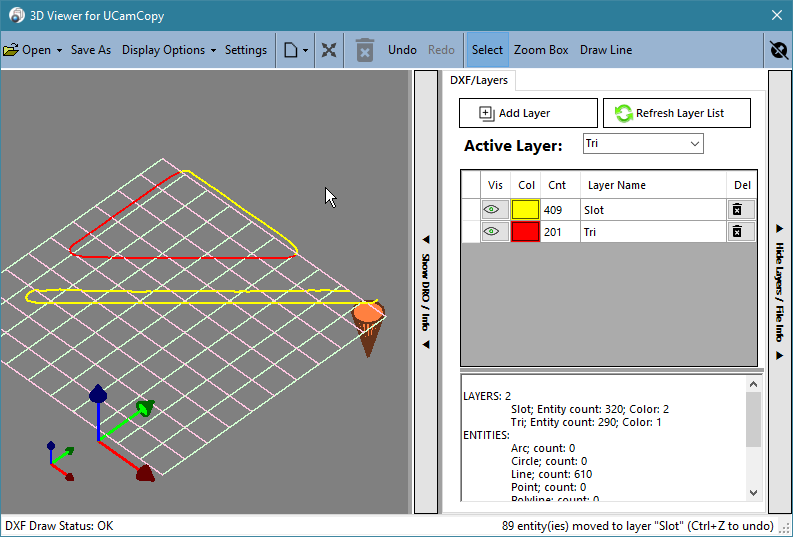
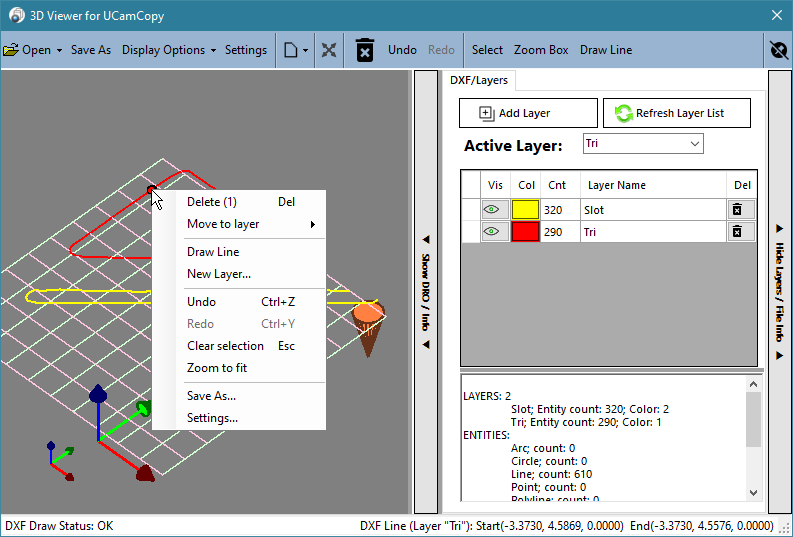
To move entities to another layer, select them, right-click one of them, choose Move to layer and pick the destination layer. The entities keep their positions; only their layer changes. They stay selected so you can see the result, and Undo moves them back. If the layer you want does not exist yet, create it first with Add Layer or New Layer… in the right-click menu.
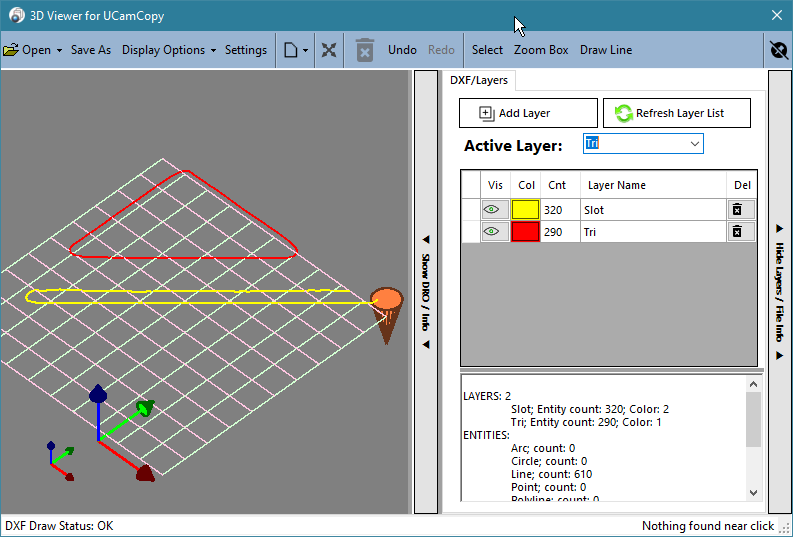
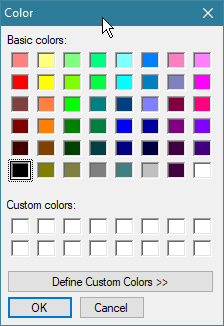
To make a new layer, click Add Layer (or choose New Layer… in the right-click menu). CamCopyM4 asks for a name, then for a color. If you cancel the color dialog the layer is still created.
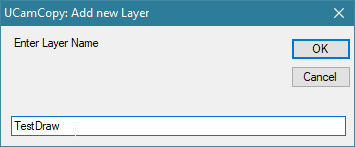
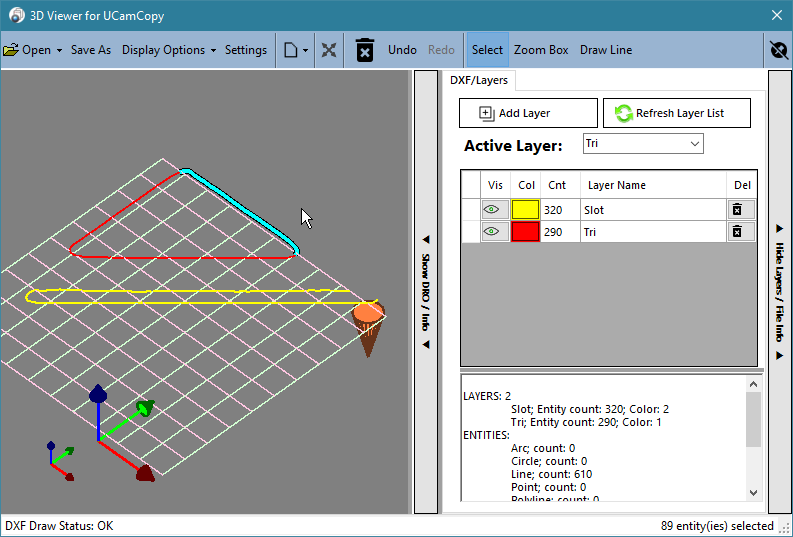
Moving entities, step by step: first select them (here part of the red Tri layer is selected, shown in cyan), then right-click one of them and open Move to layer, which lists every layer. Pick the destination.
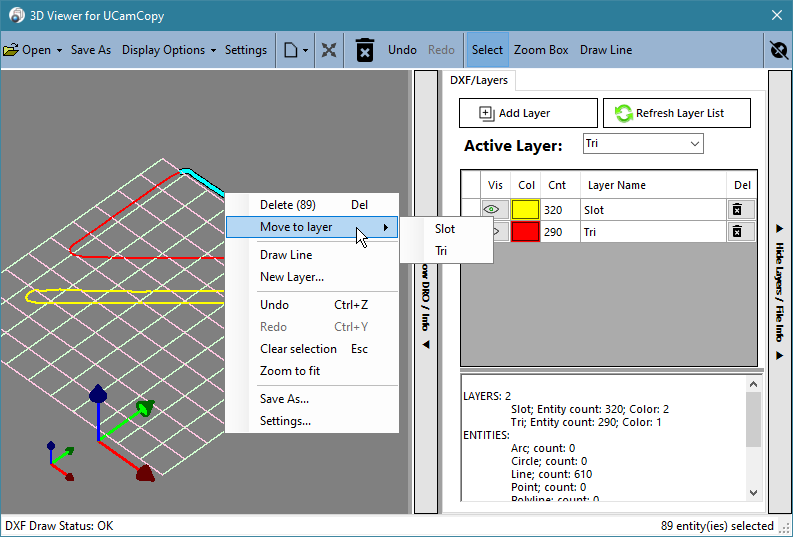
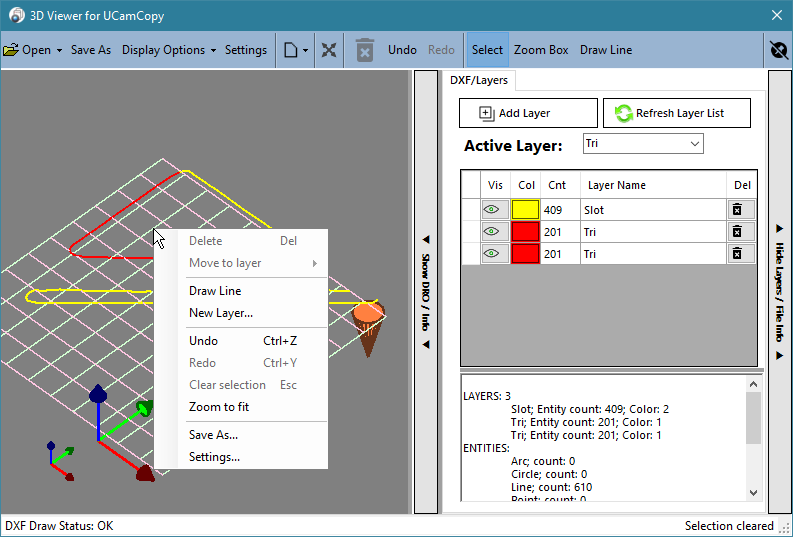
Right-click (without dragging) in the 3D view to open a menu. If you right-click an entity that is not selected, it becomes the selection; if it is already part of the selection the whole selection is kept, so you can act on a group. The menu has:
Entries that do not apply, such as Delete with nothing selected, are greyed out.
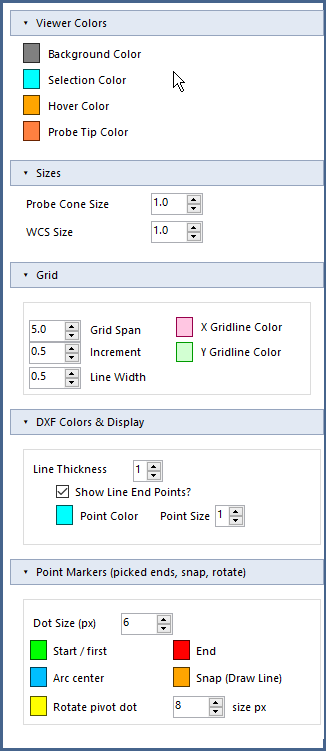
The Display Options menu turns the Axis / WCS indicator, the grid and the current-position marker (Show Cur. Position) on and off. The colors and sizes are in the viewer’s settings window, opened from the toolbar. Its groups are collapsible; Viewer Colors and Sizes are open by default.
Click a color swatch to change that color. The settings are saved with the viewer settings when you click Save Settings on the main window.
Click Save As on the viewer toolbar, or Save As… in the right-click menu, to save the DXF data to a new file. The save dialog opens in the folder of the current file with its name filled in, ready to change. The data is written whether or not the DXF button on the main window shows ON, and the new file becomes the current file: the name shown on the main window changes to it, and a later Save DXF goes there. The original file is not changed. Save As writes only the DXF; the CSV and perimeter files are written by Save DXF.
You will most likely have the camera side-mounted to your spindle. The offset controls (in Settings → Offset & Velocity) let you set the offset between the spindle and the camera and then toggle the machine from one position to the other.
This is a good setup tool: use the camera and cross-hairs (or the detectors, or the arc/circle routines) to locate the origin you want, then move the spindle to that location and zero the DROs.
Each session, the first time you zero an axis or use a button to move between the spindle and the camera, you are asked which position you are currently using (camera or spindle). From then on the buttons only toggle between the two.
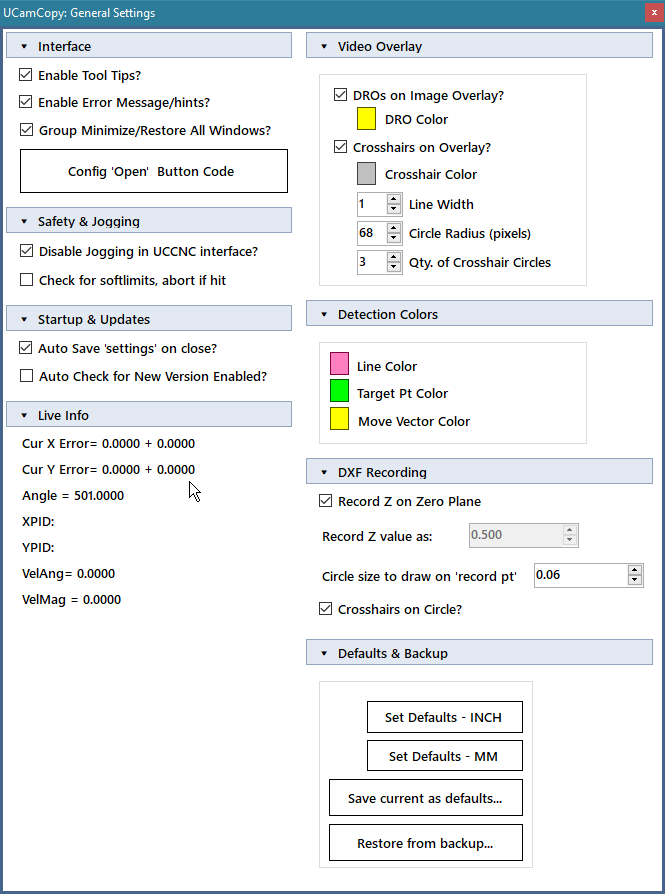
Settings → General Settings holds the options that are not about image detection. They are in collapsible groups in two columns; whether each group is open is saved with your other settings.
| Group | What is in it |
|---|---|
| Interface | Enable Tool Tips?, Enable Error Message/hints?, Group Minimize/Restore All Windows?, and the Config ‘Open’ Button Code button, which is a UCCNC feature and has no use in CamCopyM4. |
| Safety & Jogging | Disable Jogging in UCCNC interface? is a UCCNC feature and has no effect here: Mach4’s own jog keys stay active, so do not touch them or a pendant while Run is on. Check for softlimits, abort if hit stops and reports if a soft limit is hit during a move. |
| Startup & Updates | Auto Save ‘settings’ on close? saves your settings when CamCopyM4 is closed. Auto Check for New Version Enabled? checks the website for a newer version when CamCopyM4 starts (if you have a network connection). The Check Online for New Version button on the About tab works whether or not this is ticked. |
| Video Overlay | DROs on the image overlay, DRO color, cross-hair overlay, cross-hair color, line width, circle radius and number of cross-hair circles. |
| Detection Colors | The colors of the detected line, the target point and the move vector. |
| Defaults & Backup | Set Defaults – INCH, Set Defaults – MM, Save current as defaults… and Restore from backup…. |
| DXF Recording | Record Z on zero plane, the Z value to record as, circle size to draw on “record pt”, and cross-hairs on circle. |
| Live Info | The live detection information that is also shown at the bottom left of the main window: video info (image size, actual and processing frame rate), mask info (the mask angle) and line info (lines found, and lines left after merging similar ones). |
Click Save Settings on the main window to save your settings (the controls of the main window and the settings windows, and the viewer settings). Settings are only saved when you click the button, plus an automatic save when CamCopyM4 closes if Auto Save is on and the settings loaded properly. If the settings could not be read when CamCopyM4 started, nothing is auto-saved over them.
The first time CamCopyM4 runs with no saved settings, it asks whether you work in inch or metric and loads matching starting values. You can also choose a settings file instead. The starting values are sensible first-pass settings for both the main window and the viewer; the metric set has the feedrates and lengths converted (for example the probing velocity is 102 mm/min instead of 4 in/min, and the viewer’s grid is 127 mm across instead of 5 in). Please check the values against your machine, camera and zoom, especially the PID gains (section 13).
Everything is in Settings\, a folder that CamCopyM4 creates next to CamCopyM4.exe:
| File / folder | What it is |
|---|---|
UCamCopy.xml, UCamCopyViewer.xml | The main window and viewer settings: every checkbox, number, text, combo, color and group state. |
UCamCopy.settings.xml | Window positions, sizes and panel state. On the first run, values from an older install are imported once. |
Backups\ | Rotating backups (the newest 10 of each file), made whenever a settings file is about to change. |
SettingsLoad.log | One line for every save, load and restore, plus anything that could not be applied and why. Look here first when “a setting didn’t stick”. |
WindowPositions.xml | Where each settings window was left. |
Defaults\ | The defaults you saved. |
Settings are written safely (a new file is written and checked before it replaces the old one), and a settings file that cannot be read is never overwritten by the defaults.
Restore from backup… (General Settings, Defaults & Backup) lists the backups and puts the one you choose back.
| Symptom | Check |
|---|---|
| The camera is not in the list | Plug it in, then click the refresh button next to the camera list. Make sure no other program has the camera open. |
| Run is on but the machine does not move | Moves only happen when a target is detected. Check that the overlay shows target points and a blue move vector; if not, adjust the image, thresholds and mask, or run Auto Tune. Check that Mach4 is not in E-Stop (or not enabled), that it was not started with /read-only (the title bar shows [MOTION ENABLED] when motion is on). |
| The machine goes the wrong way | Check the camera orientation (+X to the right, +Y up) and the axis definitions in Mach4. See section 13. |
| The machine oscillates | The gains are too high. Reduce kP (and kD); see the tuning procedure in section 13.3. |
| Edge is found but not traced | The mask is probably not oriented over the edge. Double-click the image to re-orient it. Check the mask size and Max Angle Delta. |
| Traced points are not in the DXF | Make sure the DXF button shows DXF ON and a file name has been entered (section 15.1). |
| Low frame rate | Check lighting: many cameras drop to about 10 fps in poor light. Compare Act FPS with Process FPS (section 13.4). |
| A setting was not remembered | Click Save Settings. Then check Settings\SettingsLoad.log, and use Restore from backup… if needed. |
| The program is not licensed after I entered the passkey | The passkey must match the License ID shown on the About tab, which is created from the computer ID that Mach4 reports. If the computer ID changed, a new passkey is needed. |
| Everything is refused with a message on Mach4’s status line | CamCopyM4 was started with /read-only, or Mach4 is in E-Stop or not enabled. |
| “Mach4IPC.dll does not match the running Mach4 (error −17)” | The IPC library is from a different Mach4 build. Start CamCopyM4 with /mach4dir="the folder of the running Mach4" (section 3.1). |
| “Mach4 did not answer” | Start Mach4 and wait until it has finished loading, then choose Retry. Also close any other program that uses Mach4IPC.dll. |
| Go to safe Z is refused | Turn on the Z soft limits in Mach4 (the safe height is the top of Z’s soft-limit range). |
| An axis does not stop | Mach4 refused the stop and CamCopyM4 is retrying; use the E-Stop (the status line says so after 10 seconds). |
| Very slow corrections do not move the axis | Expected: an idle axis does not move below roughly 0.15 units per minute (section 5.4). |
| The License ID shows “not found” | Mach4 is not running or does not report a computer ID. |
| Action | How |
|---|---|
| Pan | Left mouse button + drag |
| Rotate | Right mouse button + drag |
| Zoom | Mouse wheel |
| Reset view | R (pointer over the 3D view) |
| Select an entity | Click; Ctrl/Shift-click to add or remove |
| Box select / zoom box | Select or Zoom Box tool, then drag; Alt removes |
| Clear selection / leave Draw Line | Esc |
| Delete | Delete |
| Undo / Redo | Ctrl+Z / Ctrl+Y (or Ctrl+Shift+Z) |
| Run / Stop (main window) | Space bar |
| Re-orient the mask direction (main window) | Double-click the image |
| Set a first HSV range (main window) | Shift-click the image |
Next to CamCopyM4.exe (the folder you installed it in):
| Path | Purpose |
|---|---|
CamCopyM4.exe, CamCopy.Core.dll | The program and the shared UCamCopy code |
Settings\ | Settings, backups, defaults and log (section 18.4); created by the program |
output\ | Recorded DXF and CSV files; created by the program |
input\ | Input files; created by the program |
images\ | Interface icons |
Manual\ | This manual (opened by the Help button), with its pictures |
README.txt, UCAM_EULA.rtf | The install notes and the license agreement |
Emgu.CV.UI.dll, Emgu.CV.World.dll, ZedGraph.dll, DirectShowLib-2005.dll, MagnetWindows.dll, x64\, x86\ | Video and graphics support files |
Mach4Probe.txt | The report written by /probe |
Windows registry HKCU\Software\CraftyCNC\CamCopyM4 | The trial and license information (separate from the other CamCopy products) |
| Switch | Meaning |
|---|---|
/read-only (or /no-motion) | Read positions and state only; nothing is ever moved or changed. Without it, motion is on and a confirmation dialog is shown at start (default No). /enable-motion is still accepted and does nothing extra. |
/mach4dir=PATH | The Mach4 folder that holds the right Mach4IPC.dll, if it is not found automatically. |
/maxvel=NNN | Axis maximum velocity to use if Mach4 does not report one (units per minute). |
/probe[=PATH] | Write a read-only report of what Mach4 answers (default Mach4Probe.txt next to the program) and exit. |
/probevars, /proberate | With /probe: also list the non-zero system variables, or test the jog rate settings (restored; nothing moves). |
/log=PATH | Write a CSV of every jog command and call plus a 20 Hz position trace, for tuning. |
/dev-unlock | Debug builds only; ignored in the release build. |
The Mach4 edition of UCamCopy, built on the same code as UCamCopy for UCCNC: the main window, image detection and Auto Tune, the PID velocity control, DXF and CSV recording, the 3D viewer and DXF editor, and the safer settings
files. Mach4 is driven through Mach4IPC.dll with no Mach4 plugin: per-axis velocity jog, step moves, G-code, work-coordinate selection, DRO setting through G10 L2, safe Z, and G68/G69. Motion is on by default, with a /read-only switch for set-up. The E-Stop button asserts (disables the control) and clears.
The history of the shared program before this release is in the manual for UCamCopy for UCCNC.
Cameras. I cannot make a direct recommendation on brand or model since I have only tried a few. In general, look for one that advertises 30 fps and has adjustable focus done with a knob at the back end.
What camera do I use? The one below, bought on Amazon. It is also sold by Oasis Scientific as model V1-PS.
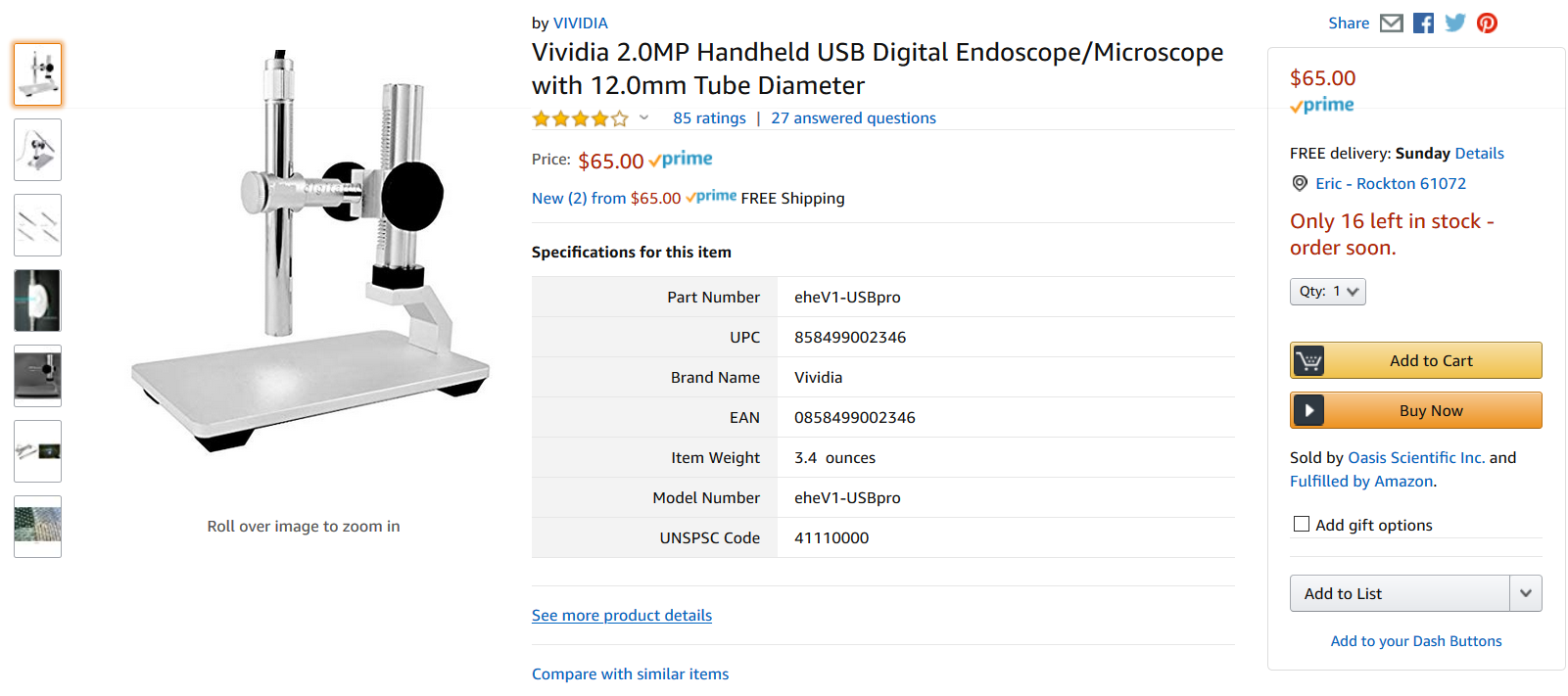
Things I like:
Things I do not like: some background noise in the image, but I think that is common with all cameras of this type (CMOS sensors).
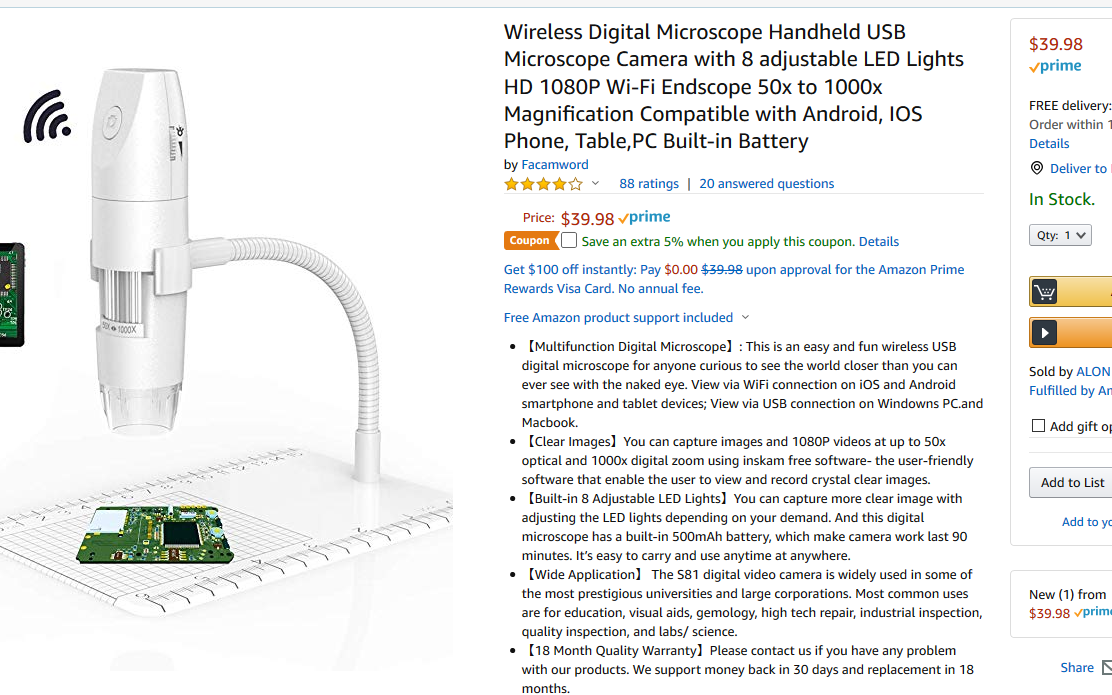
Any camera I absolutely do not recommend? Yes: the type with a focus wheel near the lens instead of at the back. The lens has play, so the image moves around and the focus does not stay adjusted. It is fine as a real microscope but does not work well mounted on a CNC. This type also had a lower frame rate and a noisier image, and a maximum resolution of only 1920 × 1080.
CamCopyM4! Copyright 2023–2026 by Crafty CNC / Eric Brust. www.craftycnc.com